
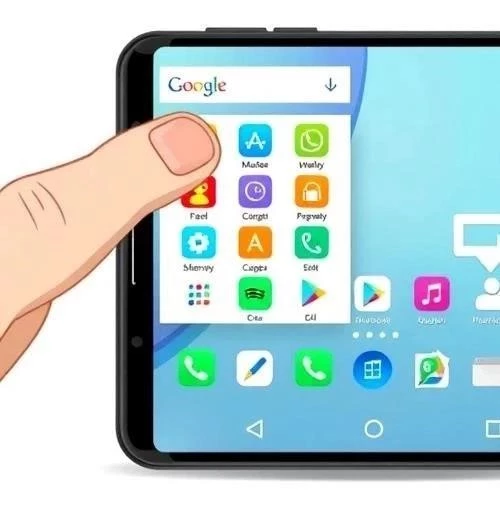
In MIUI 12, an app shortcut is usually just its icon on the Home screen. You do not need to reinstall the app to create one: if the app is still on your phone, find it in the app drawer or through search and add or drag its icon onto a Home screen page. The exact option can vary slightly with your launcher settings and MIUI version.
Add an app icon
- Open Settings and tap Home screen.
- Check the Home screen layout. If it is set to With App drawer, swipe up from the bottom of the Home screen to open the drawer. If you use Classic mode, installed apps normally appear on Home screen pages already.
- Find the app. Touch and hold its icon, then drag it to the desired page and release. If a menu appears instead, choose Add to Home screen.
If you cannot find the app, swipe up and use the drawer’s search field, or search for it using the phone’s system search. Check that it is installed and not hidden in the launcher’s settings. An icon removed from the Home screen is not necessarily an app that has been deleted.
To make room, drag the icon to the edge of the screen and pause to move to another page. You can also place it in a folder by dragging it onto another app icon. If MIUI will not let you move icons, touch and hold an empty area, open the Home screen settings, and turn off Lock Home screen layout, if that option is enabled.
Create a shortcut to a website
For a web page, open it in Chrome, tap the three-dot menu, and select Add to Home screen (the wording may differ slightly). Check the suggested name, then tap Add and confirm the placement if prompted. The new icon opens that page in the browser; it is not a separately installed app. Other browsers may offer a similar command, but the menu name and availability depend on the browser.
Add a widget or restore a missing icon
For a widget, touch and hold a blank area of the Home screen, tap Widgets, choose an available widget, and place it on the page. A widget is interactive or displays information, while a shortcut simply opens an app or page; choose the one that matches what you need.
If an icon disappears, first check other pages and folders, then search the app drawer; Re-add it using the steps above. Avoid downloading “shortcut maker” apps unless necessary: the built-in launcher or browser option is simpler and avoids granting extra permissions. Menu labels can differ across devices, so if a step is missing, check the Home screen settings and your browser’s menu rather than assuming the app has been removed.


8 Comments. Оставить новый
Explaining how to move an icon between pages or into a folder adds useful detail beyond the basic instructions. The article is organized in a way that makes those options easy to locate.
The suggestions for using app-drawer search and checking hidden apps are practical next steps when an icon cannot be found. They keep the advice focused on likely causes.
The article gives clear, usable directions for moving an app icon and also explains what to try if the layout is locked. That troubleshooting detail makes the guidance more complete.
The website shortcut section is a useful addition because it separates browser bookmarks placed on the Home screen from installed apps. That distinction helps set the right expectations.
I like that the instructions account for both Classic mode and the app drawer. MIUI setups can differ, so explaining how to check the Home screen setting makes the steps more practical.
This is a helpful overview for restoring Home screen access to an app without confusing that process with reinstalling it. The version-dependent caveats are appropriate for Xiaomi devices.
The distinction between removing an icon and uninstalling an app is especially helpful. It addresses a common source of confusion without suggesting that the app needs to be installed again.
The steps are easy to follow, and the note that menu wording may vary is sensible. It avoids implying that every MIUI version or browser presents identical options.