
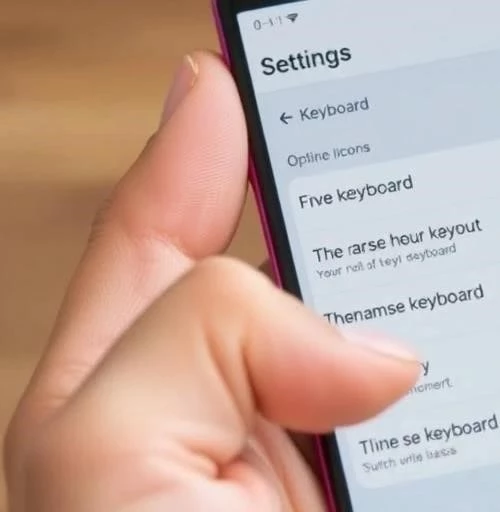
You can change the keyboard on your Redmi Note 9 by selecting another keyboard already installed on the phone or installing one from Google Play. The exact names of menu items can vary slightly depending on your MIUI version, but the process is much the same. You do not need to replace or open the phone’s hardware: this is a software setting.
Before you begin
Make sure the keyboard app you want is installed and comes from a trusted source. Gboard is commonly preinstalled; other options may include Microsoft SwiftKey or a keyboard offered by your phone’s manufacturer. If you are downloading an app, use Google Play, check the developer, and review the permissions it requests. A keyboard can process what you type, so choose one you trust.
Switch to a keyboard that is already installed
- Open Settings on your Redmi Note 9.
- Scroll down and tap Additional settings. On some versions, the relevant option may be under System or a similarly named menu.
- Tap Languages & input, then open Current keyboard or Manage keyboards.
- Enable the keyboard you want to use. If a warning appears, read it before proceeding; enabling a keyboard allows it to be selected for typing.
- Return to Current keyboard and choose the newly enabled app.
To check the change, open Messages, Notes, or another app with a text field and tap the field. The selected keyboard should appear. Some versions of Android also show a small keyboard icon in the navigation area while the keyboard is open. Tap it to choose a different enabled input method.
Install and select another keyboard
- Open Google Play Store, search for the keyboard app by its official name, and install it.
- Open the app and follow its setup instructions. Many keyboard apps include buttons that take you to the correct settings screens.
- When prompted, enable the keyboard under Manage keyboards or Available keyboards.
- Set it as the current input method using the steps above, or use the Change keyboard prompt if the app provides one.
- Open a text field and confirm that the new layout appears and works as expected.
Do not enable an unfamiliar keyboard simply to dismiss a warning. Android displays a privacy notice because an input method may handle text you enter. Download only from a source you trust, and avoid entering sensitive information into a keyboard app you do not know.
Change the keyboard language or layout
You may not need a different keyboard app to type in another language. Open the keyboard, tap its gear icon, and look for Languages or Languages and types. Add the language and layout you need, then switch between them using the globe key or by holding the space bar. The options differ between apps. If the gear is not visible, tap the keyboard’s menu icon or open that keyboard’s settings from the Settings app.
If the keyboard does not appear
- Go back to Settings > Additional settings > Languages & input and check that the keyboard is enabled and selected.
- Restart the phone, then test the keyboard in a different app. This helps identify whether the problem affects one app or the whole device.
- Open Settings > Apps > Manage apps, find the keyboard, and check that it is installed and enabled. Menu labels can differ by MIUI release.
- If the keyboard crashes, update it in Google Play. You can also open its app details and clear its cache. Avoid clearing data unless you are prepared to lose saved preferences, downloaded languages, or personal dictionary entries.
- If you cannot type your phone’s password, do not change input settings blindly. Restarting may help; if not, use a trusted support option rather than sharing your unlock code.
Switch back or remove a keyboard
To return to your previous keyboard, select it again under Current keyboard. If you no longer want a downloaded keyboard, first choose another input method, then uninstall the unwanted app through Google Play or Settings > Apps. Do not disable every keyboard: keep at least one enabled so you can enter text.
In short
Install a trusted keyboard if necessary, enable it in the input settings, and select it as the current keyboard. If you only want another language, add a layout in the keyboard’s own settings instead. Menu wording may vary slightly on the Redmi Note 9, but the keyboard is changed through software settings, not by physically replacing a component.

4 Comments. Оставить новый
The steps are easy to follow, and noting that menu names may vary by MIUI version is especially useful.
Good advice about downloading keyboards from trusted sources. The setup guidance is concise and reassuring.
A practical guide for anyone who wants to switch keyboards without changing anything on the phone itself.
Clear and helpful instructions. I appreciate the reminder to check keyboard permissions before enabling an app.