
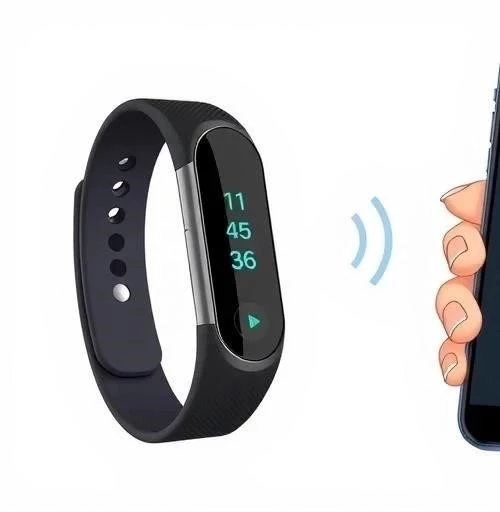
Huawei Band 7 connects to a smartphone through the Huawei Health app. The app is used to pair the devices, synchronize activity and sleep data, manage notifications, and change the band’s settings. Pairing is generally similar on Android and iPhone, although the way you install Huawei Health can vary by country and phone model.
Before you start
- Charge the band and keep it close to your phone during setup.
- Turn on Bluetooth on the phone. An internet connection may also be needed to install or update the app.
- Install Huawei Health from a trusted source. On iPhone, check the App Store. On Android, use the official Huawei distribution channel available in your region, such as AppGallery or Huawei’s consumer support website. Availability and installation steps can differ by country.
- Allow Huawei Health to use Bluetooth and any other permissions it requests for the features you want. Permission names and menus vary between phone versions.
Pairing the band for the first time
- Open Huawei Health. Sign in or create an account if the app asks you to. Follow the on-screen prompts and review the requested permissions.
- Start adding a device. Open the Devices tab and tap the option to add a device. Depending on the app version, you may be able to choose Add or Scan.
- Select Huawei Band 7. If the band appears in the list, tap its name. Otherwise, use the scan option and wait while the app searches nearby devices.
- Confirm the connection. A pairing request should appear in Huawei Health and, in some cases, on the band. Check that the code shown on both devices matches, then confirm on the phone and tap the check mark on the band if prompted.
- Finish setup. Wait for pairing and any initial synchronization to complete. Follow the app’s prompts to choose settings such as notifications, health tracking, and software updates.
Keep the Huawei Health app open and the phone near the band until setup finishes. If the band has already been paired with another phone, it may need to be disconnected from that phone or reset before a new connection can be established. A reset removes information stored on the band, so synchronize data first when possible.
Android and iPhone notes
On Android, Huawei Health may need permission to find nearby devices or use Bluetooth. Some Android versions also display a location permission during Bluetooth scanning. Grant the permissions requested for device discovery, and check that Bluetooth is enabled in the phone’s settings. The exact wording depends on the operating system.
On iPhone, enable Bluetooth and allow Huawei Health to access it when prompted. If the band does not appear, check the iPhone’s Bluetooth settings and the app’s permissions. Complete the initial pairing from inside Huawei Health rather than relying only on the phone’s Bluetooth menu.
If Huawei Band 7 will not connect
- Check distance and charge. Place the band beside the phone and make sure it has enough battery to stay on during pairing.
- Restart both devices. Turn Bluetooth off and on, close and reopen Huawei Health, and restart the phone and band if necessary.
- Check for an existing connection. A band connected to another phone may not be discoverable. Disconnect it from the old phone first. If you no longer have access to that phone, consider resetting the band using its settings; this can erase locally stored data.
- Remove an old pairing carefully. If the phone lists a previous Band 7 connection, remove or forget it in Bluetooth settings, then try adding the band again in Huawei Health. If pairing still fails, remove the device from the app as well, restart the devices, and repeat setup.
- Update the app and system. Install available Huawei Health updates from the same trusted source, and check for phone or band software updates after connection is restored.
- Review permissions and restrictions. Confirm that Bluetooth access is allowed and that battery-saving settings are not stopping Huawei Health from running during setup.
If the connection drops after successful pairing, open Huawei Health and check whether the band is still listed under Devices. Keep Bluetooth enabled and allow the app to operate in the background if you rely on automatic synchronization or notifications. Reconnection behavior can depend on phone settings, software versions, and regional app availability.
After connection
Once paired, open the device page in Huawei Health to adjust available features. You can select which app notifications appear on the band, review activity and sleep records, and check for firmware updates. Some options require additional permissions or may differ by phone and region. If a feature does not work, verify its individual setting in Huawei Health and confirm that the relevant phone permission is enabled.
In brief: install Huawei Health, enable Bluetooth, add Huawei Band 7 from the app’s Devices section, and confirm the pairing request on both devices. Keeping the band charged, nearby, and free from an active connection to another phone resolves many first-time pairing problems.


6 Comments. Оставить новый
The article covers the essential steps for first-time pairing without adding unnecessary detail.
The setup steps are clearly organized, and the distinction between iPhone and Android installation options is useful.
The article explains the main pairing process in a practical sequence, from preparation through initial synchronization.
Keeping the band close to the phone and leaving the app open are straightforward tips that may help setup finish smoothly.
The notes about regional app availability and varying permission menus make the instructions more applicable to different phones.
Including a reminder to check that the pairing codes match helps clarify an important part of the connection process.