
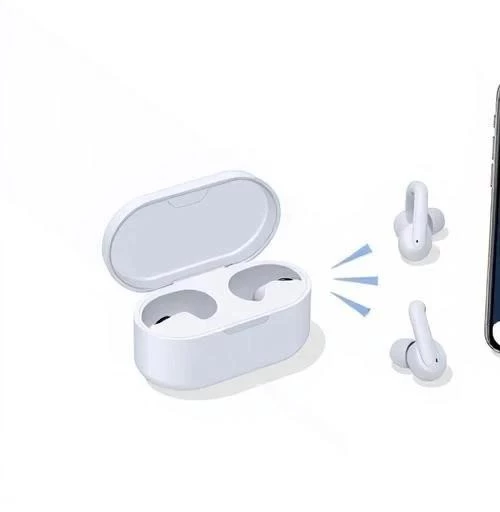
Xiaomi headphones and earbuds connect to phones, tablets, computers, and other devices through Bluetooth. The exact controls vary between models, including Xiaomi, Redmi, and Redmi Buds products, but the basic process is similar: charge the headphones, put them into pairing mode, and select them in the device’s Bluetooth settings. This guide explains the usual steps and what to try if the connection does not work.
Before you begin
- Check the charge. Charge the headphones and, for wireless earbuds, their case. A low battery can prevent pairing or cause the connection to drop.
- Keep the devices close. Place the headphones within about one metre of the phone or computer while pairing.
- Check the model instructions. Button combinations and indicator lights differ. If the steps below do not match your headphones, use the instructions supplied with that particular model;
- Disconnect other devices if needed. Headphones may reconnect automatically to a device they have already been paired with. Temporarily turn off Bluetooth on that device or disconnect the headphones from it.
Pair Xiaomi or Redmi wireless earbuds with a phone
- Prepare the earbuds. Make sure both earbuds are seated correctly in the charging case and that the case has power. Open the lid. On many models, this makes the earbuds available for connection or activates pairing mode when they are new.
- Look for a pairing indicator. A light may blink on the case or earbuds. Some models require you to press and hold the case button until the indicator flashes. Other models use touch controls or enter pairing mode automatically. Follow the model’s instructions rather than holding controls at random.
- Open Bluetooth settings on the phone. On Android, open Settings, then Bluetooth or Connected devices. Turn Bluetooth on and choose the option to pair a new device. Menu names can differ between Android versions and phone brands.
- Select the headphones. Wait for the available-device list to refresh. Tap the name that matches your product, such as a Xiaomi or Redmi Buds model. Check the model name on the box or in the manual if several similar names appear.
- Confirm the request. If the phone asks you to approve pairing, tap Pair or Connect. Most headphones do not require a PIN. If a code is requested, consult the product documentation instead of guessing.
- Test the connection. Play a short audio clip and check that sound comes through the headphones. If the model supports calls, check its microphone in a brief test call or in the phone’s audio settings.
For a first connection, keep the case open until the headphones appear in the Bluetooth list. If they do not show up, close the case for several seconds, open it again, and repeat the pairing-mode step. Avoid selecting an old entry for the same headphones if it is known to be causing a failed connection.
Connect over Bluetooth to an iPhone or iPad
Put the headphones into pairing mode using the method for your model. On the Apple device, open Settings > Bluetooth and switch Bluetooth on. Wait for the headphones to appear under available devices, then tap their name. When the status changes to connected, play audio to confirm the result. If the headphones are already connected to another phone, disconnect them there first; many models do not maintain two active audio connections at once.
Pair Xiaomi headphones with a Windows computer
- Put the headphones into pairing mode and keep them near the computer.
- In Windows, open Settings > Bluetooth & devices. Turn Bluetooth on.
- Select Add device, choose Bluetooth, and wait for the headphone name to appear.
- Select the correct name and complete any on-screen confirmation. Then open the sound output menu and choose the headphones if Windows has not selected them automatically.
On a Mac, open System Settings > Bluetooth, switch Bluetooth on, and select the headphones from the nearby devices list. Once connected, check Sound settings if audio continues to play through the computer’s speakers.
Pair with another device or reconnect later
After successful pairing, the headphones usually reconnect automatically to a previously used device when they are taken out of the case or switched on. Bluetooth must be enabled, and the device must be within range. If automatic reconnection fails, open its Bluetooth settings and tap the saved headphone name.
To connect the headphones to a different phone or computer, first disconnect them from the current device. Then activate pairing mode and select them in the new device’s Bluetooth menu. Some models support multipoint connection, which allows connections to two devices, but this feature is not available on every Xiaomi or Redmi product. Consult the model specifications before expecting simultaneous connections.
If the headphones do not appear or will not connect
- Confirm pairing mode. Simply turning on the headphones may not make them discoverable. Use the documented button, case control, or touch gesture to enter pairing mode and check for the expected light or voice prompt.
- Check for an existing connection. A nearby phone, tablet, or computer may have connected automatically. Disconnect the headphones from that device or temporarily turn its Bluetooth off.
- Refresh Bluetooth. Turn Bluetooth off and on again on the phone or computer. If necessary, restart both devices and try pairing once more.
- Remove an outdated pairing. In Bluetooth settings, select the saved headphone entry and choose Forget, Remove device, or the equivalent. Put the headphones back into pairing mode and pair them as a new device.
- Check the battery and contacts. Charge the case and earbuds. For earbuds, make sure they are sitting correctly and that the charging contacts are clean and dry.
- Reduce interference. Move away from crowded wireless areas and keep the headphones close to the device. Other active Bluetooth connections can also make troubleshooting more difficult.
- Check for software updates. Install available system updates on the phone or computer. If Xiaomi provides an official companion app for your model and region, check it for supported firmware updates and instructions;
Resetting the headphones
A reset can help when the earbuds connect separately, repeatedly fail to pair, or retain an incorrect connection. Reset procedures vary considerably by model. Some use a button on the charging case; others require placing both earbuds in the case and holding a control for a specified time. Use the exact procedure in the model’s manual or official support material. Do not assume that one reset combination applies to every Xiaomi or Redmi product.
After resetting, remove the old headphone entry from the phone’s Bluetooth list, if it remains there. Put the headphones into pairing mode and connect again as a new device. A reset can erase saved pairing information and settings, so it should generally be tried after charging, disconnecting other devices, and restarting Bluetooth.
Connection works, but the sound does not
Check that the headphones are selected as the audio output, not merely listed as paired. Increase the volume on both the source device and the headphones, and make sure audio is not paused or routed to another accessory. On a computer, check the selected output and microphone devices in sound settings. If only one earbud plays, return both earbuds to the case, confirm that each is charging, and follow the model’s instructions for synchronising or resetting them.
Practical notes
Bluetooth pairing does not normally require internet access. Keep the headphones’ name, pairing status, and model number in mind when selecting from a list of nearby devices. Do not share a pairing PIN or install an unofficial application to make a basic Bluetooth connection. If steps differ from this guide, the product manual takes priority because Xiaomi headphones use different pairing controls across generations and product lines.
In short: charge the headphones, activate pairing mode, open Bluetooth settings on the phone or computer, select the correct model name, and confirm the connection. If pairing fails, disconnect other devices, forget the old entry, restart Bluetooth, and use the model-specific reset procedure only when necessary.

9 Comments. Оставить новый
The instructions are easy to follow, especially the advice to keep the headphones close to the phone during setup.
The reminder that pairing controls vary by model is useful and helps avoid assuming every device works the same way.
The overview is clear and focused on practical steps for connecting wireless earbuds to a phone.
This article provides a practical overview of common Bluetooth pairing steps for Xiaomi and Redmi products.
The charging and reconnection tips are helpful additions to the basic pairing instructions.
The guide appropriately notes that Bluetooth menu names can differ across phones and Android versions.
The structure makes the preparation advice and phone-pairing steps straightforward to scan.
It is useful that the article recommends checking the model instructions instead of trying button combinations at random.
The guide clearly explains the basic preparation steps before pairing Xiaomi or Redmi headphones.