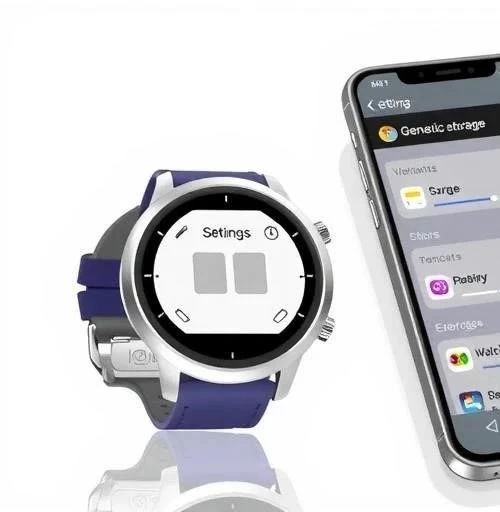
Apple Watch Series 3 has limited storage, and watchOS needs free space to install updates and run smoothly. There is no single “clear memory” button: free space by removing content and apps you no longer need. Menu names can vary slightly with your watchOS version.
Check what is using storage
On the watch, open Settings > General > Storage. You may see available space and a list of apps or content using it. You can also check from your iPhone: open the Watch app, tap My Watch > General > Storage. If the watch is almost full, remove large or unused items first.
Remove music, photos, and podcasts
- Music: In the Watch app, open My Watch > Music. Remove downloaded playlists or albums, and turn off automatic additions if you do not use them. Synced music may remain until the watch connects to its paired iPhone and completes the change.
- Photos: Go to My Watch > Photos. Reduce the photo limit or choose a smaller album, then allow the watch to sync. Photos in the synced album take up space even if you rarely open them.
- Podcasts and audiobooks: Review their settings in the Watch app and disable automatic downloads or remove episodes you have finished. Exact controls depend on the apps and watchOS version.
Delete apps you do not use
On the watch, press the Digital Crown to see the app grid. Touch and hold an app; if the icons begin to jiggle, tap the delete button on a removable app and confirm. Alternatively, open the Watch app on iPhone, scroll to the installed app, tap it, and switch off Show App on Apple Watch. Some built-in apps cannot be removed. Deleting a watch app does not necessarily delete its iPhone app or account data.
Review messages and other data
Delete unwanted conversations or attachments from Messages, especially large photos and videos, using the available controls on the paired iPhone or watch. Remove offline maps, downloaded media, or stored files within the app that created them. Avoid deleting health or fitness records just to gain space: they may be important, and syncing or backup behavior varies.
Restart and check again
After removing content, restart the watch: hold the side button, tap the power icon, turn it off, then hold the side button again to turn it on. If it is unresponsive, force restart only as a last resort by holding the side button and Digital Crown together until the Apple logo appears. Do not force-restart during an update. Return to Storage and give syncing time to finish before judging the result.
If storage is still full
Install a watchOS update only when there is enough free space, the watch is on its charger, and it is connected as instructed by the iPhone. If ordinary cleanup does not help, unpair the watch using the Watch app. Unpairing creates a backup on the iPhone in the usual process; then pair the watch again and restore that backup. If the problem persists, erase the watch from Settings > General > Reset and set it up again. Erasing removes data and settings, so make sure you have a suitable backup first.
Tip: Check storage periodically and limit automatic downloads. This reduces clutter without repeatedly erasing the watch or removing information you still need.