
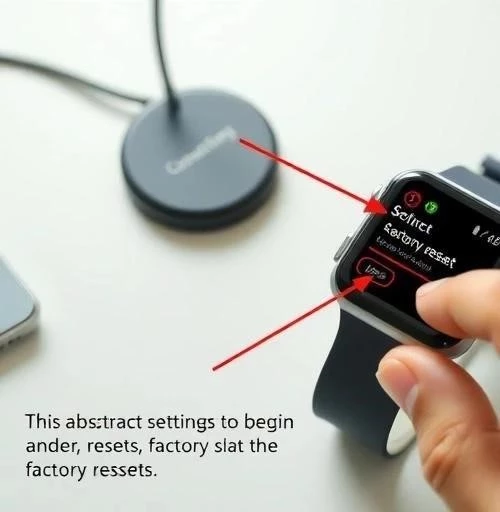
Resetting an Apple Watch can solve persistent software problems or prepare it for a new owner, but the right method depends on your situation. Before erasing it, make sure you understand what will be removed and protect any information you want to keep.
Before you begin
Keep the watch and its paired iPhone close together, connect both to Wi-Fi or cellular service, and charge the watch or place it on its charger. If you can, update the watch and iPhone first. Unpairing through the Watch app creates a backup on the iPhone and removes the watch’s Activation Lock, making this the best choice when you still have the phone.
Erase it using your iPhone
- Open the Watch app on the paired iPhone and tap All Watches.
- Tap the information button next to your watch, then choose Unpair Apple Watch.
- For a cellular model, choose whether to keep or remove the mobile plan. If you are selling or giving away the watch, remove the plan and contact your carrier if necessary.
- Enter your Apple Account password if asked, then confirm. Keep the devices near each other until unpairing finishes.
The iPhone will erase the watch and save a backup. When setting up a replacement or the same watch again, you can restore from that backup.
Erase it without the iPhone
If the paired phone is unavailable, open Settings on the watch and choose General > Reset > Erase All Content and Settings. Enter the passcode if requested and confirm. On a watch with cellular service, choose whether to keep or remove the plan. This erases local data, but it does not remove Activation Lock. You will still need the Apple Account credentials originally used to set it up.
If you forgot the passcode
Place the watch on its charger. Press and hold the side button until the power button appears, then press and hold the Digital Crown until Erase all content and settings appears. Tap Reset and confirm. If this option is unavailable, use the iPhone Watch app or Apple’s current support instructions.
After resetting
For a sale or handover, remove the watch from your Apple Account’s device list after erasing it, and verify that the next owner can pair it. A reset is not a repair for hardware damage; if problems continue after setup, contact Apple Support. Never share your account password or passcode with a buyer.

6 Comments. Оставить новый
The article clearly distinguishes between erasing a watch through the paired iPhone and erasing it directly on the watch. That distinction is important because unpairing with the iPhone also creates a backup and removes Activation Lock, while erasing on the watch does not.
The explanation of Activation Lock is one of the strongest parts of the guide. Readers are warned that erasing the watch alone will not make it ready for a new owner, so they know they may still need the original Apple Account credentials.
The cellular-plan guidance is useful, especially for people selling or giving away a watch. Explaining that the plan can be removed during the process, and that the carrier may need to be contacted, helps readers avoid overlooking an important step.
The steps are organized by situation, which makes the instructions easy to follow without requiring readers to search through unrelated information. Including the passcode-recovery option also makes the guide more helpful for people who cannot access the watch normally.
This is a concise and sensible guide that explains both how to erase the watch and what to expect afterward. The reminder that an iPhone backup can be restored during setup gives readers a clearer idea of how to protect their data before resetting.
The preparation advice is practical: keeping the devices nearby, ensuring a network connection, and charging the watch can help prevent interruptions. The article also appropriately recommends updating the devices first when possible.