
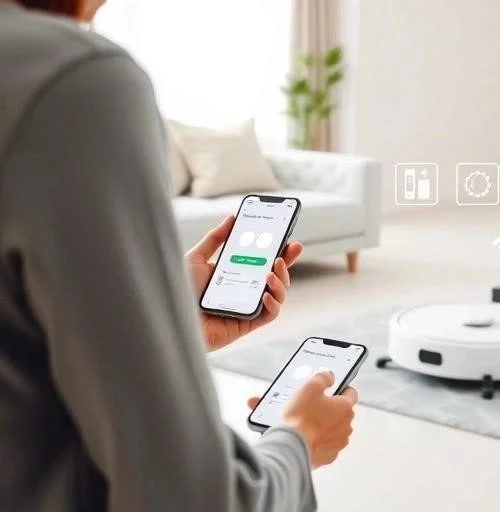
A robot vacuum is a small homecoming machine: it leaves its dock, investigates the floor, and returns with a report written in dust. The Xiaomi Mi Robot Vacuum-Mop 2 can vacuum, mop, map rooms, and follow schedules, but its first trip goes best when you give it a little preparation. This guide walks you from unboxing to your first reliable clean, including app pairing, Wi-Fi, mapping, mopping, and the fixes for common setup snags.
A quick note before you begin: Xiaomi sells several similarly named vacuum-and-mop models, and menus or button combinations can differ by region and software version. Check the label on the underside of your robot or its manual to confirm the exact model. If an instruction on your unit differs from this guide, follow the manual for that specific device.
Give the robot a proper landing pad
Start with the charging dock. Put it on a hard, level surface against a wall, close to a power outlet. Choose a spot where the robot can approach and leave without weaving through chair legs. As a practical rule, leave some open floor on both sides and in front of the dock; the exact clearance recommendation may vary, so use the diagram in your manual if available. Avoid placing the dock on a rug, beside stairs, or in a narrow passage. A dock hidden behind a door may look tidy to a human and like a teleportation puzzle to a robot.
- Remove packaging, protective foam, films, and transport locks from the robot and dock.
- Connect the dock to power, then place the robot on its charging contacts. Make sure the contacts meet and the unit indicates that it is charging.
- Let it charge before its first full cleaning run. If the battery is very low, allow it to build up a useful charge rather than asking it to map the entire home immediately.
- Clear loose cables, socks, toys, and lightweight objects from the floor. Move curtains or tassels that could catch in a brush.
Look over the robot before switching it loose. Check that the main brush and side brush are installed, that the dust compartment is seated, and that nothing is wedged beneath the wheels. If your package contains a mop pad or water tank, keep those parts off for the first mapping run. A dry, unobstructed robot is easier to observe while it learns the layout.
Install the app and prepare your network
Use the Xiaomi Home app, which may also appear as Mi Home in some regions or on older app versions. Download it from your phone’s official app store. Sign in with a Xiaomi account, or create one if prompted. Then check that your phone has Bluetooth and location permissions available to the app; the names of these permissions vary by operating system. They can help the app discover nearby devices during pairing.
Before you begin, connect your phone to the home Wi-Fi network you want the vacuum to use. Many robot vacuums in this family require a 2.4 GHz Wi-Fi network for setup; a 5 GHz-only network may not work. If your router combines 2.4 GHz and 5 GHz under one network name, pairing may still work, but temporarily separating the bands or using a 2.4 GHz guest network can help if discovery fails. The password must be entered exactly, including capital letters and punctuation. The robot also needs a stable signal where its dock is located.
- Keep the phone and robot near the router and dock during setup.
- Turn off a VPN temporarily if it interferes with local device discovery.
- Check that the router is not blocking new devices through a guest-network isolation setting or a device limit;
- Choose the correct country or region in the app. Some devices only appear when the app region matches the market for which the device was made.
Region settings deserve special attention. If the app cannot find the robot, do not repeatedly reset it as a first response. Confirm the exact model, the app region, and the network band first. Changing the region can affect which devices and services are available in the app, so select the region appropriate for your device and account rather than cycling through random options.
Pair the Mi Robot Vacuum-Mop 2
Open Xiaomi Home and tap the control for adding a device, often shown as a plus sign. You can let the app scan nearby devices or search for the robot by name. Select the matching Mi Robot Vacuum-Mop 2 entry, follow the prompts, and provide your Wi-Fi details when asked. Keep the phone close to the robot until the app confirms that setup is complete.
If the robot does not appear automatically, use the app’s manual add-device search. The app may ask you to put the vacuum into Wi-Fi setup mode. On many Xiaomi robot vacuums, this involves holding a pair of buttons until the Wi-Fi indicator blinks or a voice prompt announces a reset. Button combinations differ between versions, so consult the printed manual or the app’s on-screen instructions for your exact unit rather than relying on a guessed combination.
During pairing, the app may briefly connect to a temporary Wi-Fi network created by the vacuum. Allow the phone to join it if prompted, then return to the app and wait for the process to finish. Do not power off the robot, walk out of range, or switch networks halfway through. Once it is added, give it a simple, recognizable name such as “Hallway” or “Downstairs”—especially useful if you later add other Xiaomi home devices.
If pairing stops or fails
- Check the password. Re-enter it carefully and make sure the phone is connected to the intended 2.4 GHz network.
- Move closer. Try again with the robot, dock, phone, and router in the same room.
- Restart gently. Close and reopen the app, then restart the router only if convenient. Avoid factory-resetting the robot unless the manual or app recommends it.
- Review permissions. Allow the app the nearby-device, Bluetooth, or location access it requests for discovery.
- Check region and model. A mismatch can make a perfectly functional robot seem invisible.
- Try another setup path. If automatic discovery fails, use manual search and follow the app’s instructions for Wi-Fi reset mode.
If the vacuum was previously linked to another account, it may need to be removed from that account or reset according to the manual before you can add it. If you bought it second-hand, ask the former owner to unlink it where possible. A reset erases some device settings, so treat it as a last resort, not the first button to press when the app is merely taking its time.
Let it draw the first map
Once the robot is online, begin with a mapping or full-home cleaning run, depending on the options offered in your app and firmware. Open interior doors to the rooms you want included, lift light floor clutter, and make sure the dock’s route is clear. Stay nearby for this first outing. You are not expected to escort the robot like a parade marshal, but watching its path helps you spot tangled cords, a dock that is hard to reach, or a threshold it cannot cross.
For a useful map, leave furniture in its normal position. The robot uses its sensors and movement to understand the floor plan; it does not need an empty house, but piles of objects can make the first map less representative. Let the run finish and allow the robot to return to its dock on its own. Interrupting a mapping run can leave the map incomplete or prevent it from being saved, depending on the software.
When the map appears in Xiaomi Home, inspect it. If the app supports room division, room naming, or map editing for your version, use those tools to make the layout easier to control. You might label spaces “Kitchen,” “Study,” or “The Room Where Cables Go to Disappear.” If the map looks distorted, first check that the dock stayed in one place and the robot had a clear route. A fresh mapping run may help, but only delete an existing map if you are ready to set it up again.
Set boundaries before sending it on missions
Look for map controls such as virtual walls, restricted areas, or no-mop zones. Availability and labels depend on the app and software version. These boundaries can keep the robot away from pet bowls, delicate floor coverings, loose cables, or an area where a low ledge makes navigation unsafe. Use them thoughtfully: an overly generous boundary can make a room seem to vanish from the cleaning plan.
Virtual boundaries are a useful backup, not a substitute for basic safety. Keep the dock away from stairs and other drop-offs, and do not assume the robot will recognize every unusual edge or obstacle. Pick up small objects that could be swallowed by the brush or wrapped around a wheel. If you have pets, supervise the first runs and remove anything that could be a hazard.
Configure a cleaning routine
Open the device page in Xiaomi Home and explore its cleaning controls. Depending on the version, you may be able to choose a whole-home clean, select rooms, adjust suction, or set a cleaning schedule. Start with a simple whole-home run at a moderate setting. Once you know how long it takes and where it struggles, create a more tailored routine—for example, a more frequent kitchen clean and a quieter schedule for the rest of the home.
Schedules are most dependable when the robot is charged, the dock is accessible, and doors are in the expected positions. If a room is closed during a scheduled run, the vacuum cannot clean it simply because the map contains it. Set the schedule for a time when the floor is likely to be clear and household activity is low. If you use the robot in a shared home, tell everyone what the schedule is; a vacuum starting under a dining chair can be startling if nobody knows it has a calendar.
Explore notifications and device settings after the first successful clean; The app may offer status messages, maintenance reminders, firmware updates, or options for sharing device access. Install updates when the robot is docked and has sufficient power, and avoid interrupting an update in progress. Menu names change over time, so look for the meaning of a setting rather than expecting every screen to match an older screenshot.
Add the mop only when you are ready
The vacuum’s first map is easier to manage without a damp pad. After mapping, prepare the mop assembly using the instructions supplied with your model. Fit the mop pad securely, attach the water tank or mop module as directed, and fill it only in the way the manual specifies. Use clean water unless the manufacturer explicitly approves an additive. Detergents, disinfectants, essential oils, and other liquids can damage the tank, seals, or floor finish, and may void warranty coverage.
Before a mopping run, check that the floor type is suitable and that the pad is clean. Do not send a damp mop over a delicate surface unless its care instructions allow it. If your app provides no-mop zones, mark rugs and other water-sensitive areas before starting. If it does not, physically remove small rugs or block off the area. The vacuum cannot reliably infer that a particular rug is precious simply because it is beige and expensive.
Choose a modest water setting for the first test if your app offers adjustable water flow. Watch the robot for a few minutes and check that the pad is attached, the tank is seated, and no water is leaking. A robot mop is designed for routine light cleaning, not for soaking floors or removing every dried-on spill. For sticky messes, clean the area manually first.
When mopping is finished, remove and rinse the pad, empty or care for the water tank as the manual recommends, and let washable parts dry fully before storing them. Leaving a wet pad attached can create odors and may mark a floor if the robot remains parked in one place. Keep the mop assembly off when you want a vacuum-only run.
Keep the little explorer in good condition
A robot vacuum needs less attention than a traditional vacuum, not no attention. Hair and threads can wind around the brush, dust can cover sensors, and a dirty filter can make cleaning less effective. Build a quick maintenance check into your routine, particularly if you have pets, long hair, or a busy household. Always power the robot off before cleaning parts, and follow the care instructions for washing or replacing components.
- Dust compartment: Empty it when full or when the app asks. Refit it securely before the next run.
- Filter: Remove dust gently and replace or wash it only as the manual permits. A filter that is not completely dry should not be reinstalled if it has been washed.
- Main and side brushes: Remove hair and fibers carefully. Check that the brush turns freely and that the side brush is not bent or clogged.
- Wheels: Clear away wrapped threads and crumbs that might impede movement.
- Sensors and charging contacts: Wipe them gently with a soft, dry cloth. Avoid spraying liquid directly onto the robot.
- Mop pad and tank: Rinse and dry the pad after mopping, and maintain the tank as instructed by the manufacturer.
Replacement intervals depend on how often you clean, the surfaces in your home, and the condition of each part. Use the app’s maintenance reminders as a prompt, then inspect the components yourself. A brush that is visibly damaged or a filter that remains clogged after care may need replacement. Use compatible parts intended for your exact model.
Troubleshooting the usual first-day mysteries
“It cannot find the dock.”
Check that the dock is powered, level, and in its original position. Clear clutter around its approach and make sure the charging contacts are unobstructed. If you moved the dock after mapping, return it to its mapped location or follow the app’s instructions for updating the map. Repeatedly carrying the robot to a different corner can confuse its sense of home.
“It is offline in the app.”
Confirm that the router is online and the dock has power. Check whether the Wi-Fi password or router settings have changed. Move the dock into a stronger signal area if necessary. If other devices are also offline, troubleshoot the router first; if only the vacuum is affected, reopen the app and follow its reconnect instructions. A Wi-Fi reset may be needed after a network change, but use the exact procedure in the manual.
“It misses a room or leaves a strange strip uncleaned.”
Look for a closed door, a threshold it cannot cross, furniture that blocks access, or a no-go boundary on the map. Ensure the robot has room to turn and that the floor is not slippery or tangled with cords. Try a room-specific clean from the app if available. One missed strip does not always mean the map is broken; watch another run before deleting anything.
“The map is wrong or the robot seems lost.”
Make sure the dock has not been moved and that the robot starts from it. Clean the sensors gently and clear any jammed wheel or brush. Strong changes to the environment—moving the dock, closing doors, or rearranging major furniture—can affect navigation. If the problem continues, save any settings you want to keep and use the app’s map-recovery or remapping guidance for your software version.
“The mop leaves too much water.”
Stop the run and check that the tank and pad are installed correctly. Reduce water flow if that control is available, inspect the floor’s suitability, and make sure the robot is not leaking. Do not continue if water is pooling. Dry the floor and consult the model manual before using the mop again.
A calm first run is a successful first run
The most reliable setup is not the one with the most clever settings; it is the one that gives the robot a stable dock, a compatible Wi-Fi connection, a clear first route, and sensible boundaries. Pair it in Xiaomi Home, let it map with the mop removed, inspect the map, and only then add schedules and mopping. After that, a little brush and sensor care will help it keep its bearings—and keep the dust from reclaiming the kingdom.
First-run checklist: dock powered and accessible; robot charged; 2.4 GHz Wi-Fi ready; app region and model checked; floor cleared of cables and small objects; first map completed; restricted areas reviewed; mop tested only on a suitable floor. With those boxes checked, your Mi Robot Vacuum-Mop 2 is ready to trade its cardboard debut for a proper tour of the house.


7 Comments. Оставить новый
This reads like a calm guide standing beside you while the vacuum wakes up. The model caveat is especially useful; confidence is good, but knowing when to trust the manual is better.
The “teleportation puzzle” line turns dock placement into something memorable. This guide makes setup feel less like troubleshooting and more like giving a tiny explorer a sensible map of home.
A welcome antidote to vague gadget advice: the reminder to check the exact model label could save someone from following the wrong button sequence. Practical, with just enough wit to keep the instructions human.
There’s a lovely sense of scale here: a few inches of clearance and a charged battery can make a whole home feel navigable to a small machine. Useful advice, delivered with a spark of personality.
I like how the guide treats the dock as the robot’s home base rather than an afterthought. Clear space, level ground, and a good charge sound simple—but they’re the quiet ingredients of a successful first run.
The best detail here is the small kindness of clearing socks and cables before mapping. It recognizes that a robot’s grand expedition can be derailed by the humblest household clutter.
A refreshingly grounded setup guide. Instead of promising a flawless first clean, it explains how a sensible landing spot and a little preparation prevent the robot’s first day from becoming a slapstick routine.