
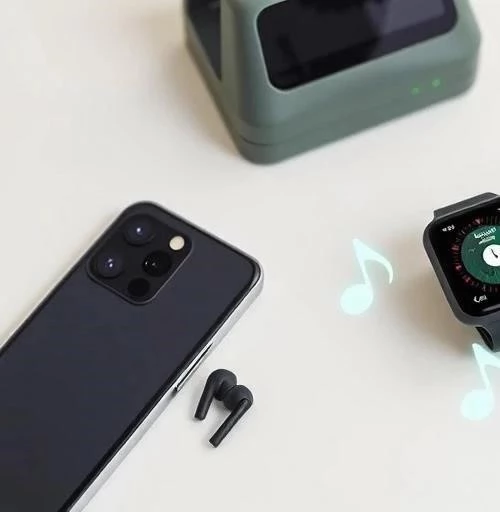
Your Apple Watch Series 3 can be a tiny music player for a run, a commute, or a dramatic kitchen dance. The trick is that you don’t usually “upload” songs straight to the watch: you sync them from your iPhone using Apple’s Watch app. Once synced, compatible tracks can play without your phone nearby.
Before you begin
- Pair the watch with your iPhone. Music syncing is managed through the iPhone’s Watch app.
- Check your music library. Songs must be available in the iPhone’s Music app. This can include music you bought, imported, or downloaded through a subscription.
- Make room. Series 3 has limited storage, and watchOS, apps, and other data use some of it. A shorter playlist is often more reliable than trying to move your whole collection.
- Charge the watch. Put it on its charger while syncing. Keeping the iPhone nearby, with Bluetooth and Wi-Fi on, can help the process finish smoothly.
Sync a playlist or album
- On your iPhone, open the Watch app.
- Tap My Watch, then scroll down and choose Music.
- Tap Add Music. Depending on your iOS version, you may be able to browse artists, albums, playlists, or individual songs.
- Choose the music you want, then tap the add button or Done to confirm.
- Leave the watch on its charger and near the iPhone. Open the Music settings again later to check whether the selection has appeared.
Syncing may take a while, especially for a large playlist. The watch may wait until it is charging, and the progress indicator is not always thrilling to watch. Start the transfer before you lace your shoes, not as you reach the front door.
Play music away from your iPhone
Pair Bluetooth headphones directly with the watch: open Settings on the watch, tap Bluetooth, and select your headphones. Then open the watch’s Music app and find your synced music, often under Library or Downloaded. Choose a track or playlist and press play.
If playback comes from your iPhone instead, look for the playback destination or device selector in the Music app and choose the Apple Watch; Menu names can vary with software version. A watch that is controlling the iPhone is acting like a remote; it does not mean the songs are stored on the watch. For phone-free listening, use music that has finished syncing and headphones paired to the watch.
Apple Music, downloads, and limits
If you use Apple Music, add eligible songs or playlists to your library on the iPhone, then select them for syncing in the Watch app. Subscription access and offline availability depend on your account and service settings. A streaming subscription does not automatically put every song on the watch, and streaming features may require a connection. For dependable offline playback, verify that your chosen music is downloaded to the watch.
Series 3 is an older model, so available features depend on its watchOS version, your iPhone, and whether the devices can still pair successfully. If menus differ from these instructions, update compatible software where possible and check Apple’s current support guidance. Storage can also be tight: remove old music before adding a new batch.
If the songs don’t appear
- Confirm the songs play in the iPhone Music app and are available in your library.
- Check Watch app → My Watch → Music to make sure you selected the playlist or album.
- Place the watch on its charger, keep the iPhone close, and allow more time for syncing.
- Restart both devices if syncing seems stuck, then check the Music settings again.
- Remove some synced tracks if the watch is low on storage, and try a smaller selection.
The simplest recipe: choose a compact playlist on your iPhone, add it in the Watch app, let the watch sync while charging, then connect Bluetooth headphones and play from the watch’s Music app. Your phone can stay behind; the soundtrack comes along.

7 Comments. Оставить новый
The “start before you lace your shoes” advice deserves a place on every runner’s fridge. Nothing turns a peaceful jog into a tiny opera of frustration like waiting for a playlist to sync.
This makes the setup feel much less mysterious. Pairing Bluetooth headphones directly with the watch is the useful little detail that turns “syncing” into actual phone-free listening.
A clear, practical guide—with the charming reminder that even a watch needs a little charging-station downtime before it can become your pocket-sized DJ.
Helpful without pretending the transfer is instant. I’d rather know to leave the watch on its charger than discover that lesson halfway out the door.
A small, friendly map through Apple’s menus—and a reminder that a carefully chosen playlist can be more useful than hauling an entire library around.
I appreciate the realistic note about storage. The dream may be an entire music library on your wrist; the Series 3 gently suggests choosing a soundtrack instead.
The kitchen-dance opening got me, and the instructions stayed refreshingly grounded. A good guide should help with both the commute and the impromptu living-room concert.