
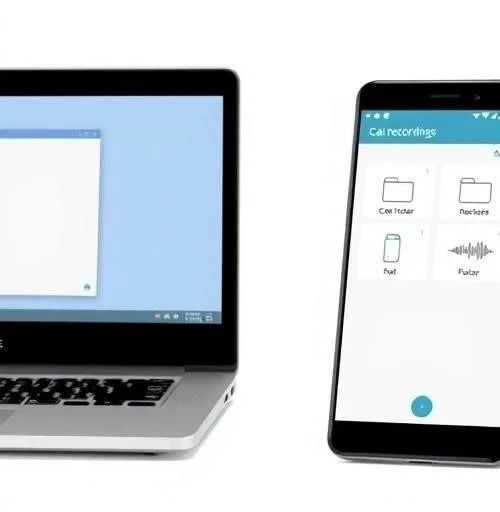
If you have recorded a call on a Xiaomi, Redmi, or POCO phone, the recording may be available in the Phone app and as an audio file in internal storage. The exact location depends on your phone model, region, Android version, and dialer app. Xiaomi phones may use either Xiaomi’s dialer or Google Phone, and they do not always save recordings to the same folder.
Check the Phone app first
Open the Phone app and look at Recent calls or call history. Select the call in question; if it was recorded, you may see a playback control or a recording option on the call details screen. Some versions of the app also show recordings under a menu such as Call recordings. This is usually the quickest way to find a recording, even when you do not know its file path.
On some Xiaomi dialer versions, recordings are kept in a folder resembling:
Internal storage/MIUI/sound_recorder/call_rec/
The folder name or location can differ between software versions. Other devices may use a Recordings/Call recordings folder, or place files in a directory managed by the dialer. If the path above is not present, it does not necessarily mean the recording is missing.
Find the file in File Manager
- Open Xiaomi’s File Manager and choose Internal storage or Browse.
- Look for
MIUI,sound_recorder,call_rec, orRecordingsfolders. - Use the search function and try terms such as call, record, or the date of the call.
- Sort results by date or check audio files with extensions such as
.amr,.m4a, or.aac;
Folder and file names vary, and some recordings may have a contact name, phone number, or timestamp as their name. If File Manager has an option to show hidden files, enable it and search again. You can also connect the phone to a computer with a USB cable, select File transfer on the phone, then search the phone’s internal storage. Avoid moving or renaming files until you have made a copy.
If your phone uses Google Phone
Many newer Xiaomi phones and some regional versions use Google Phone instead of Xiaomi’s dialer. In that case, recordings may be managed inside the Phone app rather than shown in the familiar MIUI folder. Open the relevant call in the call history and look for playback or recording controls. Google Phone’s behavior and available features can vary by country, device, and app version, so an online path that works on another Xiaomi model may not apply to yours.
Why a recording may not appear
- Recording was not enabled: Check the call details and the Phone app’s recording settings. Some devices do not offer call recording in every region.
- Different dialer or software update: An update can change the app, folder, or way recordings are accessed.
- Wrong storage location: Search internal storage, not only an SD card or a folder named “Audio.”
- File was deleted or cleaned: Check the File Manager’s recycle bin, if available, and any backup you made.
- Permissions or indexing issue: Restart the phone and reopen File Manager; confirm it has permission to access files.
Are recordings in Xiaomi Cloud?
Do not assume that call recordings are automatically uploaded to Xiaomi Cloud. Xiaomi Cloud can synchronize supported data, but availability depends on the service, region, account settings, and software version; call audio may not be included. Check the cloud service and the phone’s backup settings rather than relying on cloud sync as the only copy. For important files, copy them to a computer or another secure storage location and verify that the copy plays.
In short
Start with the Phone app’s call history. Then search internal storage for MIUI/sound_recorder/call_rec and for folders named Recordings or Call recordings. If those locations are empty, identify which dialer your Xiaomi uses and check its call details. Paths differ across Xiaomi, Redmi, and POCO models, so the app’s own recording list is often the most reliable guide.
Privacy note: Call recording laws and consent requirements vary by location. Make sure you follow applicable rules and respect the other person’s privacy.
8 Comments. Оставить новый
The article clearly explains why the recording folder can differ between Xiaomi models and software versions. Checking the Phone app first is a helpful starting point.
A clear, practical overview. The note about connecting the phone to a computer is a good alternative if searching on the device does not work.
It is helpful that the article covers both Xiaomi dialer and Google Phone, since the steps can vary across devices.
The advice to make a copy before moving or renaming an audio file is a sensible precaution.
I appreciate the practical search suggestions, especially trying terms like “call” and “record” and sorting files by date.
Mentioning common audio formats such as AMR, M4A, and AAC makes the file search more specific and useful.
This is a straightforward guide for anyone unsure where Xiaomi call recordings are stored. The File Manager steps are easy to follow.
The reminder that a missing folder does not necessarily mean the recording is gone is reassuring and useful.