
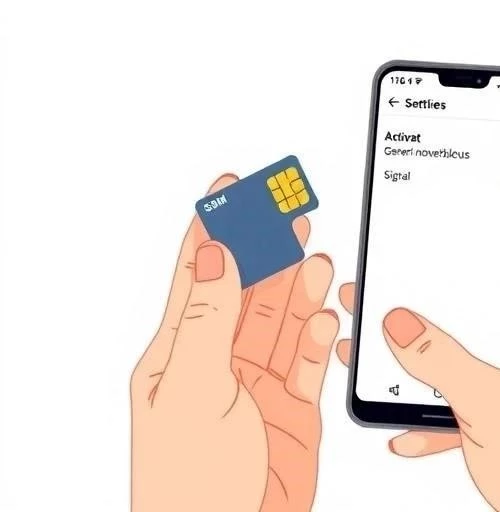
Activating a SIM card on a Xiaomi phone usually involves two separate things: the mobile operator must activate the SIM on its network, and the phone must be set up to use it. Xiaomi, Redmi, and POCO phones do not have a universal SIM activation switch or code. In most cases, you register or activate the card with your carrier, insert it, and then choose the right settings in MIUI or HyperOS.
The exact process depends on your country, mobile operator, plan, and phone model. A new SIM may work as soon as it is inserted, while another may require identity verification, an online registration, a carrier app, or a call to customer support. Follow the instructions supplied with the SIM first; the steps below help you complete the setup and diagnose common problems.
Before you start
- Check that the SIM is ready for use. Look at the packaging, welcome message, or carrier website for activation instructions. Some operators require you to register the SIM or confirm your identity before it can connect.
- Make sure the phone supports the SIM. The card must be the correct size, and the phone should support the operator’s network bands. If the phone is carrier-locked, a SIM from another operator may not work until it is unlocked.
- Have the required information nearby. Depending on the carrier, you may need the SIM number (often printed on the cardholder), your phone number, account details, or identity documents. Do not share verification codes with anyone who contacts you unexpectedly.
- Connect to Wi-Fi if available. Internet access is useful for carrier apps, online activation, and checking for phone updates. Wi-Fi is not normally required simply to detect a SIM.
Step 1: Activate the SIM with your mobile operator
If the SIM is new, first follow the operator’s activation process. Common options include registering it on the carrier’s website, using its official app, calling an activation number, visiting a store, or waiting for automatic activation. Prepaid and postpaid cards can follow different procedures, and some operators require identity verification before enabling service.
If you are transferring your existing number, activation may depend on the number-porting process. Keep your old SIM until the carrier confirms that the transfer is complete. During the changeover, calls, messages, or mobile data may be temporarily unavailable. Contact the operator if the expected activation time has passed; changing Xiaomi settings cannot complete a carrier-side number transfer.
For a replacement SIM, ask the carrier whether the old card has been deactivated and whether the replacement is active. For a travel SIM, check the plan’s start date, destination coverage, data allowance, and roaming requirements. Do not assume that inserting the card automatically starts the plan.
Step 2: Insert the SIM correctly
- Turn the phone off if practical. This reduces the chance of disturbing the connection while handling the tray.
- Find the SIM tray and use the eject tool supplied with the phone. Gently insert it into the small tray-release hole. Do not push the tool into a microphone opening; check the phone’s manual if you are unsure which hole is the tray release.
- Place the SIM in the matching cutout, aligning its clipped corner with the tray. The contacts should sit as shown by the tray’s shape. Do not force the card or use a loose adapter that could catch inside the phone.
- Slide the tray back in carefully and turn on the phone. If your model has two SIM positions, check that the card is in the slot you intend to use.
Some Xiaomi models support one physical SIM, two physical SIMs, or a combination of a physical SIM and eSIM. The available configuration varies by model and regional version. Check the device specifications before assuming that it supports eSIM or dual SIM.
Step 3: Check that Xiaomi recognizes the SIM
After startup, wait a minute or two for the phone to read the card and register with the network. You may see the operator’s name or signal bars in the status bar. If a SIM PIN is enabled, enter it only if you know it. A PIN is not the same as the carrier account password or the phone’s screen-lock code. Repeatedly entering the wrong PIN can lock the SIM and require a PUK code from your operator.
To review the SIM controls, open Settings and look for SIM cards & mobile networks, Mobile networks, or a similarly named menu. Names and locations vary between MIUI and HyperOS versions and across Xiaomi, Redmi, and POCO models. On a dual-SIM phone, select the relevant card and check that it is enabled. You may also be able to choose a default SIM for calls, text messages, and mobile data.
If the phone displays “No SIM,” “SIM not detected,” or a similar message, it has not successfully read the card. This is different from a card that is recognized but has no service. The distinction helps identify whether to troubleshoot the tray and card or contact the carrier about network activation.
Step 4: Set up calls, texts, and mobile data
Once the SIM is recognized and the carrier has enabled it, try making a call or sending a text. For mobile internet, open the SIM or mobile-network settings and make sure Mobile data is on. If you use two SIMs, confirm that the correct card is selected as the default for data. You can also temporarily turn Wi-Fi off to check whether the mobile connection works.
Most operators send the required network settings to the phone automatically. If calls and texts work but data does not, check whether your plan includes data and whether mobile data or roaming is enabled as appropriate. A carrier may require roaming for a travel SIM even when you are in the destination country; confirm this with the carrier because roaming can incur charges.
Access Point Names (APNs) control how mobile data connects. Do not change them simply because a SIM has not registered on the network. If your operator provides a specific APN, open the mobile-network settings, choose the correct SIM, and look for Access Point Names. Enter only the settings supplied by the carrier, save them, and select the new APN. Menu labels differ by software version. If you are unsure, ask the operator to send or confirm the correct configuration.
Using an eSIM, if your model supports it
An eSIM is activated differently from a physical card. The carrier usually provides a QR code, an activation link, or instructions in its app. Connect to Wi-Fi, open the phone’s mobile-network or SIM settings, and look for an option such as Add eSIM or Download a SIM. Follow the on-screen instructions and the carrier’s guidance. These options may be absent on Xiaomi models or regional versions that do not support eSIM.
Use a QR code only when it comes directly from your carrier or an authorized provider. Ask the carrier before deleting an installed eSIM profile: it may not be possible to reuse the same activation code, and a replacement code may be needed. If you are changing phones, confirm the transfer procedure before removing the profile from the old device.
If the SIM does not work: troubleshooting
- Restart the phone. A restart can prompt the device to read the card and reconnect to the network. You can also turn Airplane mode on for about 10 seconds, then turn it off.
- Check the carrier account. Confirm that the SIM has been activated, the plan is paid and active, and there is no outage or account restriction. Ask whether the SIM should already be able to make calls or use data.
- Reseat the card. Power off the phone, remove the tray, check that the SIM is clean and correctly positioned, and reinsert it without force. Do not scrape the contacts or put liquid on the card.
- Test the SIM and phone separately. If possible, test the SIM in another compatible, unlocked phone, and test a known-working SIM in the Xiaomi. If your SIM fails in another phone, the carrier or card is the likely issue. If several working SIMs fail in the Xiaomi, the tray, device settings, compatibility, or hardware may be involved.
- Check network selection. In the mobile-network settings, leave network selection on automatic unless the carrier tells you otherwise. If you are abroad, verify that your plan allows roaming and that the operator has enabled it.
- Check for software updates. Connect to Wi-Fi and look for an available system update in Settings. Install updates only through the phone’s built-in update feature or an official Xiaomi support channel.
- Reset network settings only as a later step. If other checks fail, look in Settings for an option to reset Wi-Fi, mobile networks, and Bluetooth. The exact wording varies. This may remove saved Wi-Fi networks and Bluetooth pairings, so read the confirmation screen before proceeding.
Do not factory-reset the phone as an initial troubleshooting step. A factory reset erases local data and usually cannot fix a SIM that has not been activated by its carrier. Back up important information and seek guidance before considering a reset.
What common messages mean
- “No SIM” or “SIM not detected”: The phone is not reading the card. Check the card, tray, slot, and compatibility; then test with another SIM if possible.
- “No service” or “Emergency calls only”: The SIM may be recognized but unable to register. Check activation, coverage, account status, network compatibility, and roaming permissions with the operator.
- “SIM not provisioned”: The carrier may not have enabled the card or linked it correctly to your account. Contact the carrier and provide the requested SIM details.
- Calls work, but mobile data does not: Check your data plan, selected data SIM, mobile-data switch, roaming rules, and carrier APN settings.
- SIM PIN or PUK requested: Use the correct PIN or obtain the PUK from your carrier. Do not guess repeatedly; too many incorrect attempts can permanently block the card.
When to contact support
Contact your mobile operator if activation is pending, your number has not transferred, the SIM is reported as unprovisioned, the account or plan is restricted, or network settings are unclear. Have the phone number, SIM serial number, phone model, and a description of the message ready. Share account information only through the operator’s verified channels.
Contact Xiaomi support or an authorized repair service if the phone fails to detect multiple known-working SIM cards, the tray is damaged, or the problem began after physical damage. If the phone detects a SIM but cannot connect to a particular operator, ask the carrier to check coverage, device compatibility, and any network lock before arranging a repair.
Important points to remember
The carrier activates the mobile service; Xiaomi settings let the phone use it. There is no single activation code that works for every SIM or Xiaomi phone, and a Mi Account is not normally required to activate a carrier SIM. Start with the operator’s instructions, insert the card carefully, check the correct SIM and mobile-data settings, and contact the carrier when the issue concerns activation, billing, coverage, or account provisioning.




4 Comments. Оставить новый
This guide clearly explains that SIM activation usually starts with the carrier, not a setting on the phone. The practical checklist makes it easy to follow.
The advice to use the carrier’s official instructions and protect verification codes is especially useful. The steps are straightforward and reader-friendly.
A helpful overview for Xiaomi, Redmi, and POCO users. It sets realistic expectations by noting that activation requirements vary by operator and location.
I appreciate the reminder to check compatibility and carrier-lock status before troubleshooting. Those details can save a lot of time.