
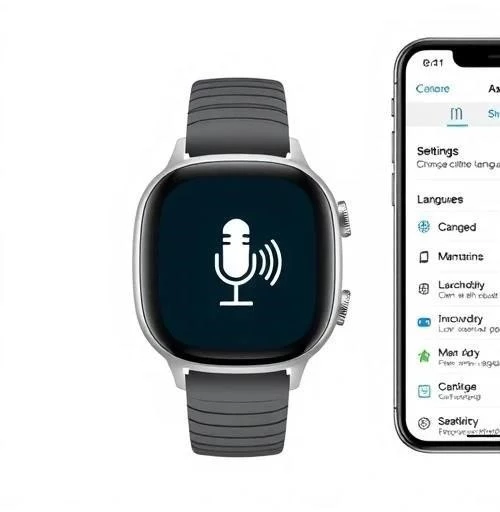
Changing the language used for dictation on Apple Watch is not always the same as changing the language of the watch’s menus. In most cases, dictation follows the keyboard language selected for the text field. The exact controls can differ by watchOS version, app, and model, but the steps below are a reliable place to start.
Switch language while dictating
- Open the app where you want to enter text, such as Messages, and open a conversation or text field.
- Tap the reply or text-entry area. If a keyboard appears, look for the globe or language key.
- Tap that key to cycle through the available keyboards until the language you want is selected. On some versions, you may need to touch and hold the globe key and choose a language from a list.
- Tap the microphone or dictation control, then speak clearly in the selected language.
- Review the recognized text before sending it. If the result is in the wrong language, stop dictation, switch keyboards, and try again.
If you do not see a language key on the dictation screen, first select the language using the keyboard controls, then start dictation. The controls are not identical in every app: some provide a keyboard and a microphone, while others show only a dictation button. In those cases, the language may follow the keyboard currently selected for that text field.
Add a keyboard language on your iPhone
If the language you need is not available on the watch, add its keyboard to the paired iPhone. Apple Watch uses the languages configured for text entry, so adding a keyboard is often necessary before you can dictate in that language.
- On the iPhone paired with your watch, open Settings.
- Tap General, then Keyboard, then Keyboards.
- Choose Add New Keyboard and select the language you want.
- Return to Apple Watch, open a text field, and check whether the new language appears in the keyboard or language selector.
Menu wording can vary slightly with iOS and watchOS updates. If the new keyboard does not appear right away, close and reopen the app, check that the watch is connected to the iPhone, and try again. Installing a keyboard does not necessarily change the watch’s system language; it simply makes another language available for text entry.
Dictation language versus watch language
These settings serve different purposes. The system language controls interface labels, menus, and many system messages. The dictation language determines which spoken language the watch should recognize when entering text. Changing the system language alone may not switch the language used in a particular message or app.
To change the system language, open the Watch app on your iPhone and go to My Watch > General > Language & Region. Depending on the setup, you can mirror the iPhone’s language or choose a custom language for the watch. This is useful if you want the interface to change, but it is not the first step to take when only dictation is incorrect.
Siri has a separate language setting as well. Changing Siri’s language can affect how Siri responds to requests, but it does not necessarily select the keyboard language for every text field. For message dictation, check the keyboard or language selector first.
If dictation still uses the wrong language
- Confirm the selected keyboard. A multilingual keyboard list is not enough; switch to the intended language in the active text field before speaking.
- Check the app. Dictation options may vary between Messages, Mail, search fields, and third-party apps. Test in Messages to determine whether the issue is app-specific.
- Speak a short test sentence. A brief phrase makes it easier to tell whether the watch recognizes the language or merely mishears a word.
- Check availability. Dictation languages and features can vary by region, device, and software version. A keyboard may be available even when dictation support for that language is limited.
- Update and reconnect. Install available iOS and watchOS updates, keep the devices near each other, and restart them if the language selector is missing.
- Check the microphone. If dictation fails in every language, remove anything covering the microphone and test it in another app. The problem may be audio input rather than language selection.
In short
To change dictation language, select the corresponding keyboard language in the text field, then start dictation. If the language is missing, add its keyboard in the paired iPhone’s keyboard settings. Change the watch’s system language only when you also want to change its menus. Keeping these settings separate is the most dependable way to get accurate dictation without changing the language of the entire watch.

9 Comments. Оставить новый
The suggestion to check the selected keyboard before starting dictation is practical. It gives readers a clear first thing to try when speech recognition uses the wrong language.
It is useful that the guidance recommends reviewing the recognized text before sending it. Dictation can make mistakes, so that small reminder adds an important practical safeguard.
A concise, practical guide that clarifies a potentially confusing setting. The reminder that language availability depends on the configured keyboards helps set reasonable expectations.
This is a helpful distinction between the language used for dictation and the language of the watch’s menus. The step-by-step guidance makes it easier to troubleshoot without assuming every Apple Watch has identical controls.
The article is organized around the two most useful situations: switching languages during text entry and adding a missing keyboard on the paired iPhone. That structure makes it easy to scan.
The article gives useful troubleshooting steps while staying appropriately cautious about version differences. It could be even more complete with a note about what to try if the added keyboard still does not appear.
The explanation avoids implying that every dictation screen has a language selector. Pointing readers toward the keyboard controls instead is a sensible workaround when the interface differs.
I appreciate that the instructions acknowledge differences between apps and watchOS versions. That caveat makes the advice more realistic than a single set of steps presented as universal.
This is clear and approachable, especially for someone who may not know whether to change settings on the watch or the iPhone. The pairing between keyboard selection and dictation is explained well.