
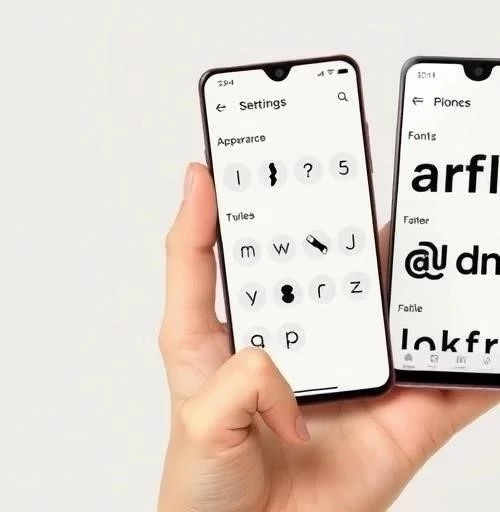
Changing the font can give your Xiaomi phone a more personal look and make text easier to read. The safest way to do it is through Xiaomi’s built-in Themes app. The exact menus and available fonts depend on your phone model‚ region‚ and software version: MIUI and HyperOS may not show the same options. Try the official method first‚ and avoid installing files or apps from sources you do not trust.
Before you begin
Connect to Wi-Fi‚ make sure your phone has enough battery‚ and check that the Themes app is up to date. You can also note your current font or take a screenshot of its settings so it is easy to switch back. Font names and menu labels may differ slightly between devices. If an option described below is missing‚ update the system and Themes app‚ then check again.
Method 1: Choose a font in the Themes app
- Open Themes from your home screen or app drawer. If prompted‚ sign in to your Xiaomi account.
- Tap Fonts. Depending on your version‚ this may appear as a tab‚ a category on the home page‚ or an option under your profile.
- Browse the available fonts‚ or use search to find a particular style. Open a font’s page to preview its appearance and check whether it is free or paid.
- Tap Download‚ then choose Apply. Some versions ask you to apply the font immediately; others save it under your account or downloaded items first.
- If the phone requests a restart‚ save your work and restart it. Otherwise‚ close and reopen apps to see the updated text.
After applying a font‚ it should appear in supported parts of the interface‚ such as menus‚ settings‚ and some system apps. Individual apps may use their own typography and ignore the system font. A downloaded font is not necessarily active‚ so return to the font page or the Themes app’s profile section if the appearance has not changed.
Method 2: Look for font settings
On some Xiaomi phones‚ you can select an installed font without opening its store page. Open Settings and look for Display‚ Fonts‚ or Font size and style. The path can vary by software version. If you find a font list‚ choose the style you want and confirm the change. If there is no font control‚ use the Themes app instead; not every model exposes this shortcut.
If Fonts is missing from Themes
Font availability can depend on your region. In some software versions‚ changing the region temporarily makes additional Themes categories appear. To check‚ open Settings > Additional settings > Region and select a region where the Fonts category is available. The wording and menu location may vary. Reopen Themes and check again. Changing region can affect recommendations‚ services‚ or available content‚ so note your original setting and restore it afterward if you prefer.
Do not change your phone’s region repeatedly if the option remains unavailable. First update Themes and your system‚ restart the device‚ and check Xiaomi’s official support information for your model. Some devices or releases simply do not support changing system fonts through Themes.
Using a downloaded font file
Some users download font files‚ often in formats such as TTF or OTF. A file by itself usually cannot be selected as a system font on Xiaomi. Support for importing fonts varies‚ and many online instructions rely on third-party tools or older MIUI features that may no longer work. Only consider an import method if it is compatible with your exact device and software version‚ and obtain files from a reputable source.
Be cautious with apps that request broad permissions‚ ask you to install unknown packages‚ or promise to modify system files. A font does not normally need access to contacts‚ messages‚ or your account. Avoid unlocking the bootloader or rooting the phone just to change typography: those steps can reduce security‚ affect warranty or banking apps‚ and create a risk of data loss or a phone that will not start.
Restore the original font or fix problems
To undo a change‚ open Themes‚ go to your profile or downloaded content‚ and select the default font or the original system theme. You may also find a reset option under Settings > Display. Restart the phone if the old font does not return immediately. If text looks unusual‚ switch back to the default‚ update the Themes app‚ and check whether the downloaded font supports the characters and languages you use.
If menus become difficult to read‚ increase the text size in Settings > Display or restore the default font. If the Themes app freezes‚ restart your phone and clear the app’s cache from its app settings; avoid clearing data unless you understand that it may remove local preferences. Keep personal files backed up before attempting any advanced modification.
Choosing a readable font
Decorative fonts can look attractive in previews but may be tiring to use every day. Check lowercase letters‚ punctuation‚ numbers‚ and accented characters before applying one. A font with missing symbols can display blank boxes or fall back to a different style. Consider readability at your usual screen brightness and text size‚ and remember that a font may look different in different apps.
In short
For most Xiaomi users‚ the simplest route is Themes > Fonts > Download > Apply. If the category is absent‚ check for updates and regional availability‚ then use the display settings if your model provides a font selector. Prefer official options‚ keep a way to restore the default‚ and avoid risky system changes for a cosmetic adjustment.
3 Comments. Оставить новый
A useful overview for personalizing a Xiaomi phone. The steps are easy to follow, and the note about individual apps using their own fonts is a helpful detail.
This is a clear, practical guide. I especially appreciate the reminder that the menus can vary between MIUI and HyperOS, which helps set realistic expectations.
The advice to use Xiaomi’s official Themes app and avoid untrusted downloads is sensible. The troubleshooting notes are helpful for anyone who cannot find the same options.