
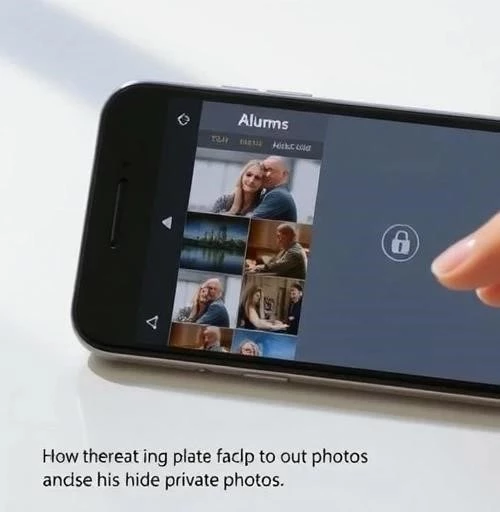
Xiaomi phones can keep selected photos and videos out of the Gallery’s regular view․ Depending on the phone model and software version, this feature may be called Private album, or you may be able to hide an entire album․ The steps can differ slightly between MIUI and HyperOS, so menu names may not match exactly․
Option 1: Move photos to the Private album
- Open the Gallery app and find the photo or video you want to hide․
- Press and hold an item to select it․ Select additional items if needed․
- Tap More or the three-dot menu, then choose Add to album and Private album․ On some versions, the private-album option appears directly in the menu․
- If prompted, set up the privacy protection method․ This may be a privacy password, pattern, PIN, or another screen-lock option․
- Confirm the move․ The selected items should no longer appear in the ordinary Gallery view․
The first time you use this feature, the phone may ask you to agree to its privacy terms or create a privacy password․ Follow the prompts on your device․ Keep the password in a safe place: access to private content may depend on it, and recovery options vary by software version․
How to open the Private album
- Open Gallery and switch to the Albums tab․
- Place a finger near the top of the album list and swipe down․ Continue until the private-area prompt or lock indicator appears․
- Release, then enter the privacy password or use the authentication method requested by the phone․
On some devices, the gesture must begin on the album screen and continue for a short distance before the prompt appears․ If it does not work, check Gallery’s settings for a private-album entry or look for the relevant option in the Gallery menu․ The exact layout can change after system or app updates․
Option 2: Hide an entire album
If you want to conceal an album rather than move individual items into the Private album, open Gallery > Albums․ Press and hold the album, or open its menu, and look for Hide or Hide album․ Confirm the action if asked․ This option is not available on every Xiaomi model or Gallery version․
To locate an album you have hidden, open Gallery settings and look for View hidden albums, Hidden albums, or a similarly named setting․ Choose the album and follow the on-screen instructions to show it again․ Depending on the version, the hidden-album list may be accessible from the three-dot menu on the Albums screen․
Private album versus hidden album
These options do not necessarily provide the same protection․ A hidden album may simply be removed from the normal Gallery list, while a Private album usually requires authentication to open․ If your goal is to restrict access to personal images, use the Private album where it is available and set a strong, private screen lock․ Do not assume that hiding an album encrypts every copy of its contents or makes them inaccessible to other apps․
If the option is missing
- Update the Gallery app and check for a system update, then reopen Gallery․
- Look through Gallery settings and the menu for the selected photo or album․ Labels and locations vary by device and software version․
- Check whether the item is stored locally or in a cloud service․ Cloud-synced copies may have separate controls and may remain visible on other devices․
- If you use a third-party Gallery app, its hiding feature may not be related to Xiaomi’s Private album․
Important precautions
Before moving or hiding important files, make sure you understand how your device handles backups, cloud sync, and removal from the Private album․ Avoid deleting items unless you have confirmed where they are stored․ Do not share your privacy password, and test the process with a non-sensitive photo if you are unsure how the feature works on your phone․
In brief: For individual items, select them in Gallery and move them to Private album; open that area from the Albums tab by swiping down and authenticating․ To hide a complete album, use its Hide command if your version offers one, then manage it through Gallery settings․

7 Comments. Оставить новый
The steps are easy to follow, and the explanation of setup prompts helps set expectations for first-time users.
It is helpful that the article suggests checking Gallery settings if the swipe-down method does not reveal the private area.
The article explains how to access the Private album and notes that the swipe gesture may not work the same way on every device.
The instructions are organized into clear options, which makes it easier to identify the method that fits the intended use.
The reminder to keep the privacy password safe is a practical detail, especially since recovery options may differ across software versions.
The distinction between moving selected items to a Private album and hiding an entire album is useful. The steps also acknowledge that menu names can vary by device.
The guidance is straightforward and appropriately cautions readers that Gallery layouts can change after updates.