
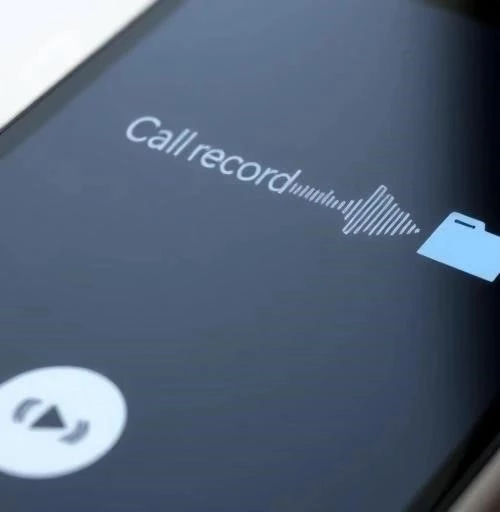
A recorded call on a Xiaomi phone can feel like a message slipped into a hidden drawer: it is saved, but the drawer’s location depends on your phone’s software, dialer and region. On many MIUI models, recordings are kept in the phone’s internal storage—not necessarily in the same folder as ordinary voice notes.
Check the Recorder app first
Open Recorder (sometimes called Sound Recorder) and look for a tab, filter or menu named Call recordings. On some Xiaomi versions, recordings appear in the list alongside other audio, with a phone icon or a call-related label. Tap a file to play it; use its menu to view details, share it or find its storage location. This is often the quickest route, especially when Android’s file browser hides app folders.
Common folders to look in
If you want the actual audio file, open Xiaomi’s File Manager, choose Internal storage, and search for “call” or “record.” Depending on the model and software version, try these locations:
- MIUI/sound_recorder/call_rec — a common location on MIUI phones.
- MIUI/sound_recorder — some versions place call audio here or organize it in subfolders.
- Recordings/Call recordings or Recordings — names used by some newer builds and dialer apps.
Folder names and capitalization can vary. A file may have a date, phone number, contact name or a generic name, and the format is often M4A or AMR. If you cannot see a folder, use File Manager search, sort audio files by date, or connect the phone to a computer and browse its shared internal storage. Do not assume that a missing folder means the recording was deleted.
Google Phone and HyperOS differences
Newer Xiaomi phones may use Google’s Phone app rather than Xiaomi’s dialer. Open Phone → Recents, tap the recorded call or contact, and look for playback or recording details. Its files may be managed through the app instead of appearing in the familiar MIUI folder. HyperOS updates can also change labels and paths. The exact location therefore depends on the installed dialer and system version, not just the Xiaomi model.
If the recording is missing
- Confirm that call recording was enabled and that the call was actually recorded; availability varies by country and software.
- Check the Recorder and Phone apps, including their call-recording sections and menus.
- Search internal storage for audio files and check the app’s permissions or storage settings.
Also check whether you changed phones, cleared app data, or moved files to an SD card. A backup or file-transfer app may have copied recordings elsewhere, but call audio is not guaranteed to sync to Xiaomi Cloud or Google Drive automatically. If an app’s data was cleared, recovery may not be possible.
Keep recordings safe
Copy important files to a computer or trusted backup location, then play the copy to verify it works. Recordings can contain sensitive information, so share them carefully and follow local consent and privacy laws. In short: start in the Phone or Recorder app; if you need the file itself, search internal storage for MIUI/sound_recorder/call_rec and the alternatives above.

3 Comments. Оставить новый
This article turns a potentially frustrating scavenger hunt into a sensible sequence of steps. Its best insight is that a missing folder is not proof of a missing recording—a small reassurance that could save readers a lot of unnecessary panic.
A clear, well-paced troubleshooting map: start with the Recorder app, then search storage, then account for Google Phone and HyperOS. The reminders about changing folder names and file formats make the guidance feel grounded in real-world phone quirks.
The “hidden drawer” image gives a practical tech guide a surprisingly human touch. I especially like that it treats folder paths as clues rather than guarantees—useful advice for anyone whose Xiaomi seems to have swallowed a recording.