
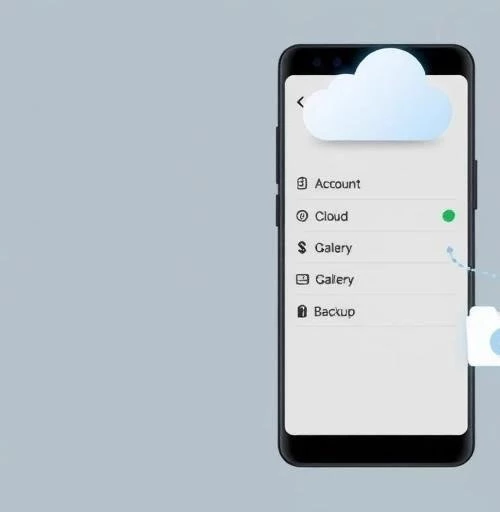
The question “Where is Xiaomi Cloud storage?” has two different answers. If you mean where to open it, Xiaomi Cloud is available through your Xiaomi Account on a phone or on the web. If you mean where the files are physically stored, they are kept on remote servers used to provide Xiaomi’s cloud services—not in a folder that you can locate on your phone or visit as a public address. This distinction matters: cloud storage is an online service, not a second memory card.
How to open Xiaomi Cloud on a phone
On most Xiaomi, Redmi, and POCO phones, start in Settings and tap your Xiaomi Account or profile name. Look for Xiaomi Cloud, sometimes labelled Mi Cloud on older software. Depending on your device and software version, the route may instead appear under Settings > Xiaomi Account > Xiaomi Cloud. Sign in with the Xiaomi Account that was used to enable syncing.
The Cloud screen usually shows which services are available and whether they are syncing. Options can include contacts, notes, messages, call history, settings, or other supported data. The exact list varies: it depends on the phone, system version, account region, and Xiaomi’s current service offering. Therefore, a missing option does not necessarily mean your phone is broken; the feature may not be offered for that account or software version.
How to find it on the web
You can also try Xiaomi’s official Cloud website at i.mi.com. Sign in using the same Xiaomi Account as on your device. The web interface may let you view or manage supported synced information and, where offered, use device-related tools. Available pages and features can vary by region and may change over time. If the site does not show a particular type of data, check the phone’s Cloud settings first: that data may never have been enabled for synchronisation.
Use only the official Xiaomi site and confirm that its address is correct before entering your password. A search result, third-party app, or file-manager folder claiming to be “Xiaomi Cloud” is not necessarily the service itself. Your account credentials can provide access to personal information, so avoid signing in on shared devices and sign out when finished.
Where the files are physically stored
Cloud data is stored on computer systems in data centres operated by Xiaomi or its service providers. It travels over the internet between your device and those systems. There is no single physical “Xiaomi Cloud folder” on your phone, and users generally cannot choose a particular server building or browse its disks. The service manages the technical location and retrieval of information.
It is also not reliable to assume that every Xiaomi account’s data is in one specific country. Infrastructure, applicable rules, and service arrangements may differ by region and product. Unless Xiaomi states a precise storage location for your particular service and account, an online map or a guessed server address cannot establish where your personal data is held. The useful, verifiable answer is usually the account’s region and the service’s official privacy information—not a supposed street address.
Cloud storage is not the same as phone storage
Files in the phone’s internal storage remain on the device unless an app uploads or synchronises them. Seeing a photo in the Gallery does not, by itself, prove that a copy is in Xiaomi Cloud. Open the relevant Cloud or Gallery settings and check the sync status. Likewise, deleting an item from a synced service may affect its cloud copy or other synced devices, so read the confirmation message before proceeding.
Do not assume that Xiaomi Cloud is a complete backup of everything on the phone. Some apps keep their own backups, and some files may not be supported by Xiaomi’s service. In addition, Xiaomi has changed cloud features over time, and photo or video syncing and storage availability can differ between markets. If a feature is unavailable, consult Xiaomi’s current support information for your country and consider exporting important files to a computer or another trusted backup service.
If you cannot find your data
- Check that the phone is signed in to the correct Xiaomi Account. Similar-looking email addresses or phone numbers can belong to separate accounts.
- Open Settings > Xiaomi Account > Xiaomi Cloud and confirm that the relevant sync option is enabled.
- Check the internet connection, available account or device storage, and the last sync time. A pending or failed sync means the newest information may not have uploaded.
- Sign in at i.mi.com and check whether the data type is available for your region and account.
- If information is missing, review Xiaomi’s official help and privacy pages before changing accounts or deleting local copies.
Bottom line
For everyday use, Xiaomi Cloud is found in your Xiaomi Account settings or, for supported functions, at i.mi.com. Physically, it is a remote service running on managed data-centre infrastructure, not a place on your handset with a user-accessible address. The most dependable way to know what is actually stored is to check the correct account, enabled sync options, and the official interface. Keep an independent copy of important files: synchronisation is convenient, but it should not be treated as a guaranteed substitute for a separate backup.

5 Comments. Оставить новый
Mentioning the official website and advising readers to check its address before signing in is a useful security reminder, especially when searching for cloud services online.
I appreciate the explanation that available syncing options depend on the account, region, and software. It helps readers avoid assuming that a missing feature means something is wrong with their phone.
The distinction between accessing Xiaomi Cloud and locating the physical servers is helpful. It addresses a common misunderstanding without making cloud storage sound like a folder on the phone.
The article gives readers both phone and web access options while appropriately cautioning that not every kind of data will appear online. Checking sync settings is a sensible next step.
The step-by-step directions are practical, and noting that menu names can vary by device and software version makes them more reliable than a single rigid set of instructions.