
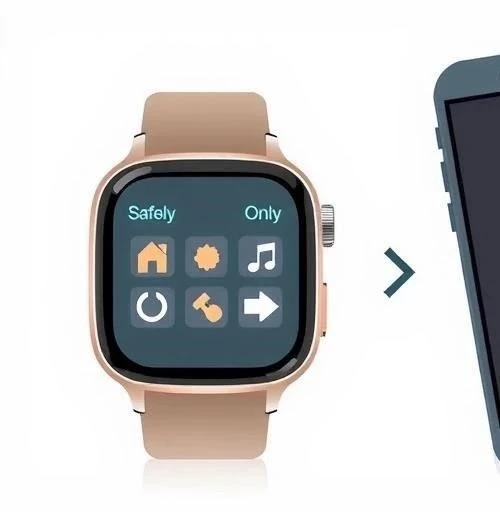
An Apple Watch may be small, but ending its relationship with your iPhone takes more than turning off Bluetooth. Unpairing properly creates a final backup, disconnects the devices, and—when you enter your Apple Account password—removes Activation Lock. Do it before selling, gifting, or troubleshooting the watch, and you’ll leave fewer digital footprints behind.
The easiest route: use your iPhone
- Keep your iPhone and Apple Watch close together. Open the Watch app on the iPhone.
- Tap My Watch, then tap All Watches at the top of the screen.
- Find the watch you want to disconnect and tap the small ⓘ beside its name.
- Choose Unpair Apple Watch, then confirm. For a cellular model, choose whether to keep or remove its mobile plan. If you’re giving the watch away, remove the plan; if you’re pairing it again yourself, your carrier may let you keep it.
- If prompted, enter your Apple Account password. This turns off Activation Lock, the security feature that otherwise ties the watch to your account.
Let the two devices finish communicating. The iPhone attempts to create a fresh Apple Watch backup before erasing the watch and ending the pairing. Keep them nearby and powered on until the process is complete. The watch should then show the setup screen, ready for a new owner or a new pairing.
No iPhone nearby? Use the watch carefully
On the watch, open Settings → General → Reset → Erase All Content and Settings. Enter the passcode if asked, then confirm. If the watch has a cellular plan, choose whether to keep or remove it. This erases the watch, but it does not necessarily remove Activation Lock. Before handing it over, use the Apple Account device list or Find My to remove the watch from your account. Otherwise, its next owner may meet a setup screen that still asks for your credentials.
If you forgot the passcode
Place the watch on its charger. Press and hold the side button until the power button appears, then press and hold the Digital Crown until the erase option appears. Tap Reset and confirm. The exact prompts can vary by watchOS version; after the erase, remove the device from your Apple Account as described above. Erasing is not the same as unpairing through the iPhone, so don’t skip that account step.
Before you pass it on
- Unpair from the iPhone when possible; it’s the most complete route and preserves a backup.
- Remove the watch from your account and check that Activation Lock is off.
- Take off the band if you’re keeping it, and leave the watch at the setup screen.
- If you’re troubleshooting, pair again using the Watch app and restore from the backup when offered.
In short: unpair in the Watch app for a proper goodbye; erase on the watch only when the iPhone isn’t available, then remove the watch from your account. A few deliberate taps turn a tangled connection into a clean slate—and keep your personal data from travelling with the wristband.
7 Comments. Оставить новый
This turns a potentially confusing hand-me-down ritual into a tidy checklist. The watch gets erased, the account gets untangled, and the next person can begin without inheriting someone else’s digital ghost.
A tiny watch can carry a surprisingly large amount of digital baggage. This guide makes the goodbye feel less like a button press and more like handing over a clean slate.
The cellular-plan advice is a useful fork in the road: one choice for a new owner, another for a future reunion. A small decision that can save a surprisingly large headache.
The best detail here is the distinction between erasing the watch and actually releasing it from your account. Those may look like the same farewell, but Activation Lock knows the difference.
There’s a nice sense of closure in the final setup-screen image: a device ready to start a new story, with the old account no longer holding the pen.
A particularly helpful guide for anyone who assumed “Erase All Content” meant “free and clear.” It explains the invisible lock behind the glass without making the process feel intimidating.
I appreciate the calm, practical tone—especially the reminder to keep the devices nearby. Even technology seems to prefer a proper, unhurried parting.