
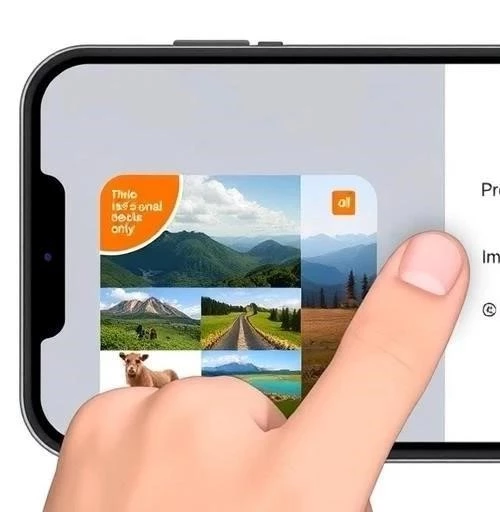
Your photo gallery should feel like a quiet room: snapshots on the walls, memories in their proper places, and no stranger leaning in to sell you something․ On some Xiaomi phones, however, the Gallery app may show recommendations or promotional content․ The good news is that you can usually quiet it down without rooting your phone or installing anything suspicious․ The exact menu names vary by MIUI or HyperOS version, so treat the paths below as signposts rather than a rigid map․
Switch off recommendations inside Gallery
- Open the Gallery app․
- Tap the menu icon—often three dots—or open Settings․
- Look for an option named Recommendations, Show recommendations, or Receive recommendations, and turn it off․
On some versions, the switch is tucked under Gallery settings or an About section․ If you cannot find it, open the phone’s Settings app and search for “recommendations” or “Gallery․” Xiaomi changes labels and layouts between software releases and regions; a missing switch does not mean you have missed an obvious button․
Close Gallery and open it again․ If a promotional card remains, give the app a moment to refresh, then check the setting once more․ The switch usually prevents recommendation-style content in Gallery; it may not control promotions served elsewhere by the system․
Review Xiaomi’s system-ad settings
If ads still appear in other Xiaomi apps, you can review two separate privacy controls․ They are broader than the Gallery setting, so change only what you understand․
Turn off personalized ads
Open Settings and look under Privacy, Ads, or Ad services for Personalized ad recommendations or a similarly named switch․ Turn personalization off if available․ This limits ads tailored using activity or interests; it does not necessarily remove every advertisement․ Think of it as removing the name tag from an ad, not closing every shop in the building․
Check authorization for “msa”
On some MIUI and HyperOS phones, Xiaomi’s system-ad service is listed as msa․ To review it, try Settings → Passwords & security → Authorization & revocation, or search Settings for “Authorization․” If msa appears and you choose to revoke its authorization, switch it off and confirm․ The request may take a few seconds; if it fails, wait briefly and try once more․
Menu availability differs across models and regions, and revoking a system component can affect related recommendations․ Do not disable unfamiliar services just because their names look technical․ If you cannot find msa, skip this step—Gallery’s own recommendation switch is the most relevant control for Gallery․
Check the source of a stubborn promotion
Not every card visible beside a photo comes from Gallery․ A notification may have been sent by GetApps, a theme store, or another app; a banner may belong to a cloud-storage prompt or a third-party photo editor․ Tap and hold a notification to see which app sent it, or open its app settings and look for notification and recommendation controls․ Turn off only the source you recognize․
To reduce unrelated Xiaomi promotions, you can also inspect GetApps or other preinstalled apps for settings such as Receive recommendations, Personalized recommendations, or Promotions․ These switches are app-specific: changing one does not automatically silence every other app on the phone․
Refresh the app safely
After changing settings, force-close Gallery or restart the phone․ If an old card is still displayed, go to Settings → Apps → Manage apps → Gallery → Storage and try Clear cache․ Cache is temporary data․ Avoid Clear all data unless you know what it removes and have checked that your photos are safely stored; your images are often kept separately, but app data and settings can still be reset․
- Update carefully: Install Gallery and system updates through your phone’s normal update tools․ Menu wording may change after an update․
- Skip “ad-free” modified apps: Unofficial APKs can put your photos, accounts, and device at risk․
- Be cautious with ad blockers: Private DNS or filtering apps may affect other services and are usually unnecessary for a Gallery-specific setting․
Quick troubleshooting
No recommendations switch? Search Settings, check the Gallery app’s own settings, and install available official updates․ Some versions or regions may not expose the same controls․
Ads returned after an update? Reopen Gallery settings and check the switch again․ An update can move or reset preferences․
Still seeing an ad? Note where it appears and which app owns that screen․ If it is a notification, manage the sending app’s notifications; if it is inside Gallery, revisit Gallery’s recommendations setting․
A calmer camera roll
Start with the Gallery recommendations toggle, then review personalization and msa only if you want broader changes․ These controls reduce promotional content, but no single switch guarantees that every offer across the phone disappears․ When the settings are in place, your camera roll can return to its proper job: holding the small, bright evidence of your life—not auditioning as a billboard․
6 Comments. Оставить новый
The quiet-room opening sets the mood beautifully, then the steps get straight to work. A small guide that respects both the reader’s time and their privacy.
A tidy, user-first guide with a nice touch of personality. The advice to search Settings is especially handy when Xiaomi’s labels decide to play hide-and-seek.
A useful little map through Xiaomi’s shifting menus. I especially like the reminder that disabling personalized ads is not the same as making every promotion vanish.
This reads like a flashlight for a dim settings menu: follow the likely path, but don’t panic if the furniture has moved. The version caveat is genuinely helpful.
The “name tag from an ad” image makes a slippery privacy setting instantly clear. Practical, calm, and refreshingly free of promises that one switch will fix everything.
I appreciate the distinction between Gallery recommendations and system-wide promotions. It gives readers a realistic expectation instead of selling silence as a guaranteed feature.