
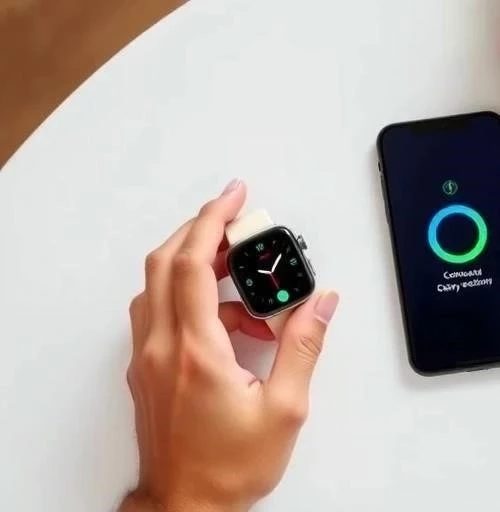
“Watch 8” can refer to an Apple Watch Series 8 or to a smartwatch from another manufacturer. The setup method depends on the exact model. Check the name on the watch‚ its box‚ or the manufacturer’s instructions before you begin. Apple Watch Series 8 pairs with an iPhone; it cannot be set up as a fully supported Apple Watch with an Android phone. Other watches may work with Android‚ iPhone‚ or both.
Before you start
- Charge the watch and phone‚ and keep them close together.
- Turn on Bluetooth and Wi-Fi on the phone. Allow the watch to connect to a network if setup requests it.
- Install any available phone operating-system updates. For a non-Apple watch‚ find the companion app named in the maker’s instructions or shown by its official QR code.
- If the watch was previously paired‚ unpair or reset it first. A reset may erase data stored on the watch.
Pair Apple Watch Series 8 with an iPhone
- Turn on the watch by pressing and holding its side button until the Apple logo appears.
- Bring it near an unlocked iPhone. When a pairing prompt appears‚ tap Continue. If it does not appear‚ open the iPhone’s Watch app and choose All Watches or Start Pairing‚ depending on the screen.
- Tap Set Up for Myself for your own watch. Follow the prompts‚ then position the watch face in the animation displayed on the iPhone. If the camera cannot scan it‚ select the manual pairing option.
- Choose whether to restore a backup or set up the watch as new. Sign in to your Apple Account if requested‚ review the settings‚ and create a passcode if you want one.
- Keep both devices near each other while the watch syncs. This can take several minutes. Leave the watch on its charger if the phone recommends it.
Pair another Watch 8 model
Open the watch maker’s official companion app on the phone‚ sign in if needed‚ and select Add device or Pair new watch. Confirm the matching watch name or code in the app and on the watch. Approve Bluetooth and notification permissions as needed. Avoid pairing through the phone’s Bluetooth menu first unless the manufacturer specifically instructs you to do so; many watches must be connected from their app.
If pairing fails
Restart both devices‚ check that Bluetooth is enabled‚ and move them closer together. Close and reopen the companion app‚ install updates‚ and retry. If the watch appears in the phone’s Bluetooth list as disconnected‚ remove or forget it there‚ then start pairing again in the app. If it remains linked to another phone‚ unpair it from that phone or reset it according to the manufacturer’s instructions.
After setup‚ use the companion app to manage notifications‚ health permissions‚ watch faces‚ and software updates. Menu names and available features vary by model‚ phone‚ and software version.
8 Comments. Оставить новый
The reminder that resetting a previously paired watch may erase data is an important detail.
The article appropriately directs readers to the manufacturer’s official app and instructions for non-Apple models.
The guidance is practical and avoids assuming that every device called “Watch 8” uses the same setup process.
The compatibility note about pairing an Apple Watch with an iPhone is useful for readers who may be considering an Android phone.
The preparation checklist covers practical steps such as charging devices, enabling Bluetooth, and checking for updates.
The article clearly distinguishes Apple Watch Series 8 setup from setup for watches made by other manufacturers.
The step-by-step layout makes the setup process easy to follow, though the final section appears to end mid-sentence.
The instructions explain both automatic and manual pairing options for an Apple Watch.