
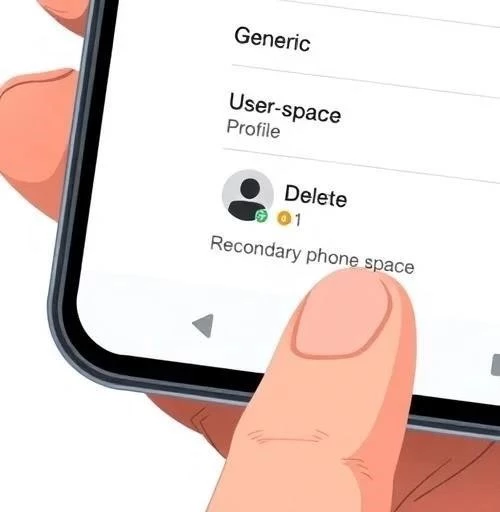
Xiaomi’s Second Space feature creates a separate area on one phone, with its own apps, files, settings and, in many cases, screen lock. It can be useful for keeping work and personal information apart, but it may take up storage or no longer be needed. You can remove the additional space from the phone’s settings. Before doing so, check what is stored there: deleting it can permanently erase its files and app data.
Before you delete Second Space
- Save anything you need. Copy photos, documents, downloads and other important files to the first space, a computer or secure cloud storage. Back up app data separately where necessary.
- Check which space you are using. The first space is the original phone environment; the second is the separate profile. Make sure you do not mistake one for the other.
- Charge the phone and keep it unlocked. The menu may ask for your screen-lock password, fingerprint or Xiaomi Account credentials.
- Review the confirmation carefully. Look for an option to move data before deletion, if your software version offers one. The availability and categories of transferable data can vary.
Method 1: Delete it from the first space
- Switch to the first space, if you are not already there. Use the Second Space switch icon, shortcut or notification shown on your device. On some models, open Settings and find the Second Space controls.
- Open Settings.
- Find the Second Space page. Depending on the MIUI or HyperOS version, it may be under Additional settings, Special features, or appear directly in Settings. You can also type Second space into the Settings search field.
- Open Second space and choose the delete, remove or trash-can control. It may be in the upper corner or at the bottom of the page.
- Read the warning. If offered, choose whether to transfer selected data to the first space. Do not assume this will copy every app, account or item.
- Confirm deletion and authenticate when prompted. Wait for the process to finish; avoid restarting the phone while it is working.
Labels and screen layout differ between Xiaomi, Redmi and POCO models, and between software releases. If the menu names above do not match, search Settings for “Second space,” “Delete Second Space” or “Remove second space.” Check the phone’s software version as well: a menu may have moved after an update.
Method 2: Use the controls while in Second Space
Some versions show a direct removal control when you open the Second Space management screen from either space. Switch to the second space, open Settings, and search for Second space. If a delete option is available, follow the confirmation steps and check any data-transfer choices before proceeding. If you cannot find the control there, return to the first space and use Method 1. Do not delete the space by removing individual apps or files; that does not remove the separate profile itself.
What happens when you delete it?
Deletion removes the second-space environment and its locally stored content, which may include installed apps, app data, downloaded files, accounts and preferences. Items that were already synchronized or backed up elsewhere may remain available through those services, but synchronization is not a guarantee that every item was saved. The first space and its data are normally not deleted by this action. Still, verify the on-screen description and selected transfer options before confirming.
Removing Second Space is different from resetting the whole phone. A factory reset is generally unnecessary for this task and can erase data from both spaces. Do not choose Erase all data or Factory reset unless you intend to reset the device and have made a full backup.
If deletion is unavailable or does not work
- Confirm you have the right lock credentials. The phone may require the device password or another authentication method. Use the official account-recovery process if you have forgotten it; avoid repeated guesses that could trigger security delays.
- Restart and check for updates. A normal restart may resolve a temporary Settings issue. Install a system update only after backing up important information and following the phone’s update instructions.
- Check available storage. If the phone is nearly full or the removal process reports an error, free some space in the first space and try again.
- Contact Xiaomi support. If the menu is missing, the process is stuck, or an account prompt cannot be resolved, ask Xiaomi support or an authorized service provider for model-specific guidance. Do not use unofficial unlocking or data-removal tools.
Does deleting Second Space remove the feature?
Usually, deleting a space removes the current second-space profile, not necessarily the Second Space function from the phone’s software. If your model supports the feature, you may be able to create another space later through Settings. Availability and setup options depend on the device and software version. Creating a replacement space does not restore files erased from the previous one.
Quick checklist
- Move or back up everything you want to keep.
- Open Settings in the first space and search for Second Space.
- Choose the delete control, review transfer options and confirm.
- Authenticate, wait for completion, then check that the first space still contains the items you expected to retain.
The safest approach is to treat Second Space deletion as permanent removal of a separate user environment. Back up first, use the built-in Settings control, and confirm only after reviewing the warning on your specific Xiaomi phone.
7 Comments. Оставить новый
The distinction between the first and second spaces is helpful for readers who may be unsure which profile they are using.
The guidance is practical and appropriately emphasizes checking the deletion warning before confirming the action.
The checklist covers practical precautions, including checking backups, charging the phone and reviewing the confirmation prompt.
The article is organized into preparation steps and a deletion method, so the information is easy to scan.
The instructions acknowledge that menu locations can differ across MIUI and HyperOS versions, which adds useful context.
The article clearly explains that deleting Second Space can permanently remove its files and app data, making the backup reminder especially useful.
The note that transferred data may vary by software version helps set realistic expectations before removal.