
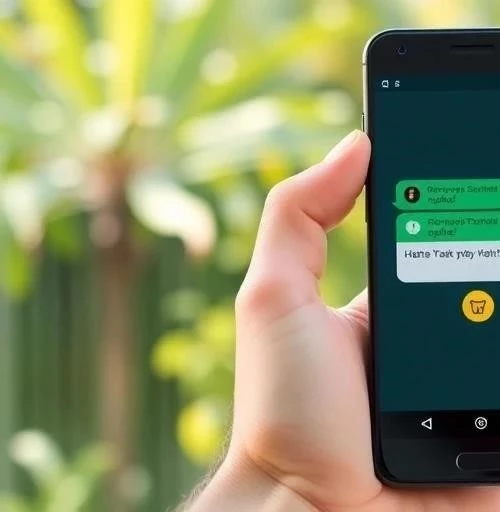
You can delete individual texts or entire conversations on a Xiaomi phone. The exact labels and menus depend on the messaging app and whether the phone runs MIUI or HyperOS, but the general steps are similar. Deleting a message usually removes it only from your device; it does not erase copies saved by the recipient.
Delete one message
- Open the Messages app and select the conversation.
- Touch and hold the message you want to remove. A toolbar or menu should appear.
- Tap Delete or the trash-can icon, then confirm if prompted.
If holding the message opens a different menu, tap the three-dot icon and look for Delete. Some versions let you select several messages after the first long press. Mark the items, tap the trash icon, and confirm. Check the selected messages before proceeding, because deletion may not be reversible.
Delete a whole conversation
In the conversation list, touch and hold the relevant chat, then choose Delete or tap the trash icon. Confirm the action. In some versions, you can open the chat, tap the menu in the upper corner, and select Delete conversation. If the app offers an archive option, note that archiving hides a chat rather than removing it.
Google Messages and other messaging apps
Many Xiaomi phones use Google Messages as the default SMS app. Its usual process is to open a conversation, press and hold a message or chat, and choose the trash icon. Menu names can differ by app version. To check which app handles texts, open Settings, find Apps or Default apps, and view the SMS app setting.
Deleting an SMS or MMS from your phone normally does not delete it from another person’s phone. Some versions of Google Messages support an unsend option for certain RCS messages, but availability and time limits vary. Use that option only if it appears in the message menu; ordinary deletion is not the same as unsending.
Remove messages from a SIM card
Most current phones store messages in the app rather than on the SIM, but older devices or imported messages may behave differently. If a message remains after deleting it, open the app’s settings and look for SIM card messages or message storage options. The location and controls depend on the phone, SIM, and software version.
Before you delete
- Save anything important. Copy the text or take a screenshot if you may need it later.
- Check backups. Google or Xiaomi backup settings may include messages, depending on the device and configuration.
- Confirm the chat. Group conversations and similarly named contacts are easy to confuse.
Deleting a message may not remove a copy included in a previous backup. Restoring a backup can bring deleted messages back, but it may replace newer data. Avoid restoring a full backup just to recover one text unless you understand what else could change.
If deletion does not work
Make sure the messaging app is up to date, close and reopen it, and try again. If the delete command is missing, verify that you are using the app that contains the conversation. You can also restart the phone or check Settings > Apps for the app’s permissions and storage. Clearing app data can erase locally stored information, so do not do this as a first step.
Menu wording varies across Xiaomi models, regions, and software releases. If these steps do not match your screen, search the phone’s Settings for “SMS” or consult the help page for the messaging app installed on your device.

1 Comment. Оставить новый
The steps clearly distinguish deleting a message from unsending it and note that menu labels may vary between apps and software versions. The reminder that deletion usually affects only the device is useful.