
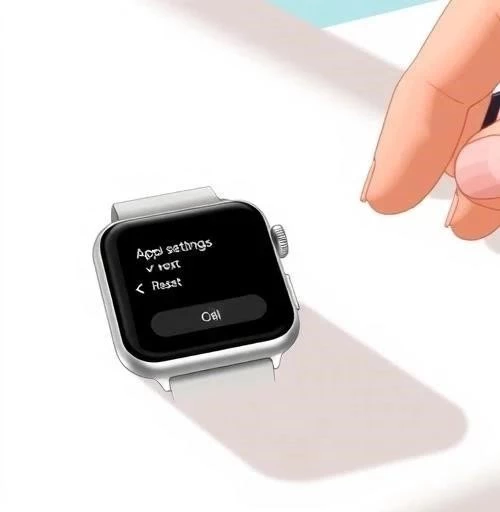
You can erase an Apple Watch directly from the watch, even if its paired iPhone is unavailable. However, erasing the watch is not always the same as fully unpairing it: Activation Lock may remain enabled. If you plan to sell, give away, or trade in the watch, make sure you also remove it from the Apple Account associated with it.
Before you begin
- Know the Apple Account details. After an erase, Activation Lock may require the Apple Account email address and password previously used with the watch before someone can set it up.
- Understand what will be erased. The process deletes content and settings stored on the watch. Without the paired iPhone, you cannot create a fresh iPhone backup of the watch first. Any existing backup may still be available through the iPhone that was used with it.
- Consider a cellular plan. If your watch has cellular service, you may be asked whether to keep or remove its plan. If you are transferring the watch to someone else, ask your carrier whether the plan should be cancelled or moved.
Erase the watch from its Settings
- Keep the watch charged, or place it on its charger. Erasing can take a little time, so avoid interrupting the process.
- On the watch, open Settings.
- Tap General, then scroll down and tap Reset.
- Choose Erase All Content and Settings.
- If prompted, enter the watch passcode. For a cellular model, select whether to keep or remove the cellular plan.
- Tap Erase All to confirm. Wait for the watch to erase and restart.
This returns the watch to its setup screen, but it may not remove Activation Lock. Do not assume that seeing the welcome screen means the watch is ready for a new owner.
If you forgot the passcode
You can start an erase without entering the passcode, using the watch and its charger:
- Put the Apple Watch on its charger and keep it connected to power.
- Press and hold the side button until the power controls appear. On some watchOS versions, the control may look like the power button.
- Press and hold the Digital Crown until the option to erase the watch appears.
- Tap Reset, then tap Reset again to confirm. Follow any on-screen prompts and leave the watch on its charger until it restarts.
The wording and screens can vary slightly by watchOS version. If the erase option does not appear, restart the watch and try again while it is connected to its charger.
Remove Activation Lock without the paired phone
After erasing, use another device or a web browser to remove the watch from the account that owns it. Go to iCloud.com/find and sign in with the Apple Account linked to the watch. Open the device list, select the Apple Watch, and use the available option to remove it from the account. You may need to erase the device first or mark it as removed, depending on what the site displays.
You can also use the Find My app on another Apple device signed in to the same account. Select the watch in the device list and follow the prompts to erase it, if needed, and remove it. Menu names may differ slightly depending on software version.
If the watch belongs to someone else, its previous owner must remove it from their Apple Account. Erasing it yourself cannot bypass Activation Lock. Contact Apple Support only if you are the owner and can provide the proof of purchase they request.
What to check afterward
- The watch should display its setup or pairing screen.
- The previous owner should no longer see it as a device linked to their account.
- A new owner should be able to begin setup without being asked for the previous owner’s credentials.
- If cellular service was active, confirm with the carrier that the plan has been transferred or cancelled as intended.
Important distinction
When an iPhone is available, the usual unpairing process in the Watch app creates a final watch backup and removes Activation Lock as part of unpairing. Without that phone, erase the watch and remove it from the associated account separately. If you are keeping the watch and simply cannot access your phone right now, erasing may be unnecessary; try to recover access to the iPhone or its Apple Account before resetting.


9 Comments. Оставить новый
Clear and useful for anyone who no longer has access to the paired iPhone. The advice to keep the watch charged is simple but easy to overlook.
Helpful, straightforward guidance. I appreciate the warning about backups, since erasing without the paired iPhone could mean losing the chance to make a current one.
I like how the steps are organized and easy to follow. The section on what happens to stored content and settings helps set realistic expectations.
The distinction between erasing the watch and removing Activation Lock is especially important. This is a clear reminder to check account settings before handing the device to someone else.
The explanation is reassuring and practical. In particular, telling readers not to treat the setup screen as proof that the device is fully ready to transfer is excellent.
The cellular-plan note is a useful addition. It encourages readers to check with their carrier instead of assuming the plan will automatically transfer or cancel.
Concise instructions with the right cautions about account credentials, backups, and cellular service. A useful checklist to review before resetting a watch.
A practical guide that explains what to expect before starting the reset. The reminder that the welcome screen does not necessarily mean Activation Lock is gone is valuable.
This article does a good job of separating the erase process from preparing the watch for a new owner. That difference can prevent a lot of confusion.