
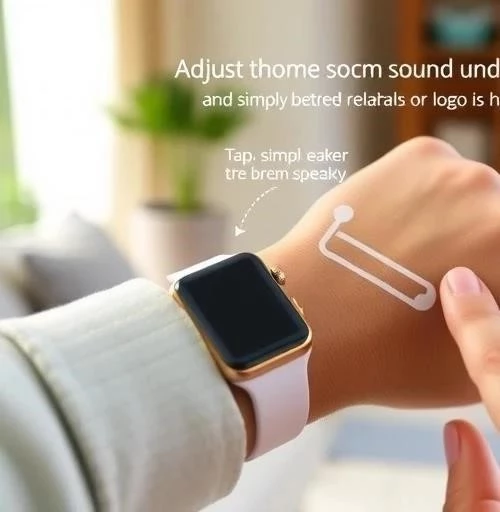
On Apple Watch Series 6, “changing the sound” can mean adjusting how loud alerts are, muting them, or changing how the watch notifies you. The key limitation is that watchOS does not offer a menu of custom ringtones for calls and alerts. You can control alert volume and sound behavior, but you generally cannot assign a different tone to each app.
Adjust alert volume
- Press the Digital Crown to open the app grid, then tap Settings.
- Scroll down and choose Sounds & Haptics.
- Under Alert Volume, tap the left or right control to lower or raise the volume. If the slider appears, drag it to the level you want.
This changes the loudness of audible alerts, rather than selecting a new sound. You can also adjust the volume with the Digital Crown while the volume control is displayed on the screen.
Use Silent Mode
To stop sounds without turning off notifications, open Control Center: press the side button (on watchOS versions that use the newer Control Center) or swipe up from the watch face on older versions. Tap the bell icon to enable Silent Mode. The watch can still provide haptic taps, so you may continue to feel alerts on your wrist. Tap the bell again to restore sound.
Silent Mode is useful in meetings, libraries, or at night. It does not mean that every alert disappears: notifications can still appear on screen, and haptics may remain enabled. If you do not feel alerts, check that haptics are on in Settings > Sounds & Haptics.
Make alerts easier to notice
In Sounds & Haptics, turn on Haptic Alerts if you want a wrist tap for alerts. Choose Prominent, where available, for an additional haptic tap before some alerts; This changes the feel of notifications, not their audio tone. You can also cover the display with your palm to mute a sound that is currently playing, if the cover-to-mute feature is enabled.
Check app and iPhone settings
Open the Watch app on your paired iPhone and tap Notifications. For many apps, notification behavior is mirrored from the iPhone; options vary by app. Review the app’s settings on the phone if alerts behave unexpectedly. Apple Watch does not provide a separate custom sound picker for every app, so an iPhone tone change may not create a distinct watch tone.
For alarms and timers, adjust the watch’s alert volume and haptics as described above. If you want an alarm to wake you without sound, enable Silent Mode and keep haptics on; test the setup beforehand rather than relying on it for an important wake-up.
If you still hear no sound
- Check that Silent Mode is off and Alert Volume is raised.
- Confirm that the watch is not connected to Bluetooth headphones or a speaker.
- Restart the watch if the settings seem stuck, then test with a notification or timer.
In short, use Settings > Sounds & Haptics to control loudness and vibration, and Control Center to mute or restore alerts quickly. If you specifically want a different custom ringtone, Apple Watch Series 6 does not offer that option as a built-in setting.



9 Comments. Оставить новый
It is helpful that the article notes watchOS does not provide custom ringtones for individual apps. Setting that expectation early can save readers time searching through menus for an option that is not there.
The article gives useful steps while acknowledging that Control Center access can differ across watchOS versions. That small qualification helps prevent confusion for readers whose screens do not match the instructions exactly.
I appreciate the practical guidance on Silent Mode. It makes clear that muting sound does not necessarily disable notifications or haptic alerts, which is an important detail for anyone trying to avoid missing a message.
This is a clear overview for someone who wants to make an Apple Watch less disruptive. The examples of meetings, libraries, and nighttime use also make the Silent Mode guidance easy to relate to.
The article clearly explains the difference between changing alert volume and choosing a different tone. That distinction is useful because the Settings menu can make it seem as though a sound selection feature should be available.
The advice about checking haptics when alerts are not felt is a practical troubleshooting tip. It connects the sound settings to the broader notification experience rather than treating volume as the only relevant control.
The article appropriately separates watch-level sound controls from notification behavior. A little more detail about the paired iPhone settings could be useful, but the core explanation is accurate and straightforward.
The instructions are organized around common needs, such as lowering alert volume or keeping alerts noticeable without sound. That makes the advice easier to apply than a general description of watch settings.
The explanation of haptic alerts is sensible: a stronger or additional tap changes how a notification feels, not the sound it plays. That distinction is especially useful for people who want to notice alerts discreetly.