
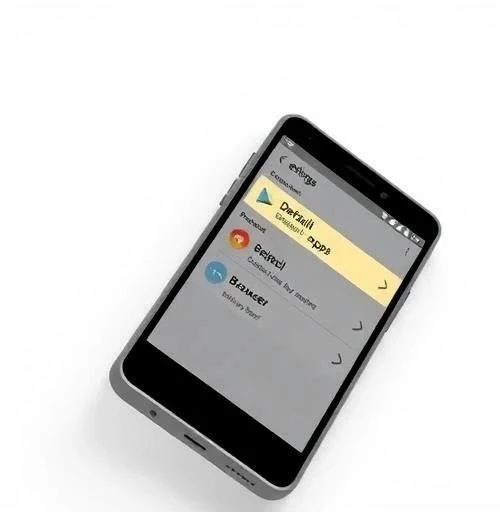
Your Xiaomi phone has a small but influential habit: whenever you tap a web link, it chooses a browser for you. If that browser is not the one you want, you can change the default in Settings. The option is available on many Xiaomi, Redmi, and POCO phones, although its location and wording can vary between MIUI and HyperOS versions.
The quick route through Settings
- Install the browser you want to use, such as Chrome, Firefox, Edge, or another browser available in your region. Open it once and complete any initial setup.
- Open Settings.
- Look for Apps or Apps & notifications, then open Manage apps if that option appears.
- Tap the three-dot menu in the upper-right corner and choose Default apps. On some versions, “Default apps” appears directly under the Apps section instead.
- Tap Browser or Browser app.
- Select your preferred browser from the list. The selected app should now be marked as the default.
To check the change, open a message or note containing a web link and tap it. The link should open in your chosen browser. If Android asks which app to use, select the browser and tap Always, not Just once. The latter is a one-time choice; it does not permanently change the default.
If the menu is hiding
Xiaomi’s settings menus shift a little between phone models and software releases, as if the option has moved to a new drawer. Try these routes:
- Settings > Apps > Default apps > Browser
- Settings > Apps > Manage apps > three-dot menu > Default apps
- Open Settings and type default apps or browser into the search box.
On some HyperOS or MIUI builds, the screen may say Opening links or place browser preferences under a broader default-apps page. The goal is the same: find the system’s Browser setting and choose the app you want. Menu names can differ by region, model, and software version, so using Settings search is often the fastest route.
If your preferred browser is missing
First, make sure the browser is installed and enabled. Open Settings > Apps > Manage apps, find it, and check that it has not been disabled. If it is absent from the app list entirely, install it from a trusted app store, then open it at least once. Return to the default-apps screen and check again.
If the browser is installed but still does not appear, restart the phone and revisit the setting. Also check for an available system or browser update. Avoid downloading unknown installation files just to make a browser appear; a trusted store is the safer choice.
When links still open somewhere else
A link may be handled by an app that supports that particular service, rather than by the general browser setting. For example, a video or shopping link might open in its matching app. If you want those links to stay in the browser, look in Settings > Apps > Manage apps, choose the app that is opening them, and find Open by default or Opening links. You may be able to clear its supported-link preferences or turn off opening supported links. Exact controls depend on the app and Android version.
It is also worth checking the browser’s own settings for a feature that redirects links to partner apps. This is separate from Xiaomi’s default-browser choice: one setting picks the general browser, while link-handling preferences decide whether a particular app claims certain addresses.
Switch back or choose a different browser
Repeat the same steps and select another browser. You do not need to uninstall the current one. If you want Xiaomi’s original browser again, select it from the Browser list—provided it is installed and enabled. You can also clear a browser’s defaults from its app-information page; the next time you open a link, Android may ask you to choose again.
What changing the default does—and does not do
The default-browser setting controls which app opens ordinary web links from other apps. It does not move bookmarks, passwords, history, or open tabs from one browser to another. If you are switching permanently, use the old browser’s sync or export tools to transfer the information you need, and review its sign-in and privacy settings.
In short: install and open the browser, go to Settings > Apps > Default apps > Browser, then select it. If the route looks different, search Settings for “default apps;” A few taps—and your links will take the road you chose.



4 Comments. Оставить новый
A tiny settings change, explained like a map through a house whose doors keep moving. The reminder about “Always” versus “Just once” is especially useful—it’s the little trapdoor many guides miss.
The browser setting is a small switch with surprisingly large consequences. This guide makes the process feel approachable, and the link-tapping test is a neat way to confirm the switch actually worked.
Clear, practical, and refreshingly honest about software menus changing shape. I’d keep this bookmarked for the next time my phone decides that “default” is a treasure hunt.
I appreciate that this doesn’t pretend every Xiaomi phone has the same menu. The Settings search tip feels like handing readers a compass instead of insisting they follow one possibly outdated route.