
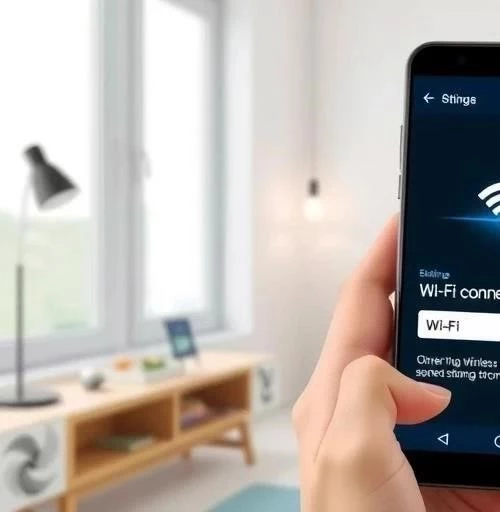
Your Xiaomi doesn’t need a pep talk; it needs a clearer path through the air. Wi-Fi speed depends on the phone, router, signal, and internet plan, so the trick is to find which link is slowing things down. Work through these steps in order, testing after each change.
Find out where the slowdown lives
Stand near the router and run a speed test, then repeat it in the room where Wi-Fi feels sluggish. If the result improves dramatically beside the router, the issue is probably distance, walls, or interference. If it stays slow, restart the router and phone, then test another device on the same network. When every device struggles, contact your internet provider or check the router—not just your Xiaomi.
Choose the right Wi-Fi band
Many routers offer 2.4 GHz and 5 GHz networks. The 2.4 GHz band travels farther and passes through walls more easily, but it is often crowded. The 5 GHz band can deliver higher speeds nearby, though its signal fades faster. Connect to 5 GHz when you’re close to the router; use 2.4 GHz in distant rooms. Some newer devices and routers also support 6 GHz, but both ends must be compatible.
If both bands share one network name, your router may switch devices automatically. That is convenient, but it can choose poorly. If your connection keeps stalling, give the bands separate names in the router settings and test each one. Menu names vary by router, so look for “Smart Connect,” “Band Steering,” or similar.
Clear the phone’s digital traffic
- Pause heavy downloads: Cloud backups, app updates, and video uploads can quietly use bandwidth. Check Downloads and the app store; pause large transfers while gaming or streaming.
- Close the real culprit: You don’t need to swipe away every app. Instead, open Settings and review data or battery usage to spot an app syncing constantly.
- Turn off VPN temporarily: A VPN can add a longer route to websites. Disconnect it for a quick speed comparison, then reconnect if privacy or work access requires it.
- Disable unused connections: If Bluetooth accessories or a hotspot aren’t needed, switch them off during testing. They’re not always the cause, but removing variables helps.
Refresh Xiaomi’s connection
Turn Wi-Fi off and on, then reconnect. If that changes nothing, forget the network and join again with the password. Check Settings > About phone > HyperOS/MIUI version for system updates, and update apps through the official store. Settings labels differ between models and software releases; use Settings search for “reset network settings” if needed. A network reset can erase saved Wi-Fi networks and Bluetooth pairings, so keep passwords handy.
For a stubborn connection, test with a fixed DNS provider only if you understand the trade-off. DNS can sometimes make a site begin loading sooner, but it does not increase your internet plan’s raw bandwidth. Avoid “Wi-Fi booster” apps promising miraculous speed: a phone app cannot amplify the router’s radio signal.
Give the router a better stage
Place it in an open, central spot, elevated and away from thick walls, metal cabinets, microwaves, and cordless-phone bases. Restart it by unplugging power for about 30 seconds. If the router offers channel selection, try a less crowded channel; a router app or admin page may show nearby networks. Change one setting at a time, because random tweaking is the enemy of useful testing.
Use a quick diagnostic
- Run a speed test beside the router.
- Repeat on 5 GHz, then 2.4 GHz, if both are available.
- Test another phone or laptop in the same spot.
- Compare results at different times of day.
Read the pattern: One Xiaomi is slow everywhere? Check its software, saved network, VPN, or hardware. All devices are slow in one room? Improve coverage or consider a mesh system. Everything is slow near the router? Check the router, service outage, or internet plan.
The fastest fix is the right fix
Don’t chase a magic toggle. Start near the router, compare bands, reduce background traffic, and test one change at a time. That turns “my Wi-Fi is slow” from a mystery into a map—and helps your Xiaomi take the quickest route available.


2 Comments. Оставить новый
This guide treats slow Wi-Fi like a detective story: test close to the router, compare another device, then follow the clues to the weak link. The band-by-band advice is especially useful because “faster” and “reaches farther” aren’t always the same thing. A practical, level-headed map through the usual digital fog.
I like that this article doesn’t blame the Xiaomi for every buffering hiccup. Its best lesson is to change one thing at a time—otherwise troubleshooting becomes a séance with too many suspects. The suggestions about crowded bands, background transfers, and VPNs make the reader an investigator rather than a settings-menu wanderer.