
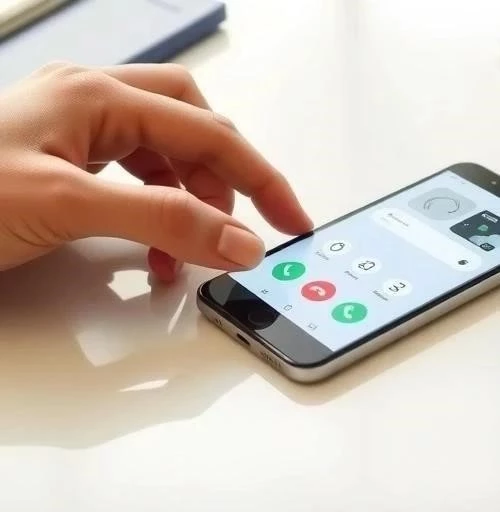
If your Xiaomi phone answers incoming calls without you touching it, the cause may be a call setting, a connected headset or car system, an app, or a touch-screen or sensor problem. Menu names differ between MIUI and HyperOS versions, so use Settings search if a path below does not match your phone. Try the checks in order, testing with an incoming call after each change.
Check the automatic-answer setting
Open the Phone app and look in its settings for options such as Auto-answer, Answer calls automatically, or Incoming call settings. These may be under calling accounts, accessibility, or an advanced settings menu. Turn the feature off if it is enabled. If you use more than one SIM, check the settings for each SIM.
Also search the phone’s main Settings for “auto-answer” or “answer calls.” Xiaomi’s software and Google’s Phone app can place call options in different menus. If you cannot find the option, check the Phone app’s own settings and its help information rather than changing unrelated call settings.
Disconnect Bluetooth devices and accessories
Earbuds, wired headsets, smartwatches, and car infotainment systems can answer calls through their buttons or voice controls. Temporarily turn Bluetooth off, unplug any headset, and test the phone again. If the problem stops, reconnect devices one at a time. Check the device’s companion app and manual for an automatic-answer or call-control setting. A stuck headset button or faulty cable can also trigger actions.
Check for accidental screen input
A wet, dirty, damaged, or overly sensitive screen may register taps while the phone is in a pocket or bag. Clean and dry the display, remove a case that presses against its edges, and test briefly without a screen protector if it is lifting or damaged. Avoid carrying the phone with the call screen exposed. If the screen makes other unexplained touches, arrange a display inspection.
The proximity sensor normally helps switch off the display when the phone is near your face. A poorly fitted protector, dirt near the earpiece, or damage can interfere with it. Clean that area gently and check whether the problem occurs only when the phone is covered or held close to your face. Do not insert tools into the earpiece.
Review apps and accessibility features
Consider whether the issue began after installing a call-answering app, automation tool, launcher, or accessibility service. Review Settings > Accessibility and disable services you do not recognize or need. Check which app is set as the default Phone app, and remove or disable recently installed call-related apps one at a time. Only change settings for apps you trust; avoid granting accessibility access without a clear reason.
Restart the phone and install available system and Phone app updates from official settings or the Play Store. If the behavior started after an update or app installation, note the timing—it may help identify the cause.
Test in Safe mode
Safe mode starts the phone with most downloaded apps temporarily disabled. The way to enter it can vary by model; consult Xiaomi’s instructions for your device. If calls no longer answer themselves in Safe mode, a downloaded app is a likely cause. Restart normally, then uninstall recent or suspicious apps one by one and test again. Safe mode does not erase your personal data.
Reset only as a last resort
If the checks above do not help, consider resetting network settings or app preferences, if those options are available. Read the confirmation screen first: a network reset may remove saved Wi-Fi and Bluetooth connections. A factory reset should be the last software step. Back up photos, contacts, and other important data, confirm you know your account passwords, and follow Xiaomi’s official instructions before erasing the phone.
When to contact support
Contact Xiaomi support or a reputable repair service if the phone still answers calls by itself after Bluetooth devices are disconnected, settings are checked, and a Safe mode test is completed. Seek inspection sooner if the screen is damaged, the sensor behaves abnormally, or the phone has been exposed to liquid. Tell the technician when the problem occurs, your phone model and software version, and which troubleshooting steps you tried.
Important: Do not install unofficial “fix” apps or share verification codes with anyone claiming to repair the issue remotely. Most cases can be narrowed down by checking call settings, accessories, and apps before considering a reset or repair.
1 Comment. Оставить новый
The article presents a practical sequence of checks and notes that menu names can vary across Xiaomi software versions. Testing after each change should make it easier to identify the cause.