
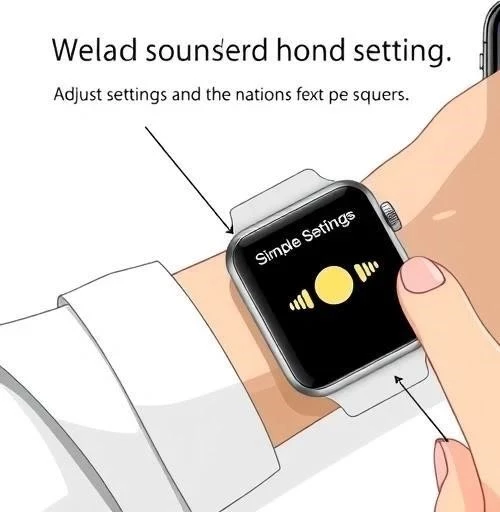
If you want to replace the incoming-call melody on an Apple Watch Series 3 with a different song or ringtone‚ there is an important limitation: watchOS does not provide a setting for choosing a custom ringtone on the watch. The available controls let you adjust alert volume‚ enable or disable audible alerts‚ and choose whether alerts use haptic feedback. These options can make notifications quieter or less disruptive‚ but they do not replace the built-in sound with another melody.
What you can change on the watch
On Series 3‚ sound and vibration settings are available from the watch itself. The exact wording or layout can vary slightly with the watchOS version installed‚ but the main controls are found in Settings under Sounds & Haptics. You can change the alert volume‚ turn Silent Mode on or off‚ and configure haptic alerts. There is no ringtone picker in this menu.
Adjust sound and haptic alerts
- Press the Digital Crown to open the Home screen‚ then tap Settings.
- Scroll down and tap Sounds & Haptics.
- Tap the volume controls or use the Digital Crown to raise or lower the alert volume.
- Turn Silent Mode on if you do not want the watch to play alert sounds. Notifications can still be delivered‚ depending on your settings.
- Choose the available haptic option if you want the watch to tap your wrist. If alerts are easy to miss‚ a stronger or more noticeable haptic setting can help.
You can also open Control Center from the watch face by swiping up on the display‚ then tap the bell icon to toggle Silent Mode. On Series 3‚ Control Center is accessed this way; menus and icons may look different depending on the installed version of watchOS. Silent Mode is useful when you want vibration without an audible alert‚ but it does not create or select a different ringtone.
Can the iPhone ringtone change the watch sound?
The iPhone paired with the watch has its own ringtone settings. To change that ringtone‚ open Settings on the iPhone‚ tap Sounds & Haptics (or Sounds on some iOS versions)‚ then tap Ringtone and select one of the available options. This changes the ringtone on the iPhone. It does not add a ringtone-selection menu to Apple Watch‚ and it should not be treated as a way to install a custom sound on the watch.
Call and notification behavior depends on whether the iPhone is locked‚ where the call is being handled‚ and how the watch is configured. If you need to hear a particular ringtone‚ check that the iPhone itself is not muted and that its ringtone volume is audible. The watch can still provide a tap or its standard alert sound when it receives notifications.
Make alerts quieter or easier to notice
If the built-in sound is too loud‚ lower the alert volume in Sounds & Haptics‚ or use Silent Mode and rely on haptics. If you are missing calls‚ check that haptic alerts are enabled and that the watch fits securely enough for the taps to be felt. You can also review notification settings in the Watch app on the paired iPhone: open Watch‚ tap My Watch‚ and review the settings for notifications and individual apps. The available options depend on the app and watchOS version.
Focus or Do Not Disturb settings may silence or limit notifications. If an expected alert does not arrive‚ check Focus on both the iPhone and the watch‚ along with Silent Mode and notification permissions. These settings affect whether or how an alert is delivered; they do not change its melody.
Why a custom song cannot be selected
Apple Watch Series 3 does not offer a general option to import an audio file and use it as the system ringtone. Adding a song to the iPhone’s music library‚ changing the iPhone ringtone‚ or syncing music to the watch does not provide a custom watch ringtone setting. The watch uses its built-in alert sounds‚ while its settings allow you to manage volume and haptic feedback.
For a specific sound‚ the practical alternatives are to use the selected ringtone on the iPhone‚ keep the watch’s standard alert at a comfortable volume‚ or silence the watch and rely on vibration. If you use an app that offers its own alert settings‚ check that app’s options‚ but those controls do not replace the system ringtone for calls.
If the settings do not appear
Confirm that you are opening Settings on the watch‚ rather than looking for a ringtone choice in the iPhone’s Watch app. Restarting the watch and iPhone may resolve a temporary settings issue. You can also check the installed watchOS version in Settings > General > About. Apple Watch Series 3 supports only older watchOS releases‚ so instructions for newer Apple Watch models or newer software may show controls that are not available on this device.
A custom ringtone cannot be selected directly on Apple Watch Series 3. To control its alerts‚ use Settings > Sounds & Haptics to adjust volume‚ Silent Mode‚ and haptic feedback. Change the ringtone separately on the iPhone if needed‚ and use the watch’s vibration or built-in sound as its alert.

8 Comments. Оставить новый
The distinction between adjusting alert volume and changing the ringtone is useful. The steps are straightforward to follow.
The explanation is concise and makes clear that changing the iPhone ringtone does not necessarily provide a custom sound on the watch.
The article answers the main question directly and provides practical alternatives for people who want quieter or less disruptive alerts.
Explaining how to access Sounds
This is a helpful overview for Series 3 owners. It sets realistic expectations about what Silent Mode and haptic alerts can do.
A useful guide that distinguishes between muting audible alerts, adjusting their volume, and selecting a different ringtone.
The article clearly explains that Apple Watch Series 3 does not support custom ringtones and points readers to the sound and haptic settings that are available.
The instructions are clearly organized, and the note that menu layouts can vary by watchOS version adds useful context.