
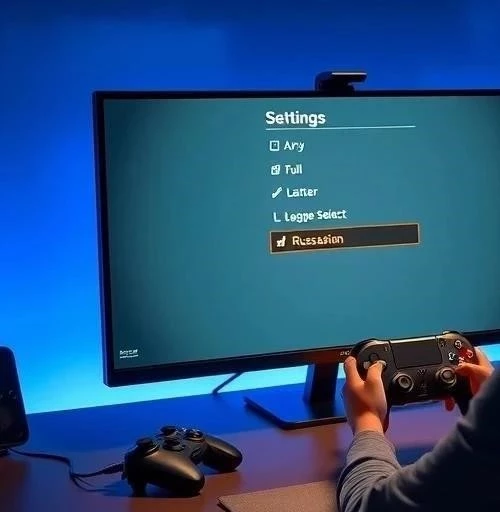
Lost in San Francisco? If Marcus’s menus are speaking a language you don’t understand, don’t panic: the fix is usually in the game launcher or your console settings—not in a secret hacker hideout. Language options can vary by platform, region, and edition, so check what your copy actually offers.
On PC: check the launcher first
- Steam: Open your Library, right-click Watch Dogs 2, and choose Properties. Find Language under General, select Russian if it appears, and let Steam download any required files. Restart the game afterward.
- Ubisoft Connect: Open the game in your library and look for its properties or language settings. Choose Russian if available. If the launcher offers a language selection during installation, pick Russian there; changing it later may trigger a download or require reinstalling.
Launch the game and inspect its audio, subtitles, and interface settings. These can be separate: Russian menus or subtitles do not necessarily mean Russian voice acting is included. If Russian is missing, check the store page and the installed edition’s language list. A regional version may not contain every language, however enthusiastically you click.
On PlayStation or Xbox
Close the game, then set your console’s system language to Russian in its system settings. Reopen Watch Dogs 2 and check the in-game options. Some console editions follow the system language; others offer only the languages packed into that release. If nothing changes, verify the game’s region and edition, and install any available update. Don’t delete saved data as a first attempt—the language setting should not require sacrificing Marcus’s progress.
Playing through GeForce NOW?
Cloud gaming runs a remote PC, so change the language in the game’s supported launcher or settings, then restart the session if needed. The language selection may depend on the linked store version. If the session keeps reverting, sign out only if necessary, reconnect, and check the launcher again; a streaming service cannot add language files that the game edition does not include.
Quick troubleshooting
- Russian isn’t listed: Confirm your edition supports it; availability differs by platform and region.
- Menus changed, voices didn’t: Look for separate audio and subtitle options. Voice-over may not be available in Russian.
- The game stays in English: Fully close and relaunch it, allow downloads to finish, and recheck the launcher or console language.
Once the right files are installed, the city’s signs, missions, and menus should feel much less like a cipher. If the option still refuses to appear, consult the platform’s support page or the game’s official language listing before reinstalling. Happy hacking—and may your next objective be clear in every sense.


3 Comments. Оставить новый
This turns a frustrating settings hunt into a calm checklist, with platform-specific advice instead of one magical fix. I also like the GeForce NOW note: sometimes the “computer” you need to adjust is a distant one in the cloud.
A refreshingly practical guide: it treats language settings like a small detective case, checking the launcher, edition, and platform before blaming the game. The reminder to protect saved progress is especially welcome—Marcus should not have to pay for a menu change with his whole adventure.
The best detail here is that menus, subtitles, and voice acting can each follow different rules. That distinction saves players from expecting a full Russian dub just because one setting changed. A useful map through the maze of launchers and regional editions.