
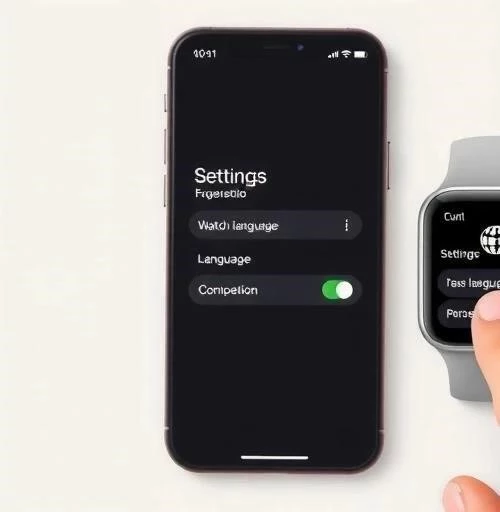
If you mean a Samsung Galaxy Watch6 or Galaxy Watch6 Classic, you can usually change its display language in the watch’s settings or through the Galaxy Wearable app on your paired phone. Menu names can vary slightly with software version and region. These steps are for Samsung’s Watch6; another brand’s “Smart Watch 6” may use different menus.
Option 1: Change the language on the watch
- Wake the watch and open Settings. You can tap the Settings gear in the app screen, or swipe down from the top of the watch face and tap the gear.
- Scroll down and tap General.
- Tap Language. If you do not see it immediately, look in General for a language or language-and-input setting; the exact label may differ by software version.
- Choose the language you want from the list. Scroll to find it, then tap to confirm if prompted.
- Wait a moment for the menus to update. The watch may briefly refresh or return to the previous screen.
Changing the watch language normally changes its menus and system messages, not the language of every third-party app. Individual apps may have their own language settings or may use the language set on your phone.
Option 2: Use the Galaxy Wearable app
- Keep your watch connected to your phone with Bluetooth, and open Galaxy Wearable.
- Tap Watch settings.
- Open General, then tap Language if that option is shown.
- Select the language you prefer and follow any confirmation prompt.
If you cannot find a Language setting in the app, try changing it directly on the watch. The layout of Galaxy Wearable can differ depending on the phone and app version. Make sure the app is paired with the correct watch before changing settings.
If the watch keeps using your phone’s language
Some setup flows or software versions use the language of the connected phone, or may offer only a limited language selection. Open your phone’s system settings and check its language under a menu such as Settings > General management > Language on Samsung phones. On other Android phones, look for System > Languages or a similar option. Menu names vary by manufacturer. Set the phone to your preferred language, then reconnect or restart the watch and check its language settings again.
Changing the phone’s language can affect other apps and menus on the phone, so use this as a fallback rather than the first step. If you only want to change the watch, first look for the watch’s own Language option. You may also need to finish the initial setup or install available software updates before all settings appear.
Language missing or change not taking effect?
- Check the list carefully. Language names may appear in their native spelling. Your preferred language or regional variant may not be available on every model or in every region.
- Restart the watch. Hold the watch’s buttons until the power menu appears, choose the restart option, and check the setting again after it turns on.
- Check for updates. In Galaxy Wearable, open the watch’s software update section, or look for a software update option in the watch settings. Install an update only while the watch has sufficient charge and a stable connection.
- Check the pairing. Confirm that Galaxy Wearable is connected to your Watch6, not another previously paired watch.
- Avoid resetting as a first step. A factory reset removes data and settings and is rarely needed just to change a language. If you are considering one, back up the watch first and follow Samsung’s official instructions.
Quick summary
On a Samsung Galaxy Watch6, start with Settings > General > Language. If that route is unavailable, check Galaxy Wearable > Watch settings > General, then check whether the watch is following your phone’s language. The exact menus may vary, but a restart and a software-version check are sensible next steps. Do not reset the watch unless other troubleshooting has failed.
4 Comments. Оставить новый
The distinction between the Galaxy Watch6 and other watches with a similar name is helpful. The steps are clear and easy to follow.
The explanation that changing the system language may not affect every app is a useful detail that could prevent confusion.
I appreciate the note that menu labels can vary by software version. That makes the instructions more practical for different users.
Offering both the watch and phone methods is useful, especially when the language option is difficult to find in the app.