
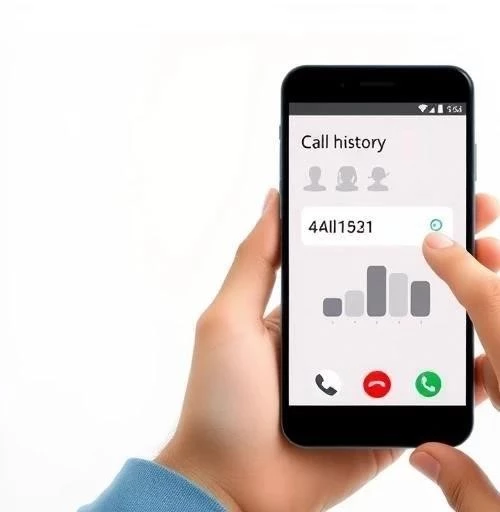
Your Xiaomi can keep a surprisingly useful little record of your calls: who you spoke to, when the call happened, and—on many models—how long it lasted. What it usually does not provide is one universal counter showing the lifetime number or total duration of every conversation. The exact options depend on your phone, region, and whether it uses Google Phone or Xiaomi’s own dialer.
Here’s how to find the information your phone does store, check what “call counter” means in your case, and troubleshoot when the figures seem to have vanished.
Open the call history
- Open the Phone app—the handset icon you use to make calls.
- Tap Recents, Call history, or the clock-shaped tab. The label can vary between MIUI, HyperOS, and app versions.
- Find the person or number you want to check. Tap the entry, or tap the small arrow or information icon beside it.
- Look for details such as the date, time, call type, SIM used, and duration. Incoming, outgoing, and missed calls may be listed separately.
On some versions, tapping the contact opens a contact card rather than the call details. Try pressing and holding the entry, or tap the arrow on its right. If a number appears several times, expand the entry: the app may group multiple calls with the same contact together.
Check an individual conversation’s duration
For a completed call, open its details from Recents. If the record is available, you should see a duration such as “12 min 08 sec.” This is the simplest built-in way to check how long one conversation lasted.
Some dialer versions show duration only after the call has ended, and missed or rejected calls naturally have no talk time. A call that ended almost immediately may show seconds rather than minutes. The displayed duration is the phone’s record; your carrier may calculate billable time differently, especially for international calls, special numbers, or calls with rounding rules.
Count calls over a period
To work out how many calls you made to one person, open that person’s entry in the recent-call list and inspect the grouped records. If the app does not show a total, count the entries for the period you care about. For all contacts, scroll through the log and count the records, remembering that a single conversation may appear as more than one event if it was interrupted and redialed.
Most Xiaomi phones do not offer a built-in dashboard that automatically totals every conversation for a selected month. The call log is a history, not necessarily an analytics report. If you need a reliable monthly count or a total number of minutes, use your mobile operator’s account or billing app: it may provide a more complete statement of chargeable calls.
Find the phone app and identify its version
Menus change with software updates, so first check which dialer your phone uses. On many global Xiaomi, Redmi, and POCO models, the default is Phone by Google. Some regional devices or older software versions use Xiaomi’s dialer.
- Open Settings → Apps → Manage apps and search for Phone.
- Open the app’s information page to see its name and version. You can also check the app’s store page for updates.
- In the Phone app, tap the three-dot menu and look for Settings. This is where call-related options may appear, though it generally is not a universal call-total counter.
On a Xiaomi dialer, the history may be reached from a tab labelled Recent or Call log. In Google Phone, it is usually under Recents. If the instructions do not match your screen, search Settings for “Phone,” “call history,” or “default apps”; menu wording differs by model, language, and HyperOS or MIUI release.
Check SIM and carrier information
With two SIM cards, call records may show which SIM placed or received a call. Look for a SIM label or icon in the call details. To confirm which numbers belong to each card, open Settings → SIM cards & mobile networks (the wording may differ). This helps avoid mixing work and personal calls when you review the log.
For a billed-call total, don’t assume the handset’s history is the final word. The operator’s app, website, or itemised bill is the better place to check call charges and usage. A plan may include unlimited calls, apply special rates, or exclude certain numbers, so minutes shown in a phone log do not necessarily equal minutes billed.
If the call history is missing
- Check the date range. Scroll further back; the newest calls appear first. The phone may retain only a limited history or have had older entries cleared.
- Restart the phone. A simple reboot can refresh a dialer that is not displaying recent records correctly.
- Update the Phone app. Install available updates from the app store used on your device, then check for a system update under Settings → About phone.
- Confirm the default dialer. Open Settings → Apps → Default apps → Phone app and ensure the app you expect is selected. Menu names vary.
- Review permissions. In the Phone app’s information page, check that the permissions it needs are allowed. Avoid changing unrelated permissions just to reveal a call total.
Clearing the Phone app’s storage or data is not a safe first step: it may remove local call history and settings. If the log matters, back up important information before troubleshooting or resetting anything. Clearing only the cache is different, but it may not solve a missing-history problem.
Why the total may not match your expectations
A call list can include missed calls, rejected calls, voicemail attempts, and repeated calls, while a carrier statement may count only connected or chargeable calls. Grouped entries can also make several calls look like one contact item. Decide what you mean by “counter” before comparing figures: number of call attempts, answered conversations, duration of one call, and total billed minutes are four different measurements.
Also remember that deleted call records are not normally restored just because you change the dialer. If you recently switched phones, changed apps, or performed a factory reset, the old log may not have transferred. Check any backup or migration service you used, but do not install an unfamiliar “call counter” app and grant it access to calls without reviewing its developer, privacy policy, and permissions.
Quick answer
To check a particular conversation, open Phone → Recents/Call history, tap the relevant entry, and view its details. To count calls, inspect the records for the period you need; Xiaomi’s built-in dialer may not calculate a grand total automatically. For official usage or billing totals, check your carrier’s account. Think of the call log as a pocket diary: excellent for finding a conversation, but not always designed to add up the whole year.



2 Comments. Оставить новый
This guide treats call history like a tiny archive: useful, imperfect, and dependent on which app guards the door. The practical tap-by-tap advice makes finding one conversation feel less like digital archaeology.
A clear map through the maze of Xiaomi dialer versions. I especially like the reminder that a phone’s call duration and a carrier’s billable time can be two different clocks ticking.