
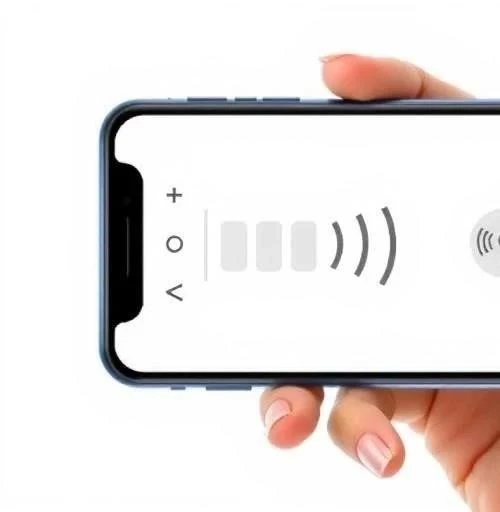
A Huawei phone can show signal strength in several ways, from the familiar bars beside the network icon to a numerical reading in the phone’s status information. The bars are convenient, but they are only a rough visual guide: their meaning can vary by phone model, software version, carrier, and network type. A reading in dBm gives a more useful indication of signal level, especially when you are comparing locations or investigating dropped calls.
The exact menu names differ between Huawei models and software versions, including EMUI and HarmonyOS. Use the instructions below as a guide, and check both SIM cards separately if your phone supports dual SIM.
Method 1: Check the signal in Settings
- Open Settings.
- Tap About phone, then look for Status, Network, or SIM status. On some versions, the information is under System & updates or About phone > Status.
- If prompted, choose the SIM whose signal you want to check.
- Look for a field such as Signal strength, Network type, or Mobile network state.
If your phone displays a value in dBm, note it down. Some versions show only a status such as “In service” or do not show a numerical reading at all. That does not necessarily mean anything is wrong; Huawei’s menus and the information exposed by the mobile operator can differ. Do not confuse the signal reading with battery status, Wi-Fi signal, or a network-speed test result.
Method 2: Use the status bar as a quick check
The bars beside the mobile network indicator show an approximate signal level. More filled bars usually mean the phone is receiving a stronger cellular signal, but the display is not a calibrated measurement. A phone with two bars may still make clear calls, while a phone showing several bars may have a slow or unstable data connection because of congestion, interference, or a problem with the carrier’s network.
To make a fair comparison, keep the same SIM, network mode, and phone position. Check the indicator in the same place and at the same time if possible. A change in bars after moving a few metres may be normal, particularly indoors, in a lift, or near thick walls.
Method 3: Use a network information app
If Settings does not show a number, an Android network-monitoring app may display cellular measurements such as dBm, LTE RSRP, RSRQ, or 5G information. Choose a reputable app from the official app store, review its permissions, and check that it supports your Huawei model and software version. These apps can present information differently, and some readings may be unavailable when the carrier or operating system restricts access.
After installation, open the app and allow only the permissions it reasonably needs. Location permission may be required for certain cellular-network details on Android. If you do not want to grant it, deny the request and see whether the basic signal reading is still available. Avoid apps that ask for unrelated access, promise to “boost” the signal through software, or require you to install files from an unknown website.
Understanding the numbers
Signal strength is commonly shown in dBm. The numbers are negative, and a value closer to zero generally indicates a stronger received signal. For example, -75 dBm is stronger than -100 dBm. As a broad guide, a reading around -50 to -80 dBm is often strong, -80 to -100 dBm is usually moderate, and readings below about -100 dBm may be weak. These are approximate ranges, not guarantees of call quality; results depend on the phone, frequency band, network technology, and local conditions.
On LTE, a phone or app may show RSRP rather than a general dBm reading. RSRP measures the strength of a particular reference signal and is not directly interchangeable with every other signal metric. As a rough LTE guide, RSRP around -80 dBm is strong, around -90 dBm is generally good, around -100 dBm is fair, and readings near or below -110 dBm are often poor. 5G uses its own measurements and can behave differently, so treat these figures as a practical guide rather than a strict pass-or-fail test.
Other values can help explain why a connection feels poor even when the signal appears adequate. RSRQ and SINR relate to signal quality and interference. If an app shows them, do not interpret them as signal strength alone. A strong signal with poor quality may result in slow data or unreliable calls, while a weaker reading can still work acceptably on a quiet network.
How to test accurately
- Stand in one place and wait a short time for the reading to settle.
- Record the value, network type (such as 4G or 5G), SIM slot, and time.
- Repeat the check near a window, outdoors, and in the location where you usually have trouble.
- Keep the phone in the same orientation and avoid covering its edges with your hand.
- Repeat the measurement later. Network congestion and changing conditions can affect service.
For a more meaningful test, compare results at the same location on different days or compare two locations using the same phone and SIM. A speed-test app measures data performance, not signal strength itself. It can be useful alongside a dBm reading, but a low speed result alone does not prove that the radio signal is weak.
If the signal is weak or keeps changing
First, move to an open area or closer to a window and check again. Thick walls, metal structures, underground rooms, and distance from a cell site can reduce reception. Remove a case or accessory temporarily if it contains metal or appears to interfere with reception. If the problem happens only in one building or neighbourhood, the limitation may be coverage or local interference rather than a fault in the phone.
Next, check that Airplane mode is off and that the correct SIM is enabled. You can switch Airplane mode on for about ten seconds and then turn it off to make the phone reconnect to the network. Restarting the phone may also help. If you use two SIMs, check which one is selected for calls and mobile data; the two SIMs may connect to different carriers or show different signal levels.
Open Settings > Mobile network and confirm that the preferred network mode is appropriate for your carrier. Options and labels vary; choosing a mode that the carrier does not support can affect service. If you have recently changed location, tariff, SIM, or network settings, contact the carrier to check coverage, outages, account status, and SIM activation. A replacement SIM may be appropriate if the card is damaged or repeatedly fails to register.
If the problem persists in several locations, install official system updates when available and consider resetting network settings. The reset option is usually found in the system reset menu, but its location varies by software version. Read the confirmation screen first: resetting network settings can remove saved Wi-Fi networks, Bluetooth pairings, and mobile-network preferences. It does not usually erase personal photos or files, but you should not select a full factory reset unless you have backed up your data and understand the consequences.
About service codes and hidden menus
Instructions online sometimes recommend entering a dialer code to open a testing screen. Such codes are not universal: they can vary by model, software build, region, and carrier, and some may do nothing or open options intended for technicians. Do not change radio bands, network parameters, or other service-menu settings unless Huawei or your carrier specifically instructs you to do so. Incorrect changes can disrupt mobile service. The Settings page or a reputable read-only diagnostic app is a safer starting point.
When to contact Huawei or your carrier
Contact your carrier if the phone shows no service, cannot register on its network, or has poor reception where other phones on the same carrier also struggle. Contact Huawei support or an authorised repair centre if the issue follows your phone across several locations while another compatible phone on the same network works normally. Share the model, software version, network type, approximate dBm or RSRP readings, and places where the issue occurs. Do not publish your phone number, account details, or other private information in a public support forum.
In short: start with Settings > About phone > Status or SIM status, if your Huawei displays that information. Use dBm or RSRP for a more precise comparison, remember that more negative values usually mean weaker reception, and repeat measurements under consistent conditions. Signal bars are useful for a quick glance, but location, network quality, and carrier coverage all affect the experience.

4 Comments. Оставить новый
A useful guide for anyone trying to diagnose reception issues. The note that some phones may not display a numerical signal reading sets realistic expectations.
The distinction between signal bars and a dBm reading is helpful. I also appreciate the reminder that menu names can vary across Huawei models and software versions.
I like the explanation that strong signal bars do not necessarily guarantee fast or stable data. That context makes the guide more useful than a simple list of menu steps.
Clear, practical instructions. Mentioning dual-SIM phones is especially useful, since it is easy to check the wrong SIM when troubleshooting reception.