
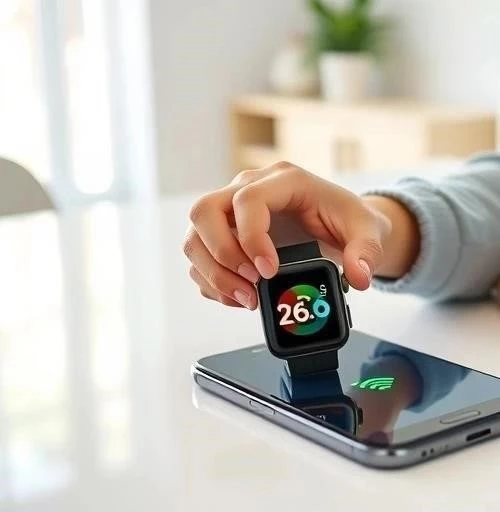
Connecting a Huawei kids’ watch to a phone is usually straightforward, but the exact screens and requirements can differ by watch model, phone operating system, and country. The most reliable approach is to identify the watch, prepare its SIM or mobile connection, install the official companion app, and follow the watch’s on-screen pairing instructions. This matters because a watch that has not been registered correctly may still show the time while calls, location updates, and parental controls fail to work.
For many Huawei children’s watches, the companion app is HUAWEI FamCare. Availability and naming can vary by region and model, so check the watch’s manual, packaging, or QR code before downloading anything. Do not assume that the ordinary Huawei Health app is the right app for a children’s watch. The instructions below describe the common setup; where the screens differ, follow the prompts for your specific model.
Before you start
Gather the watch, the parent’s phone, the watch’s charging cable, and—if the model uses one—a working SIM card. Charge the watch before setup. A very low battery can interrupt activation or make it appear that the watch has frozen. Keep the watch and phone near each other while registering the device, and connect the phone to a stable Wi-Fi or mobile-data network.
- Check compatibility. Confirm that the watch model supports the parent’s phone and is intended for use in your country. A watch bought in another market may use different network bands, a different service, or an app that is not available in your region.
- Prepare the phone. Update its operating system if possible. Make sure there is enough storage to install the companion app and that you can sign in to the relevant app store or Huawei account, if requested.
- Prepare the SIM. If the watch takes a physical SIM, check the manual for the correct size and insertion procedure. Activate the SIM with the mobile operator, confirm that calls and mobile data work, and check that the plan permits use in a watch. A SIM that requires a PIN at startup may need its PIN request disabled in a phone before it is placed in the watch; follow the operator’s and manufacturer’s guidance.
- Find the registration code. Many models display a QR code during first setup or in the watch’s settings. You will usually scan this code from the companion app. Keep the watch’s screen on when scanning.
Do not insert or remove a SIM while the watch is powered on unless the manual explicitly says it is safe. If the watch uses eSIM, do not look for a SIM tray: activation may instead require a supported carrier and a model-specific process.
Step-by-step pairing
- Turn on the watch. Hold its power button until the screen lights up. Select the language and any initial options shown. If this is a previously used watch, check whether it is still linked to another family account. An existing binding may need to be removed by the previous administrator before a new parent can register it.
- Install the official app. Search for HUAWEI FamCare in the app store available for your country, or use the QR code and download instructions supplied with the watch. Check the developer name and avoid unofficial download sites. If the app is not listed, consult Huawei support or the watch documentation rather than installing a similarly named app.
- Sign in or create an account. Open the app and follow its account instructions. Use an email address or phone number that the parent can access. The account may be treated as the family administrator, so keep the password private and choose a secure one.
- Add the child’s watch. In the app, choose the option to add a device or add a child’s watch. The label can differ between app versions. Select the correct model when asked, then allow the app to use the camera if it needs to scan a QR code.
- Scan the watch code. Point the phone’s camera at the QR code displayed on the watch. Hold the phone steady and make sure the code is bright, unobstructed, and fully inside the scanning frame. If scanning does not work, increase screen brightness, clean the phone camera, or use the app’s manual entry option if one is provided.
- Confirm the binding. Follow any confirmation prompt on the watch or phone. Some models require approval on the watch, a verification code, or additional details such as the child’s name. Read the prompts carefully: the first account may become the administrator and may control which other family members can access the watch.
- Complete the profile and settings. Add only the information the app requires. Configure approved contacts, emergency numbers, school or quiet hours, and location settings as appropriate. Review each permission request and enable the permissions needed for the features you intend to use.
- Test the connection. Wait for the app to show the watch as online, then test a call or another basic feature. Location may take longer to update and can be less accurate indoors. A successful QR scan alone does not prove that the watch has a working mobile connection.
Why the SIM and network matter
Pairing registers the watch in the family app; it does not necessarily provide the watch with internet access. On many models, the watch communicates with the app through a mobile network. That means the phone can be paired successfully while the watch remains offline if its SIM is inactive, its data plan has expired, coverage is weak, or the device cannot connect to the local network.
After setup, check whether the watch shows a signal indicator and whether the app can refresh its status. If calls work but location or messaging does not, mobile data or the relevant app permission may be the problem. If neither calls nor data work, verify the SIM with the carrier first. Check that the carrier supports the watch’s network technology and that the watch is not locked to a different region or operator.
Permissions and phone settings
The companion app may request camera access for scanning, notifications for alerts, and background activity so it can receive updates. Location permission on the parent’s phone may be needed for certain app functions, while location services on the watch are needed for the watch’s location feature. The exact permissions depend on the app version and phone operating system.
If notifications stop arriving, open the phone’s settings and check that notifications are enabled for the app. Also review battery-saving settings: some phones restrict apps that run in the background, which can delay alerts or location updates. Allowing background activity can improve reliability, but it may increase battery use. Grant only the permissions needed for the features you want, and review them again after a major phone or app update.
Troubleshooting common problems
The app cannot find or scan the QR code
Make sure you are using the correct companion app and that the watch is displaying its registration code, rather than a general information page. Clean the phone camera, brighten the watch screen, and avoid glare. If the code is cracked or unreadable, look for a manual registration option in the app or contact Huawei support with the model and serial information. Do not post the QR code publicly; it may contain device-registration information.
The watch says it is already bound
This usually means the watch remains associated with another administrator account. Ask the previous owner to remove it from their family app using the proper unbinding procedure. A factory reset may not remove an account binding and could make recovery more difficult. If you are the original owner but cannot access the administrator account, use Huawei’s official support process and be ready to provide proof of ownership.
The watch is paired but appears offline
Check that the SIM is active, correctly installed, and has usable mobile data. Restart the watch after confirming the SIM settings, then give it a few minutes to register on the network. Try a location with better signal. Also confirm that the subscription has not run out and that the mobile operator has not blocked data or calls. Restarting the parent’s phone can help with an app display issue, but it cannot fix a carrier or watch-network problem.
Calls do not work
Check the watch’s signal, SIM service, and approved-contact list. Some models allow calls only to numbers saved or approved by the administrator, so an unsaved number may be rejected intentionally. Confirm that the number format and country code are correct, and test the SIM in a compatible phone if the carrier permits it. If the SIM works in a phone but not in the watch, ask the carrier whether the plan supports that device.
Location is inaccurate or does not update
Location can be less precise indoors, in dense buildings, or where satellite reception is poor. Give the watch time to obtain a fix outdoors and check that its location feature is enabled. Verify that the watch is online and that the app has refreshed. A map pin is an estimate, not a guarantee of a child’s exact position; do not treat it as a substitute for direct communication or appropriate supervision.
The app closes or stops sending alerts
Update the app from its official source, restart the phone, and review notification and battery settings. On Android, check whether the system has restricted background data or battery use. On iPhone, check notification permissions and relevant background settings. If the issue began after an update, consult the app’s help pages or Huawei support before deleting the account or resetting the watch.
Privacy, safety, and account management
A children’s watch can share sensitive information, including a child’s location, contacts, and call activity. Use a strong, unique password for the administrator account, protect access to the parent’s phone, and add only trusted adults as family members. Review who can locate the watch and who is allowed to call it. When a family member no longer needs access, remove that person through the app rather than simply deleting the app from their phone.
Explain to the child, in an age-appropriate way, what the watch can do and when location sharing is used. Configure quiet hours and school settings in line with school rules and family needs. Keep the watch’s software and the companion app updated, but check update prompts and permissions rather than accepting unexpected requests from unknown websites or messages.
When to contact support
Contact Huawei or the mobile operator if the model is not supported in your region, the watch cannot register after the official steps, a binding cannot be removed, or the SIM works elsewhere but the watch cannot connect. Provide the exact watch model, phone model, operating-system version, app version, country, and any error message. Do not send passwords, verification codes, or a registration QR code in a public forum.
Quick checklist
- Confirm the watch model and use the companion app specified for it.
- Charge the watch and prepare an active, compatible SIM or supported eSIM.
- Sign in to the app, add the watch, and scan its on-screen QR code.
- Approve the binding and configure contacts, notifications, and family access.
- Check that the watch is online, then test calls and location separately.
- If setup fails, check the network and existing account binding before resetting anything.
In short: install the correct official app, register the watch by scanning its code, and make sure the watch has its own working network connection. Treat pairing and mobile service as separate steps: both are necessary for the main features to work reliably. Because Huawei children’s watch models and regional services differ, the model’s manual and the app’s current instructions should take precedence whenever they conflict with a general guide.

7 Comments. Оставить новый
The preparation checklist is practical, particularly the advice to charge the watch and use a stable connection. It explains why a setup attempt might fail rather than simply listing steps.
The article gives a sensible overview of the setup process and rightly emphasizes checking the exact watch model and region. Those details can prevent people from downloading the wrong app or buying an incompatible SIM.
I like that the advice covers both phone preparation and the watch’s mobile connection. A brief troubleshooting section for activation or pairing errors would make an already useful guide even more complete.
I appreciate the distinction between HUAWEI FamCare and Huawei Health. Making that clear early on could save parents time, especially when several Huawei apps appear in search results.
The regional compatibility warning is important because a watch purchased abroad may not work as expected with local networks or services. Checking the manual before beginning is a useful recommendation.
This is a clear starting point for parents who have not paired a children’s watch before. I would also find it helpful to have model-specific screenshots, since app menus can differ.
The article appropriately avoids presenting one procedure as universal. Its reminders to follow the watch’s own prompts and verify SIM requirements make the guidance more reliable.