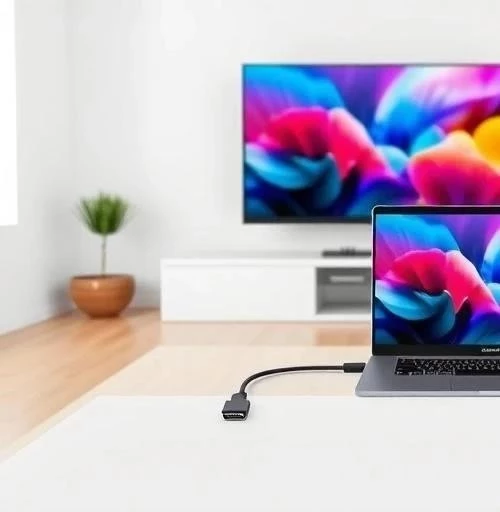
A Huawei laptop can connect to a television with an HDMI cable‚ a compatible USB-C adapter‚ or a wireless display connection. The best option depends on the ports and wireless features available on both devices. A cable is usually the simplest choice for a stable picture and sound‚ while wireless connection avoids cables and can be convenient for presentations or casual viewing.
These instructions apply broadly to Huawei MateBook models running Windows 10 or Windows 11. Menus and port layouts can vary by model‚ so check the laptop’s specifications and the TV’s manual if a feature or connector is not available. In particular‚ not every USB-C port can send video.
Before you begin
- Check the laptop’s sides for an HDMI port or a USB-C port that supports video output‚ often described as DisplayPort Alt Mode or Thunderbolt support.
- Look at the TV for an available HDMI input. For wireless use‚ confirm that the TV supports Miracast‚ screen mirroring‚ or another compatible casting method.
- Turn on both devices and make sure the TV is set to the correct input when using a cable.
- If connecting wirelessly‚ place the laptop and TV on the same Wi-Fi network when the chosen casting method requires it. Miracast may use a direct wireless link instead‚ depending on the devices.
Option 1: Connect with an HDMI cable
HDMI is generally the most straightforward method. It can carry both video and audio through one cable‚ and it does not require a Wi-Fi connection.
- Connect one end of the HDMI cable to the HDMI port on the Huawei laptop.
- Connect the other end to an HDMI input on the TV. Note the input label‚ such as HDMI 1 or HDMI 2.
- Use the TV remote’s Input‚ Source‚ or equivalent button and select the HDMI input used.
- Wait a few seconds for Windows to detect the TV. If the image does not appear‚ press Windows key + P on the laptop and select a display mode.
Choose Duplicate to show the same image on both screens‚ Extend to use the TV as additional desktop space‚ or Second screen only to show the image only on the TV. PC screen only returns the picture to the laptop display.
Using a USB-C-to-HDMI adapter
If the laptop has no HDMI socket‚ a USB-C-to-HDMI adapter or dock may work. First verify that the specific USB-C port on the laptop supports video output. A port that is intended only for charging or data will not send a picture‚ even if an adapter fits. Connect the adapter to the laptop‚ attach the HDMI cable to the adapter and TV‚ and select the corresponding TV input. If there is no signal‚ try another supported USB-C port or an adapter known to support video.
Option 2: Connect wirelessly with Miracast
Wireless projection can work when the TV and laptop support Miracast or a compatible wireless display feature. The exact names of the TV settings differ by manufacturer. On the television‚ open the screen-mirroring‚ wireless display‚ or Miracast function and leave it ready to receive a connection.
- On the Huawei laptop‚ press Windows key + K. Windows opens the Cast panel and searches for available wireless displays.
- Select the TV from the list. If prompted‚ approve the connection on the TV or enter a PIN shown on its screen.
- To change how the screens are used‚ press Windows key + P and select Duplicate‚ Extend‚ or Second screen only.
- To disconnect‚ press Windows key + K again and choose Disconnect‚ or use the TV’s screen-mirroring controls.
If the TV does not appear‚ it may not support Miracast‚ its receiving mode may not be active‚ or the laptop’s wireless display driver may need attention. Windows may also require the optional Wireless Display feature for some receiving or projection functions. In Windows 11‚ check Settings > System > Optional features; in Windows 10‚ look under Settings > Apps > Optional features. Menu wording can change between Windows updates.
Option 3: Cast through a streaming device or browser
A TV with Chromecast built in‚ or a connected Chromecast-compatible device‚ can receive a cast from Google Chrome. Connect the laptop and casting device to the required network‚ open Chrome‚ select the three-dot menu‚ choose Cast‚ and select the TV or device. Depending on the available options‚ Chrome can cast a browser tab‚ a supported media file‚ or the whole desktop. This method is different from Miracast and requires a compatible receiver. Other smart-TV platforms may offer their own casting applications and setup steps.
Choose a display mode and adjust the picture
Duplicate mode is useful when showing slides or sharing the same content with a group. Extend mode gives more desktop space: move a window toward the edge of the laptop screen to place it on the TV. Second screen only can be useful when watching a film on the TV and not using the laptop display.
For resolution and scaling options‚ open Settings > System > Display in Windows. Select the TV’s display‚ then review the resolution‚ orientation‚ and scale settings. Windows usually recommends a suitable resolution automatically. If text or the desktop looks too large‚ too small‚ or cropped‚ check the TV’s picture-size or overscan settings as well. For a 4K image or a particular refresh rate‚ the laptop‚ adapter‚ cable‚ and TV input must all support the requested setting.
Set the audio output
HDMI and many wireless display connections can carry sound as well as video. If the image appears on the TV but sound remains on the laptop‚ open Settings > System > Sound and select the TV‚ HDMI output‚ or wireless display as the output device. In Windows 11‚ the output device can also be changed from the sound controls in the taskbar. The TV must be powered on and connected for its audio device to appear. To return sound to the laptop‚ select its speakers or headphones in the same menu.
Troubleshooting common problems
- The TV says “No signal.” Confirm the selected TV input‚ check both cable connections‚ and try another HDMI port or cable. Restarting the TV and laptop can prompt Windows to detect the display again.
- The TV is not listed for wireless projection. Enable screen mirroring on the TV‚ make sure the devices are within range‚ and check that wireless networking is enabled on the laptop. Restart both devices and install available Windows‚ graphics‚ and wireless-network updates. Some TVs support casting but not Miracast‚ so check which standard is supported.
- The picture is intermittent or delayed. Wireless interference‚ distance‚ or network congestion can affect projection. Move the devices closer to the router or each other‚ reduce network load‚ or use HDMI for a steadier connection.
- The picture appears‚ but there is no sound. Select the TV as the Windows audio output and check the TV’s volume and mute settings. Disconnect and reconnect the display if it is not listed.
- The desktop is cut off or does not fit. Check the TV’s aspect ratio or picture-size setting‚ then select the recommended resolution in Windows Display settings. Look for modes such as “Fit to screen” or “Just Scan” on the TV.
- A USB-C adapter gives no picture. Confirm video output is supported by the laptop’s USB-C port and that the adapter supports HDMI video. Test with a different compatible adapter or use the laptop’s built-in HDMI port if available.
Practical tips
For long viewing sessions‚ presentations‚ or gaming‚ a wired HDMI connection often provides a more consistent signal and avoids wireless lag. For a quick presentation or casual video‚ wireless projection may be more convenient. Keep the laptop connected to power if the session is lengthy‚ and avoid placing private content on a shared TV screen while screen mirroring is active. If the laptop will not detect any external display‚ check the Huawei model’s specifications and update its display drivers through Windows Update or the support tools provided for that model.
To connect a Huawei laptop to a TV‚ use HDMI when possible: connect the cable‚ select the matching TV input‚ and choose a display mode with Windows key + P. If the laptop lacks HDMI‚ use a compatible USB-C video adapter. For a wireless connection‚ enable the TV’s supported receiving feature and select it from the Windows Cast panel with Windows key + K. The available method depends on the exact laptop and TV capabilities.