
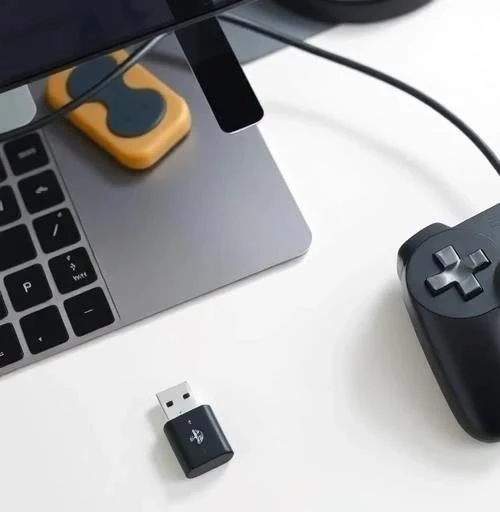
A PlayStation 3 controller—the DualShock 3 or Sixaxis—can work with a computer over USB or Bluetooth. The cable connection is usually the simplest way to get started; wireless play takes a few extra steps because Windows does not normally support the controller’s Bluetooth connection out of the box. The best method depends on your operating system‚ but in every case you should use a data-capable USB cable and install drivers only from reputable sources.
Before you begin
- Identify the controller. This guide is for an original PS3 DualShock 3 or Sixaxis controller. Similar-looking third-party controllers may need different drivers.
- Find a Mini-USB cable. The controller has a Mini-USB port‚ not the smaller Micro-USB port found on many newer devices. Some cables provide power only; a data cable is required for computer setup.
- Check your Bluetooth hardware. For wireless play‚ your computer needs built-in Bluetooth or a USB Bluetooth adapter. Not every adapter works well with every driver.
- Charge the controller. If the battery is empty‚ leave it connected to a powered USB port for a while before troubleshooting.
Windows 10 and Windows 11: USB connection
Windows may supply power to a connected DualShock 3 without making it available as a usable game controller. For reliable support‚ a commonly used option is DsHidMini‚ an open-source driver intended for DualShock 3 controllers. Download it only from its official project page on GitHub‚ and read the instructions for the version you install. Driver interfaces and installation details can change over time.
- Disconnect the controller. Close games and controller utilities‚ then unplug the DS3 from the PC. If you have previously installed an old PlayStation controller driver‚ remove it first according to that driver’s instructions. Conflicting drivers can prevent the new one from working.
- Get the official release. Find the DsHidMini project through its official GitHub repository and download the current release or installer described in its documentation. Avoid download aggregators‚ driver-updater utilities and unofficial “all-in-one” packages.
- Install the driver. Follow the project’s setup guide. Windows may request administrator approval or ask you to confirm a driver installation. Do not disable Windows security features or install an unsigned driver from an unknown source to make a random download work.
- Connect the controller by USB. Plug the Mini-USB end into the controller and the other end directly into the computer. A direct port is preferable to a hub while setting it up. Press the PS button if the controller does not wake automatically.
- Check the driver’s control or configuration app. If the project provides one‚ confirm that the controller appears and select the mode supported by your game. Depending on the driver version‚ available modes and labels may differ. A native or DirectInput-style mode suits games that recognize PlayStation controllers; an XInput-compatible mode may help with games designed primarily for Xbox-style controllers.
- Test input in Windows. Press
Win + R‚ enterjoy.cpl‚ and press Enter. Select the controller and open its properties to check buttons and sticks. If it is not listed‚ see the troubleshooting section below.
Some games read controllers only through Steam Input or another supported input layer. In Steam‚ open Settings → Controller and check the detected-device options. Enable the relevant PlayStation or generic-controller support if offered‚ then test the controller in Steam’s input settings. A game’s own controller settings may also need adjustment. Do not assume that a controller is broken just because one particular game ignores it.
Windows: connecting over Bluetooth
Wireless setup usually requires more than selecting “Add device” in Windows Bluetooth settings. The DualShock 3 uses a pairing method that ordinary Windows Bluetooth support does not handle in the same way as a modern Xbox or PlayStation controller. For Windows‚ the DsHidMini project’s documentation describes the compatible Bluetooth component‚ commonly called BthPS3. Install and use it only when the project’s current guide says it is appropriate for your Windows version and Bluetooth adapter.
- Make USB work first. Install and verify the DS3 driver over a data USB cable before attempting wireless setup. This confirms that the controller and cable function and makes it easier to complete initial pairing.
- Read the Bluetooth instructions for your driver version. Follow the official DsHidMini/BthPS3 guide‚ including its recommended installation order. Bluetooth components may interact with Windows’ normal Bluetooth stack‚ so do not improvise by installing several different DS3 packages at once.
- Pair the controller as instructed. Depending on the software version‚ pairing may be performed from its configuration utility while the controller is connected by USB. Keep the controller attached until the utility confirms pairing or its documentation says it is safe to unplug.
- Disconnect USB and test wireless play. Press the PS button. One or more controller LEDs should indicate that it has connected. Verify the input in the driver utility‚ Steam‚ or another controller tester.
Bluetooth adapter compatibility is a frequent cause of failed pairing. If the controller works over USB but not wirelessly‚ check the project’s supported-adapter notes‚ update the adapter’s legitimate manufacturer driver if appropriate‚ and repeat the documented pairing procedure. Do not remove or replace Windows Bluetooth components unless the official instructions specifically call for it. To return to wired use‚ connect the controller by USB again.
Linux: USB and Bluetooth
Many Linux distributions support the DualShock 3 through the Linux kernel’s hid-sony driver‚ so an extra third-party driver may not be necessary. Start with a USB connection: plug in the controller‚ wait a few seconds‚ and check the desktop’s controller settings or a game. On a system with suitable tools‚ lsusb can help confirm that the USB device is detected.
For Bluetooth‚ enable Bluetooth in the desktop settings and try the distribution’s normal pairing interface. You can also use the BlueZ command-line tool‚ if installed:
- Open a terminal and run
bluetoothctl. - Enter
power on‚ thenagent onanddefault-agent. - Run
scan onand look for an entry identifying the PlayStation 3 controller. Note its Bluetooth address. - Use
pair ADDRESS‚ replacingADDRESSwith the address shown by the scan. If pairing succeeds‚ trytrust ADDRESSandconnect ADDRESS.
Exact behavior varies by distribution‚ kernel and Bluetooth adapter. Some Linux setups require a distribution-specific Sixaxis pairing procedure rather than ordinary Bluetooth pairing. If the controller is detected over USB but pairing fails‚ consult your distribution’s current documentation before installing additional packages. Once connected‚ test the buttons in the desktop’s game-controller settings or in Steam.
What about macOS?
DualShock 3 support on macOS depends on the macOS release and available software. Current versions may not provide the same straightforward built-in support as Linux‚ and older third-party drivers can be incompatible or unsafe. Check documentation that explicitly supports your version of macOS before installing anything. If no maintained‚ trusted option is available‚ a newer controller with current macOS support is usually the more dependable choice.
Troubleshooting common problems
The controller charges‚ but the computer does not detect it
This often means the cable is charge-only. Try a known data-capable Mini-USB cable and another USB port‚ preferably one connected directly to the computer. Avoid hubs during setup. If possible‚ test the controller with another cable or computer to identify which part is at fault.
The controller appears in Windows but games do not respond
Open joy.cpl and check whether button presses register. If they do‚ the problem is more likely a game setting or input mode than a USB connection. Try the mode recommended by the driver documentation‚ check Steam Input settings‚ and close other remapping utilities. Two programs trying to translate the same input can cause duplicate or missing controls.
The PS button or motion controls do not work as expected
Support varies by driver‚ operating system and game. The PS button may not behave like a normal gameplay button‚ and motion features are not supported by every application. Check the driver’s feature list rather than assuming that every PS3 function will be available on a PC.
The LEDs keep flashing or Bluetooth will not reconnect
Charge the controller‚ confirm that the PC’s Bluetooth adapter is enabled‚ and follow the same driver-specific reconnection or pairing steps used during setup. A reset button is located in a small hole on the back of many DS3 controllers; pressing it briefly with a suitable pin can reset the controller. Resetting may erase its previous pairing‚ so use it only when needed and pair it again afterward.
An old driver or utility causes errors
Remove obsolete controller software using its documented uninstaller‚ restart the computer‚ and install only one supported driver stack. In particular‚ be cautious of MotioninJoy and outdated SCPToolkit downloads found on unofficial sites. Old packages may be unsupported‚ conflict with newer Windows versions‚ or bundle software you do not want. Prefer maintained project documentation and official releases.
Quick method summary
- Windows‚ wired: install a maintained DS3 driver such as DsHidMini from its official project‚ connect with a data Mini-USB cable‚ and test in
joy.cpl. - Windows‚ wireless: make USB work first‚ then follow the official DsHidMini/BthPS3 Bluetooth instructions for your Windows version and adapter.
- Linux: try the built-in
hid-sonysupport over USB‚ then use the desktop or distribution-specific Bluetooth pairing instructions. - macOS: verify that a maintained solution explicitly supports your release before installing a driver.
In short: a wired connection is the easiest way to confirm that a PS3 controller works with a computer. Use a proper data cable‚ a trusted driver where required‚ and a controller test before opening a game. Once USB input is reliable‚ Bluetooth setup is much easier to diagnose—and you can choose the connection method that best fits your system.
5 Comments. Оставить новый
The guide is useful because it starts with practical checks—controller type, cable, Bluetooth hardware, and battery—before moving on to software. That order can help readers avoid troubleshooting a driver when the real issue is a power-only cable.
The advice is careful and practical, particularly the reminder that Bluetooth compatibility can depend on the adapter and driver. Since installation steps can change, directing readers to the current official instructions is a responsible approach.
I appreciate the clear distinction between USB and Bluetooth setup. The warning that Windows may power the controller without recognizing it as a usable gamepad sets realistic expectations and explains why an additional driver may be needed.
The emphasis on downloading drivers from the official project source is sensible, especially for older hardware that may attract outdated or questionable downloads. Mentioning possible conflicts with previously installed drivers is also a helpful troubleshooting detail.
This is a well-organized introduction for someone setting up a DualShock 3 on a modern Windows PC. It identifies the Mini-USB requirement and notes that third-party lookalikes may behave differently, which prevents common assumptions.