
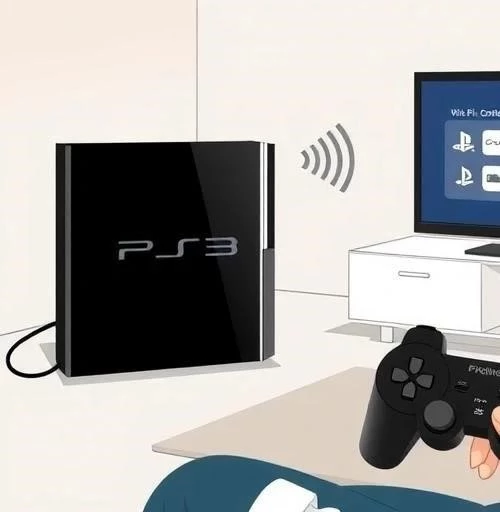
A PlayStation 3 may be a veteran of the living-room battlefield‚ but it can still reach the internet for online play‚ downloads‚ updates‚ and media features—provided your home network speaks a language the console understands. Connecting it is usually straightforward: find the network settings‚ choose your Wi-Fi name‚ enter the password‚ and let the PS3 test the connection. The trick is knowing what to do when a modern router and an older console disagree about security or signal.
This guide walks through the normal setup‚ explains the settings that matter‚ and offers a practical rescue plan for common connection failures. Think of it as opening a small digital bridge between a classic console and today’s network.
Before you begin: check the basics
- Know your Wi-Fi name and password. The network name is also called the SSID. Passwords are case-sensitive‚ so “BlueRoom7” and “blueroom7” are different.
- Check your router’s band and security mode. The PS3 connects over 2.4 GHz Wi-Fi. It does not connect directly to a 5 GHz-only network. WPA2-Personal (also called WPA2-PSK) with AES is generally a dependable choice; WPA3-only networks may not be compatible.
- Put the console within reasonable range. A PS3 tucked behind a television‚ inside a cabinet‚ or several walls away from the router may see a weak signal.
- Have a controller ready. The on-screen keyboard is navigated with the controller’s directional buttons‚ which makes careful password entry worthwhile.
Router menus vary by manufacturer‚ and settings that work for one household may not be appropriate for another. Avoid weakening your entire network to accommodate one device if a safer option—such as a guest network—is available.
Connect the PS3 to Wi-Fi step by step
- Turn on the console and open Settings. From the XMB (the PS3’s main menu)‚ move to Settings.
- Choose Network Settings. Scroll down the Settings column and select Network Settings. If the console warns that it will disconnect from the network‚ confirm and continue.
- Open Internet Connection Settings. Select this option‚ then choose Yes if asked to proceed.
- Select Easy. For a typical home network‚ the Easy setup lets the console obtain most network details automatically. Choose Custom only when your network administrator or internet provider has supplied specific settings.
- Select Wireless. When asked for the connection method‚ choose Wireless.
- Choose Scan. The PS3 searches for nearby wireless networks. When the list appears‚ select the name of your own Wi-Fi network. If it is not listed‚ move closer to the router and scan again.
- Choose the correct security type. The console may detect the router’s security automatically. If it asks you to choose‚ select the type configured on the router—commonly WPA-PSK/WPA2-PSK. Do not guess: a mismatch can prevent the connection even when the password is right.
- Enter the Wi-Fi password. Use the on-screen keyboard and check capital letters‚ numbers‚ and symbols. Confirm the entry when it is complete.
- Save and test. Review the settings‚ save them‚ and choose Test Connection. The PS3 will attempt to obtain an IP address‚ connect to the internet‚ and check PlayStation Network availability.
If the test reports that obtaining an IP address succeeded but the internet connection failed‚ the console has probably reached the router but not the wider internet. If the wireless connection itself fails‚ begin with the password‚ security mode‚ signal strength‚ and router band.
Reading the connection test
The test is not just a green-or-red verdict; it is a little map of where the journey stopped.
- Obtain IP Address: Succeeded. The router assigned the PS3 a local network address. This is a good sign‚ but it does not guarantee internet access.
- Internet Connection: Succeeded. The console can reach the internet. Online services may still be unavailable for other reasons.
- PlayStation Network: Succeeded. The console reached PSN at the time of the test. Sign-in problems can still be caused by account details‚ service availability‚ or system software.
- NAT Type. This describes how the console communicates through the router. Type 2 is common for a console behind a home router. A stricter type may affect some multiplayer or voice features‚ but it does not always prevent ordinary internet access.
When the Wi-Fi network does not appear
First‚ check that the router is broadcasting a 2.4 GHz network. Some routers combine the 2.4 GHz and 5 GHz bands under one name‚ while others let you give them separate names. If the combined network causes trouble‚ temporarily giving the 2.4 GHz band a distinct SSID can make it easier to select. Make sure the router is not set to hide its network name.
Next‚ move the PS3 closer to the router and scan again. If the network still does not show‚ restart the router‚ wait until its internet connection is back‚ and repeat the scan. Also check the router’s wireless channel settings. Automatic channel selection usually works‚ but a crowded or unusual configuration can sometimes make an older device struggle. If you change the channel‚ use a standard 2.4 GHz channel supported in your region and follow the router maker’s instructions.
Some routers use a combined “smart connect” feature to steer devices between bands. If the PS3 cannot find or join the network‚ try creating a separate 2.4 GHz network rather than disabling security. A guest network can be useful‚ too‚ if it allows 2.4 GHz and uses a compatible security mode.
When the password keeps failing
Re-enter it slowly. The PS3’s on-screen keyboard can make similar characters easy to confuse: uppercase and lowercase letters differ‚ and a zero is not the same as the letter O. Check whether the password includes punctuation‚ and confirm that the console is connecting to your network rather than a neighbor’s similarly named one.
If you are certain the password is correct‚ compare the router’s security mode with the option selected on the console. WPA2-Personal/WPA2-PSK is usually the most practical compatibility setting. A router configured for WPA3-only‚ enterprise authentication‚ or a mode the PS3 does not recognize may reject the console regardless of how accurately you type.
Do not switch your whole network to open‚ password-free Wi-Fi just to test the console. If you need to experiment‚ make a temporary guest network with a strong password and a compatible security setting‚ then remove or secure it after testing.
Connected to the router‚ but not the internet?
Restart both devices: turn off the PS3‚ unplug the router for about 30 seconds‚ reconnect it‚ and wait for its lights to settle before turning on the console. Then run the connection test again. A simple restart can clear a stale network assignment without changing any settings.
On the PS3‚ return to Internet Connection Settings and try the Easy setup again. Automatic IP and DNS settings are suitable for most homes. If you previously entered manual values‚ an old address or mistyped DNS setting may be blocking access. Switch back to automatic unless your network administrator has given you precise values to use.
Check whether other devices can reach the internet through the same Wi-Fi. If none can‚ the issue is likely the router or internet service rather than the PS3. If other devices work but the console does not‚ inspect parental controls‚ device access lists‚ MAC filtering‚ and any router setting that might block unfamiliar or older devices.
Try a phone hotspot as a diagnostic tool
A phone hotspot can help determine whether the problem is your router or the console. If your phone allows it‚ enable a 2.4 GHz-compatible hotspot with a simple temporary name and a secure password‚ then scan for it on the PS3. Hotspot options differ between phones‚ and some default to a band or security mode the console may not support.
If the PS3 connects to the hotspot but not your home Wi-Fi‚ focus on the router’s band‚ security‚ or access controls. If it cannot connect to either‚ check the console’s settings and software‚ then consider testing with an Ethernet cable. A hotspot is best used briefly for diagnosis: downloads and system updates can consume mobile data quickly.
Use Ethernet if wireless remains stubborn
The PS3 has a wired network port. Connect an Ethernet cable from the router to the console‚ then open Settings > Network Settings > Internet Connection Settings and choose the wired connection option. Follow the Easy setup and run the test.
Wired networking is often steadier for multiplayer and large downloads‚ and it removes Wi-Fi band and password issues from the equation. If Ethernet works immediately‚ the console’s internet connection is fine; the remaining problem is specifically the wireless link or the router’s Wi-Fi configuration.
Updates‚ sign-in‚ and older online services
A successful internet test does not mean every PS3-era online feature is still available. Individual games‚ stores‚ media apps‚ and online services may have been discontinued or changed over time. Availability can vary by region and by the service itself‚ so a connection error inside one game does not necessarily mean your Wi-Fi is broken.
If the console asks for an update‚ use the built-in system update option when it is available and your connection is stable. You can also check current PlayStation instructions for supported update methods. Avoid update files from unknown sites: unofficial downloads can be unsafe or intended for a different system. If the console reaches the internet but cannot sign in‚ verify your account information and consult current PlayStation guidance for PS3 sign-in requirements.
A quick troubleshooting checklist
- Is the router broadcasting a 2.4 GHz network?
- Is the PS3 close enough to receive a strong signal?
- Did you select your own SSID and enter the exact password?
- Does the router use a security mode the PS3 can join‚ such as WPA2-Personal?
- Are IP and DNS settings set to automatic unless you have specific instructions?
- Can another device access the internet through the same router?
- Have you restarted the router and rerun the PS3 connection test?
- Does an Ethernet cable work‚ helping isolate the problem to Wi-Fi?
The short version
On the PS3‚ go to Settings > Network Settings > Internet Connection Settings‚ choose Easy‚ select Wireless‚ scan for your 2.4 GHz Wi-Fi network‚ enter its password‚ save‚ and test. If the connection fails‚ check the router’s security mode and signal before changing advanced settings. When wireless refuses to cooperate‚ Ethernet is the dependable shortcut—and a hotspot can help identify which side of the connection needs attention.
The console may be old enough to remember a different internet‚ but it does not need a time machine. Give it a compatible signal‚ a correctly entered password‚ and a clear path to the router‚ and your PS3 can still find its way online.
6 Comments. Оставить новый
This feels like a patient technician sitting beside you while the old console finds its way home. The setup basics are easy to follow, and the security notes add welcome common sense.
This guide makes network setup feel less like negotiating with a time capsule. The practical checks are clear, and the advice about using a guest network keeps security in the picture.
The PS3 may be a veteran, but it deserves a fair shot at the modern internet. I like how this explains the likely points of friction without making the reader feel lost in router jargon.
A tidy little troubleshooting compass for anyone whose console keeps missing the digital train. The password-entry tip is wonderfully grounded in the reality of using a controller as a keyboard.
Clear, cautious, and refreshingly useful. Rather than telling readers to loosen every router setting, it points toward safer options and explains why a 5 GHz-only network can be a dead end.
A helpful bridge between a dependable old console and a very modern router. I especially appreciate the reminder that 2.4 GHz and WPA2 compatibility can matter more than signal bars suggest.