
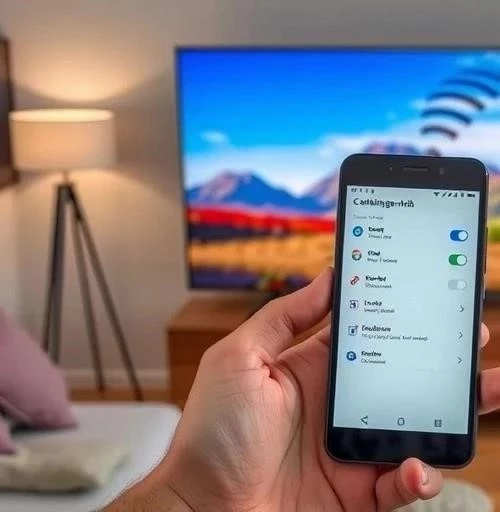
You can display photos‚ videos‚ and other content from a Redmi 5 on a television wirelessly‚ provided the TV supports screen mirroring or has a compatible streaming device. The best method depends on the TV: try wireless casting first‚ since it needs no cable and is usually the simplest option. Menu names can differ slightly between MIUI versions.
Method 1: Use wireless screen mirroring
- Connect the phone and the TV to the same Wi-Fi network. This is important for many smart-TV and streaming-device connections.
- On the TV‚ open its screen-mirroring feature. Depending on the brand‚ it may be called Miracast‚ Screen Mirroring‚ Wireless Display‚ or Cast. Leave that screen open.
- On the Redmi 5‚ open Settings and look for Connection & sharing‚ More‚ or Wireless display. Turn on Cast or Wireless display‚ then select the TV from the list.
- Approve the connection on the TV if prompted. The phone screen should then appear on the television.
If the TV does not appear‚ check that mirroring is enabled on the TV‚ confirm both devices are on the same network‚ and restart Wi-Fi on the phone. Some TVs use Miracast while other devices rely on Google Cast‚ so they are not always directly compatible. A Chromecast or Google Cast-enabled TV may require casting from a supported app‚ or setting up the device through Google Home‚ rather than using the TV’s Miracast mode.
Method 2: Use an HDMI streaming device
If the television is not smart‚ connect a Chromecast or another compatible streaming device to an HDMI port and follow its setup instructions. Put the phone and device on the same Wi-Fi network. Then use the Cast button in a compatible app‚ or use the device’s supported screen-mirroring option. This is often more reliable than expecting an older TV to support wireless display by itself.
Can a cable connect the phone directly?
The Redmi 5 has a micro-USB port‚ and it does not provide standard wired video output. Therefore‚ a simple micro-USB-to-HDMI cable is not a dependable solution: an adapter cannot add video support the phone does not offer. For a wired connection‚ use a compatible streaming box connected to the TV instead.
Troubleshooting and practical tips
- Keep the phone near the router or TV‚ and temporarily disable a VPN if discovery fails.
- Update the phone and TV software‚ then restart both devices.
- For videos‚ casting directly from the streaming app may be smoother and use less battery than mirroring the entire screen.
- Do not confuse Bluetooth pairing with screen casting; Bluetooth alone cannot send the phone’s display to a TV.
In short: try the Redmi 5’s Cast or Wireless display setting with a compatible TV. If the TV is unsupported‚ an HDMI streaming device is the practical alternative.
9 Comments. Оставить новый
This gives readers a sensible order to try: wireless mirroring first, then a streaming device if the television is not compatible. The steps are straightforward without promising that every TV will connect.
The article is concise but covers the main options. I would also remind users that casting from an app may show only that app’s content rather than duplicating the entire phone screen.
This is a helpful guide because it sets expectations as well as giving steps. The compatibility caveat is especially valuable for avoiding unnecessary troubleshooting when the TV and phone use different casting standards.
The explanation about Miracast and Google Cast is important. Readers might otherwise assume that any smart TV can mirror the phone directly, when compatibility depends on the technology involved.
It is helpful that the article notes menu labels can vary between MIUI versions. That small detail makes the instructions more realistic for people using an older phone.
The distinction between wireless mirroring and app-based casting is useful. Those methods are often confused, even though a TV that supports one may not support the other.
The troubleshooting advice is practical, especially the reminder to check the TV’s mirroring mode. A device may not appear simply because the TV is waiting for a different type of connection.
The advice to use a compatible streaming device for an older television is sensible. It offers a practical alternative instead of implying that a cable can overcome the Redmi 5’s lack of wired video output.
I appreciate the clear warning that a basic micro-USB-to-HDMI cable will not provide video from the Redmi 5. That can save readers from buying an adapter that will not work.