
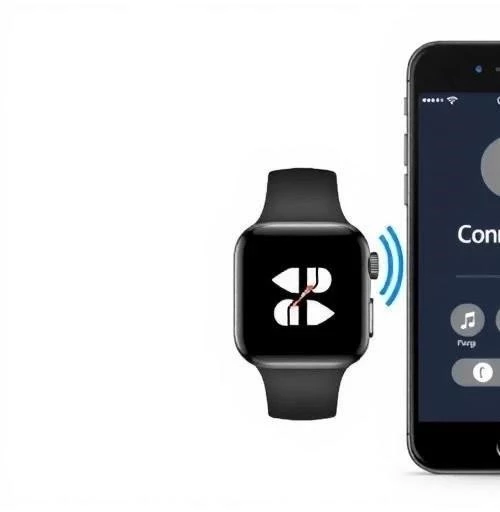
Connecting an X5 Pro smartwatch usually involves two steps: pairing it through its companion app and, if supported, enabling a separate Bluetooth connection for calls. The exact app and menu names can vary between versions of the watch, so check the manual or the QR code displayed on the watch before choosing an app.
Before you begin
- Charge the watch and turn it on.
- Enable Bluetooth on your Android phone or iPhone, and keep the devices close together.
- Check that the phone has an internet connection if the companion app needs to be downloaded.
- Do not pair the watch from the phone’s Bluetooth settings first unless the manual specifically tells you to do so. Many models need to be added from inside their app.
Install the companion app
Look for a QR code in the watch menu, on its packaging, or in the instruction booklet. Scan it with the phone camera and follow the link to the app store. Confirm that the app name matches the instructions for your particular X5 Pro. Names and software may differ across batches, and an app suggested for a similar-looking watch may not work with yours.
If the QR code is unreadable, consult the printed manual or the seller’s support information rather than installing an unknown file or granting permissions to an unrelated app.
Pair the watch through the app
- Open the companion app, accept the required permissions, and create or sign in to an account if prompted.
- Choose an option such as Add device, Bind device, or Connect watch.
- Select the X5 Pro or the device name that corresponds to the watch. If several devices appear, compare the name or identifier with the details shown on the watch.
- Confirm the pairing request on both the phone and watch, if a confirmation appears.
- Wait for the app to show that the device is connected. Keep the app open during initial setup and allow time for settings or data to synchronize.
The app may request access to notifications, contacts, calls, location, or Bluetooth. Grant only the permissions needed for the features you want. On some Android phones, location access is required for Bluetooth discovery; this does not necessarily mean the watch is tracking your location. Permission names and prompts depend on the phone’s operating system.
Set up calls and notifications
Fitness data and basic watch functions may use the app connection, while Bluetooth calling can require a second pairing. If calls are unavailable, open the phone’s Bluetooth settings after pairing in the app and look for an additional device entry associated with the watch. Select it and approve the request. The entry may have a different name from the one shown in the app. If the manual does not describe a second connection, do not assume that the model supports Bluetooth calls.
To receive alerts, enable notifications in the companion app and in the phone’s settings. Select which apps may send alerts, and check that battery-saving settings are not stopping the companion app from running in the background. Notification controls differ between Android and iOS.
If the connection does not work
- Restart the watch and phone, then try pairing again with the devices close together.
- Make sure the watch is not already connected to another phone. Disconnect it there first if necessary.
- If it appears in Bluetooth settings but not in the app, remove or forget that pairing, then start again from the app.
- Check Bluetooth permissions, notification access, and background activity settings for the companion app.
- If the watch was paired previously, use the app’s unbind option or reset the watch only after checking the manual. A reset can erase local settings or data.
Once connected, the app should identify the watch and provide controls for available functions. If setup still fails, verify the exact app and instructions for your X5 Pro version with the seller or manufacturer; similar product names do not guarantee identical software.
1 Comment. Оставить новый
The guide clearly distinguishes app-based pairing from a separate Bluetooth connection for calls and appropriately advises checking the watch’s own instructions. The reminder to verify the companion app and review requested permissions is also useful.