
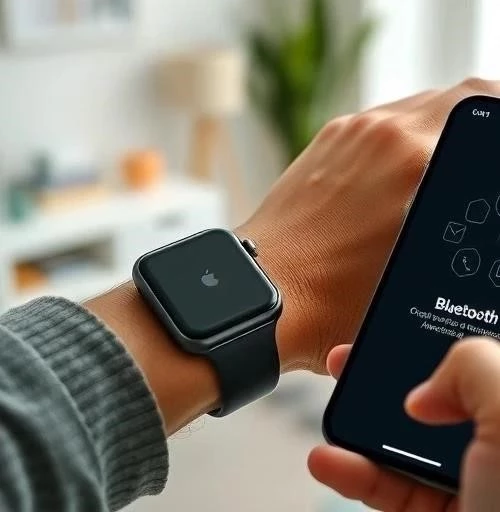
Connecting an X6 smartwatch usually involves charging and switching on the watch, installing its companion app, and pairing it with a phone. The exact app and available features can differ between X6 versions and sellers, so check the instruction booklet or the QR code shown on the watch before you begin. Do not assume that every device labelled “X6” uses the same software.
Prepare the watch and phone
- Charge the watch using its supplied cable or charging base. Make sure the contacts are correctly aligned and allow the watch to charge before setup.
- Turn it on by pressing and holding the side button, if present. If it does not respond, charge it for a while and try again.
- On your phone, enable Bluetooth. Keep the phone and watch close together during setup. An internet connection may be needed to download the app.
- Check that the phone’s operating system is compatible with the app specified in the watch manual.
Install the correct companion app
Look in the X6 manual, on the packaging, or in the watch’s settings for a QR code or app name. Scan the code with the phone camera, then open the result in the official Apple App Store or Google Play Store. Confirm the app’s name and publisher before installing it. Avoid downloading an unknown app file from a third-party website.
If the watch displays a QR code, it may lead to the companion app, a device-binding page, or both. Follow the instructions shown on the screen. If the code cannot be scanned, search the official app store for the exact name printed in the manual. Names used for similar-looking watches are not necessarily interchangeable.
Pair the X6 through the app
- Open the installed app and create an account or continue as a guest if that option is offered.
- Allow the permissions required for the functions you plan to use. Depending on the phone and app, these may include Bluetooth or nearby-device access, notifications, and location during device discovery.
- Choose an option such as Add device, Bind device, or Connect watch. Keep the watch awake and select the X6 or the matching device name when it appears.
- Approve the pairing request on both the phone and watch, if prompted. Wait for the app to confirm that the connection is complete.
For many models, pairing from inside the companion app is the recommended first step. Connecting only through the phone’s Bluetooth settings may not bind the watch to the app, and health data or notifications may then fail to work. If the app specifically instructs you to pair through Bluetooth settings, follow that model’s instructions.
Set up calls and notifications
After the main connection is established, open the app’s device settings and choose which alerts to receive. Enable notification access on the phone if requested, then select the apps you want to appear on the watch. Keep in mind that the watch may show an alert without allowing a reply.
Some X6 versions support Bluetooth calling through a second connection, often named separately in the phone’s Bluetooth menu. If the manual describes this feature, enable calling in the companion app and connect the additional Bluetooth entry. Grant microphone or contacts access only if needed. Not every X6 supports calls, and the available functions depend on the hardware and app.
If the watch does not connect
- Make sure Bluetooth is on, the watch has power, and it is close to the phone.
- Close and reopen the app. Restart both devices, then try adding the watch again.
- If the X6 appears in the phone’s Bluetooth list as an old connection, choose Forget or Unpair, then start pairing from the app again.
- Check the app’s permissions and update it through the official store. On some phones, battery-saving settings can restrict background connections.
- If the watch was previously linked to another phone, unbind it there if possible. As a last resort, use the watch’s Reset option and repeat setup; this may erase stored data.
After connection
Wear the watch comfortably, set the time and basic profile details in the app, and allow time for initial synchronization. If connection repeatedly drops, keep Bluetooth enabled and check whether the app is permitted to run in the background. For model-specific problems, use the manual or contact the seller with the watch’s exact version and the phone model.
2 Comments. Оставить новый
This guide is easy to follow and highlights the importance of checking the watch’s manual before pairing. The instructions could be more complete if they continued through the remaining app setup and device-binding steps.
The article clearly explains the initial setup steps and appropriately notes that X6 watches may require different companion apps. The advice to use official app stores is a useful safety precaution.