
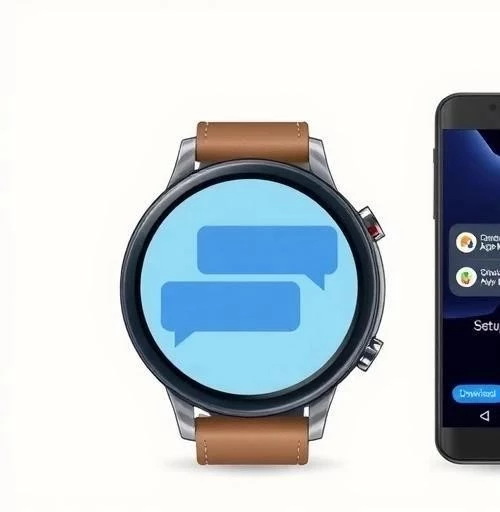
The Galaxy Watch 4 runs Wear OS, so you can install the official WhatsApp app directly from Google Play; Once it is linked to the WhatsApp account on your phone, you can read and reply to messages from your wrist. The watch app is a companion, not a separate account: you will need WhatsApp set up on a phone first.
Before you begin
- Make sure WhatsApp is installed and working on your Android phone or iPhone.
- Connect the Galaxy Watch 4 to the internet through Wi-Fi or its paired phone. Keep Bluetooth on during setup.
- Update the watch software and the Play Store apps if updates are available. The Watch 4 supports Wear OS apps, but availability can depend on your country and software version.
- Use the official WhatsApp app published by WhatsApp LLC. Avoid unofficial watch apps that ask for your account details.
Install WhatsApp from the watch
- Wake the watch and press the Home button to open the app list.
- Open Play Store. If prompted, sign in with the Google account used on the watch.
- Tap the search icon, enter WhatsApp Messenger, and select the official result.
- Tap Install and wait for the download to finish. You may need to scroll through the app listing to find the install button.
- Open WhatsApp from the Play Store or the watch’s app list. Follow the on-screen instructions to connect it to your existing account.
Link the watch to your phone
During setup, WhatsApp displays a code on the watch. On your phone, open WhatsApp and go to Settings (or the three-dot menu on Android) > Linked devices > Link a device. Confirm your identity if asked, then enter the code shown on the watch. The labels and prompts may vary slightly by WhatsApp version. Once linking completes, your chats should begin appearing on the watch.
If your watch shows a QR code or a different prompt instead, follow that screen’s instructions; do not share a linking code with anyone. Linking adds the watch as a companion device and does not move your primary WhatsApp account away from the phone;
Install it from your phone instead
You can also open the Google Play Store on your phone, search for WhatsApp, and check whether the listing offers an option to install it on your Galaxy Watch 4. Select the watch as the destination if it appears, then wait for the watch to download the app. If the watch is not listed, install directly through its Play Store instead. Google Play may show different options depending on the devices linked to your account.
What you can do on the watch
After setup, open WhatsApp on the watch to browse recent conversations, read messages, reply using the keyboard, voice input, or suggested responses, and send voice messages where supported. Notifications can also let you respond without opening the app. Some features may differ from the phone app, and calling or media options can depend on the app version and connection. Your chats remain protected by WhatsApp’s account security and encryption features.
Troubleshooting
- WhatsApp does not appear in Play Store: check for watch and Play Store updates, confirm the watch is online, and search the exact app name. Availability may vary by region.
- The code will not link: make sure you enter the current code in the correct phone account. If it expires, restart setup to generate a new one.
- Messages do not arrive: check the watch’s internet connection, notification permissions, and WhatsApp notification settings on both devices. Restarting the watch and phone may help.
When setup is complete, keep WhatsApp and Wear OS updated for compatibility and security. You can remove the watch later from Linked devices in the phone app.