
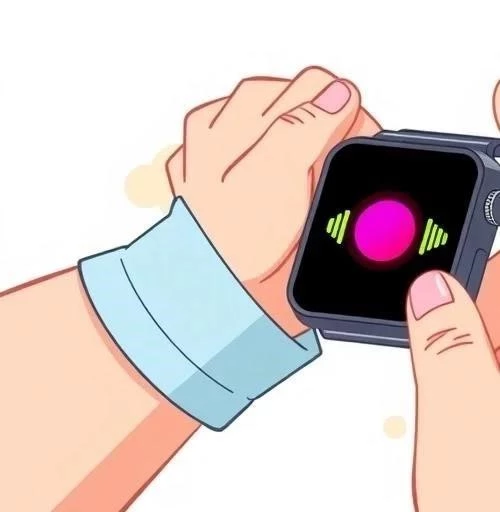
Your Apple Watch can be more than a clock: it can be a tiny command center that answers questions, starts timers, sends messages, and helps you find your iPhone. Siri is the voice behind those quick requests. You can summon it with your voice, a gesture, or the Digital Crown—and, if speaking is inconvenient, you can type instead. Here’s how to set it up and make it feel effortless.
Turn Siri on from your watch
- Press the Digital Crown to open the app grid or list.
- Open Settings on your Apple Watch.
- Scroll down and tap Siri.
- Turn on one or more ways to activate Siri: Listen for “Siri” or “Hey Siri,” “Raise to Speak,” and Press Digital Crown.
The exact labels can vary with your watch model and software version. You don’t have to enable every method. Pick the one that suits your day: a spoken wake phrase while cooking, a raised wrist when your hands are free, or a Crown press when you want to keep your request private.
Choose how Siri listens
Listen for “Siri” or “Hey Siri”
Raise your wrist or tap the display, then say “Siri” or “Hey Siri” and your request. On some setups, you can speak the request straight away after raising your wrist. If the watch wakes when someone else says the phrase, or you rarely use voice activation, switch this option off and use the Crown instead.
Raise to Speak
Bring the watch close to your mouth and start talking—no wake phrase required. Keep your wrist near your face for a moment and speak naturally. This can be handy in a quiet room, though raising your arm during conversation may occasionally trigger Siri by accident.
Press the Digital Crown
Hold the Crown until Siri appears, say what you need, then release it. This is a reliable choice in noisy places or when you don’t want the watch listening for a wake phrase. A short press opens your apps; press and hold to call Siri.
Ask your first question
Try a request with an immediate payoff: “Set a timer for 10 minutes,” “What’s the weather today?” or “Start an outdoor walk.” You can also ask Siri to open an app, send a message, make a call, set an alarm, or find a paired Apple device. Say one clear request at a time; if Siri needs more information, it may ask a follow-up question.
For example, say, “Remind me to water the plants at 6,” or “Where is my iPhone?” The available actions depend on your watch, software, paired devices, network connection, and settings. Some requests need your iPhone nearby, while others can work using Wi-Fi or cellular service on the watch.
Set Siri’s voice, language, and replies
In Settings > Siri on Apple Watch, look for options that control spoken feedback and Siri’s voice. You can choose whether answers are spoken and adjust how Siri responds. Names and available choices differ by software version and language. To change Siri’s language, use the Siri settings on the paired iPhone as well; the watch’s choices may follow the phone’s configuration.
If you’d rather not speak, check the Accessibility settings for Type to Siri or its equivalent on your software version. With typing enabled, you can enter a request instead of saying it aloud. This is useful in a library, on a crowded train, or whenever quiet is the better command.
If Siri doesn’t answer
- Return to Settings > Siri and check that your preferred activation method is switched on.
- Raise your wrist, bring it closer, or hold the Digital Crown until Siri appears.
- Check that the watch has an internet connection when your request needs one.
- Restart the watch and iPhone, then check for available software updates.
- Make sure the microphone isn’t blocked by a case, dirt, or moisture. If Siri hears you poorly in every app, the microphone may need attention.
If Siri misunderstands a name, try saying it slowly or editing the contact’s pronunciation on your iPhone. If the assistant responds in the wrong language, review Siri’s language settings on both devices. Feature availability can vary by model, region, language, and watchOS version, so a missing option doesn’t necessarily mean your watch is broken.
A small assistant, a smoother day
Once Siri is enabled, you don’t need to treat every task like a phone-sized project. Ask for a timer while kneading dough, dictate a reply while walking, or start a workout before you forget. Choose an activation method that feels natural, test it with a simple request, and adjust the settings until Siri fits your routine. Your wrist is ready when you are.
6 Comments. Оставить новый
The privacy angle is welcome. Voice activation is convenient, but choosing a button instead can make the watch feel more like a trusted assistant and less like an eager housemate listening for its cue.
I like how this turns Siri setup into a small experiment: try each activation method, then keep the one that fits your real life. The Digital Crown option feels especially useful when the room is loud—or your request is nobody else’s business.
“Raise to Speak” sounds like a tiny sci-fi gesture, but the practical note about accidental activation keeps it grounded. I’d love to see more guides explain not just how a feature works, but when it might get awkward.
The best tech advice often starts with permission not to use every feature. This guide makes Siri feel less like a switchboard to master and more like a tool you can quietly tailor to the rhythm of your day.
Clear, calm, and refreshingly free of gadget mystique. The reminder that labels vary by model and software version is a small detail with big value—it helps readers troubleshoot instead of wondering whether they missed a step.
This is a pocket-sized reminder that a watch can save little pieces of attention. A timer, a forecast, or a quick phone-finding request may seem trivial—until your hands are full and those seconds matter.