
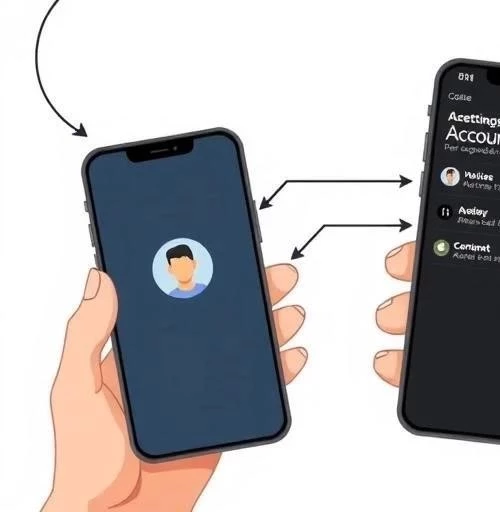
A Huawei ID‚ also called a Huawei Account in some menus‚ is the account used to access Huawei services․ Depending on the device‚ region and software version‚ it may be connected to AppGallery‚ Huawei Cloud‚ Themes‚ device backup‚ Find Device and other services․ If you are already signed in‚ you can usually find the account details in Settings or in a Huawei app․ If you are not signed in‚ you may need to identify the email address or phone number you used when creating the account․
Check the account on a Huawei phone or tablet
- Open Settings․
- Look near the top of the screen for a profile‚ account name or Huawei ID entry․ On many devices‚ tapping it opens the account centre․
- Check the profile page for the registered email address or mobile number․ Some versions show a partially hidden address or number for privacy․
Menu labels and locations differ between models and software versions․ If you do not see an account entry at the top of Settings‚ look for Account centre‚ Huawei ID or Log in to Huawei ID in Settings․ You can also use the Settings search field and search for “Huawei ID” or “Account centre․” The search result may lead directly to the relevant page․
Look in Huawei apps
If the account is not easy to locate in Settings‚ open an app that uses Huawei services․ In AppGallery‚ for example‚ tap the profile or account icon‚ often shown near the bottom of the screen‚ and check the account page․ Huawei Cloud and Themes may also display a profile icon or account details․ The precise layout can vary‚ so look for a profile picture‚ account name‚ or account-centre option rather than relying on a fixed icon position․
When an app opens with an active session‚ its profile area may show the same Huawei ID used by the phone․ Confirm that the account is yours before making changes: a device can sometimes have more than one account involved‚ such as a Huawei ID in Huawei services and a separate account for email‚ a mobile carrier or another app․
Check a browser or another device
If you have previously used your Huawei Account on a computer or another phone‚ check whether you are still signed in to an official Huawei account page or service․ Open the profile or account settings and review the contact information shown there․ Use an official Huawei website for your country or region‚ and type its address yourself or reach it through a trusted Huawei app․ Avoid entering account details on pages reached through unfamiliar messages or advertisements․
A browser may remember a login‚ but a saved password or browser profile does not necessarily reveal which account is currently active․ Check the account page itself․ If the address or number is masked‚ compare the visible characters with email addresses or phone numbers you have used‚ without sharing verification codes with anyone․
If you are signed out
Start with the email addresses and mobile numbers you commonly use․ Search your inboxes for past Huawei messages‚ such as account registration notices‚ security alerts‚ purchase receipts or verification emails․ Search all folders‚ including spam and archived mail․ A Huawei message can help identify the address associated with the account‚ but check that it is genuine before following a link․
You can also open the Huawei ID sign-in screen in Settings or AppGallery and choose the option for a forgotten password or account recovery․ Depending on the region and account setup‚ the recovery process may accept a registered phone number or email address․ Enter details only in the official sign-in or recovery flow․ If a partial address or number is displayed‚ use it as a clue; it may not show the full account identifier․
If you are unsure which phone number or email was used‚ try likely contact details one at a time through the official recovery process․ Do not repeatedly guess passwords‚ and do not create another account just to test a recovery link․ If the system says an account cannot be found‚ check spelling‚ country code and any older email address or number you may have used․ An account may have been registered in a different region‚ and services or support options can vary by country․
If you can no longer use the registered email or number
Use the account recovery or change-contact option offered on the official Huawei sign-in page․ Huawei may ask for information to verify that you are the account owner․ Follow the instructions shown for your region and provide accurate details․ Recovery can take time‚ and the available verification methods may depend on the account’s security settings․
If automated recovery does not work‚ contact Huawei customer support through the official support channel for your country․ Explain that you are trying to identify or recover your own account and state what access you still have‚ such as the device‚ a previous phone number or a recovery email․ Support may request proof of ownership‚ but you should not send passwords or one-time verification codes․ Be cautious of people or websites that promise to unlock an account for a fee or ask for remote access to your device․
Do not confuse Huawei ID with device identifiers
A Huawei ID is an account credential‚ usually based on an email address or phone number․ It is not the same as the device model‚ serial number‚ IMEI‚ Wi-Fi address or Android device identifier․ Those identifiers may be found in device information or on the original packaging‚ but they do not tell you which Huawei Account is signed in․ Likewise‚ a screen-lock PIN is not the Huawei ID password․
This distinction matters if you are setting up a second-hand device or trying to regain access․ A request for the previous owner’s Huawei ID is an account-protection measure‚ not a request for the phone’s serial number․ Ask the previous owner to remove the device from their account using Huawei’s supported process․ Do not try to bypass an account lock; contact Huawei support or the seller if the former owner cannot be reached․
After you find the account
Once you have identified the Huawei ID‚ confirm that its recovery email and phone number are current․ If you are signed in‚ review the account’s security settings and update outdated contact details through the official account centre․ Use a strong‚ unique password and enable any additional verification options available to you․ Store the password in a reputable password manager rather than in an unsecured note․
- Never disclose your password or verification code to someone claiming to be support․
- Do not approve a sign-in request you did not initiate․
- Use the official recovery process instead of links from unexpected texts or emails․
- Before selling or giving away a device‚ sign out and remove your account as directed by Huawei․
Quick checklist
To find your Huawei ID‚ first check Settings and the account or profile area․ If it is not listed there‚ inspect the profile in AppGallery or another Huawei service․ If you are signed out‚ search your email accounts for Huawei messages and use the official forgotten-password or recovery option with likely registered contact details․ If you no longer control those details‚ follow Huawei’s account-recovery instructions or contact official support․ The exact menu names and recovery methods depend on your device software and region‚ but the account centre and official recovery flow are the safest places to start․

3 Comments. Оставить новый
The article gives a clear overview of where to check for a Huawei ID and notes that menu labels can vary by device and software version.
The reminder that account details may be partially hidden is useful, as is the advice to confirm the account before making changes.
The suggestions to check Settings and Huawei apps provide practical alternatives for locating account details.