
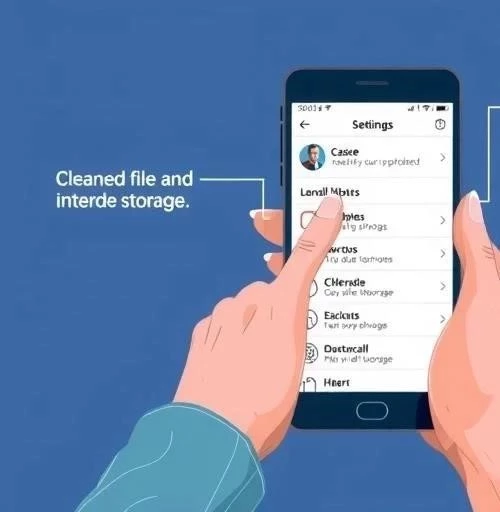
Your Huawei phone is a pocket-sized city. Photos are its galleries, apps are its shops, and downloads are the boxes piling up in the hallway. When storage runs low, the city does not need to be demolished; it needs a thoughtful spring-clean. The safest approach is to find what is taking space, remove what you no longer need, and protect the files you would miss.
This guide covers Huawei phones running EMUI or HarmonyOS. Menu names and features vary by model, software version, and region, so treat the paths below as signposts rather than identical street addresses. Before deleting anything important, make sure you have a backup.
First, know what you are cleaning
Internal storage is the space used for apps, photos, videos, downloaded files, messages, and parts of the operating system. RAM is short-term working memory used while apps are running. Closing recent apps may help a phone feel less busy, but it does not meaningfully free internal storage. If your Settings screen says storage is nearly full, focus on files and apps, not on repeatedly swiping apps away.
Find the biggest space-takers
- Open Settings and look for Storage. On some phones, it may be under About phone, or you may find a storage overview in Optimizer or Phone Manager.
- Give the phone a moment to calculate. Review categories such as apps, images, videos, audio, documents, and system data.
- Tap a category, if available, to see which files or apps are using the most space. Start with large, replaceable items rather than mysterious system folders.
Think of this screen as a map, not a verdict. A large “System” or “Other” category is not automatically a pile of junk: it can include essential software, app data, and files Android does not present as ordinary documents. Do not delete system folders simply because their names look unfamiliar.
Use Huawei’s built-in cleanup tools
Open Optimizer or Phone Manager and choose Cleanup, Clean up, or a similarly named option. On some versions, the tool is available from Settings > Storage. It may identify temporary files, app leftovers, installation packages, or large items you can review.
Read each category before tapping Clean. Temporary cache files are usually safe to remove, although apps may take a little longer to reopen while they rebuild them. A cleanup screen may also list downloads, photos, or files you chose to keep. Select only what you recognize and no longer need. The goal is not to win a race against the biggest button; it is to make an informed choice.
Give your gallery a careful edit
Photos and videos often occupy the largest rooms in the storage city. Open Gallery and look for long screen recordings, duplicate shots, blurry pictures, old video clips, and media received in chat groups; A few minutes spent reviewing a large video can free more room than deleting hundreds of tiny files.
- Back up first. Copy keepers to a computer, external drive, memory card, or a cloud service you trust. Check that the copies open before deleting the originals.
- Review albums. Screenshots, screen recordings, downloads, and messaging-app albums can contain files you do not need in your main camera collection.
- Empty Recently Deleted only after checking. Gallery apps commonly keep deleted items in a trash or recently deleted folder for a period of time. Removing them from that folder may be permanent;
If you use a cloud photo service, confirm what its buttons mean. “Remove from device” may keep a backed-up cloud copy, while “Delete” may remove it from the account and other synced devices too. Open the service’s help or check a photo from another device before relying on a setting you have not used before.
Tidy Downloads and file attachments
Open Huawei’s Files app, or the file manager installed on your phone. Browse Downloads, documents, audio, and large files. Old installation packages, exported videos, duplicate PDFs, and files saved for a single task are common candidates for removal. Sort by size or date if the app offers those options.
Be cautious around folders called Android, data, or obb. They may contain app resources or data that an app needs. Avoid deleting their contents by hand unless you know exactly what a specific file is and have a backup. If an app is occupying too much space, manage it through Settings instead.
Check messaging and social apps
Messaging apps can quietly become a second, less organized gallery. Group chats may download the same clip repeatedly, and voice messages or forwarded videos can accumulate for months. In apps such as WhatsApp, Telegram, or other messengers, open their Storage, Data and storage, or Manage storage settings. Review large conversations and remove selected media you no longer need.
Look for automatic media downloads and change them if they are filling your phone. For instance, you might choose to download large files only when you tap them or when connected to Wi-Fi. App settings differ, and clearing a conversation’s media can remove files you still want, so inspect the selection before confirming.
Clear an app’s cache—without erasing its life
For a specific app, try Settings > Apps > Apps, select the app, then open Storage or Storage usage. If the option is available, tap Clear cache. The exact labels vary by EMUI or HarmonyOS version. Cache contains temporary data, such as images an app can download again.
Clear data is different. It may reset the app, sign you out, remove downloaded content, or erase locally stored information. Do not use it as a casual cleanup button. Before clearing data, check whether the app has its own backup or sync, and make sure you know the login details needed to set it up again.
Uninstall apps you no longer use
Open Settings > Apps or long-press an app icon and choose Uninstall, if available. Remove games you have finished, duplicate tools, and apps you do not recognize only after checking what they are. Games and editing apps may store extra downloads that are much larger than the app itself.
Some preinstalled apps cannot be uninstalled. Depending on the model, you may be able to disable certain apps, but disabling a system or service app can affect other features. If you are unsure, leave it alone. Removing a few familiar, unused apps is safer than trying to strip the phone down to its invisible bones.
Move what you want to keep
If your Huawei model supports a microSD card, you may be able to move photos, videos, or documents to it. Not every model has a card slot, and not every app can be moved. In Files, select personal files and use Move or Copy to place them on the card. Open a few items from the new location before deleting the originals.
You can also transfer files to a computer using a USB cable. Unlock the phone, choose the appropriate file-transfer option if prompted, and copy your chosen folders. Another option is a cloud service, but uploading may take time, use mobile data, or require a subscription. Verify the backup before treating it as the only copy.
Make room for updates and everyday use
A phone with almost no free space can struggle to save photos, download updates, or create temporary files. Try to leave a comfortable buffer rather than filling every last gigabyte. There is no universal amount that suits every model, but freeing several gigabytes can make routine tasks easier, especially if you record video or install large games.
After cleanup, restart the phone if it still behaves oddly, then return to Settings > Storage and check the new totals. Some storage figures update after a short delay. If space disappears again, look for apps that cache offline music, maps, films, or social feeds, and adjust their download settings.
What not to do
- Do not install an unfamiliar “magic cleaner” just because it promises instant space. Use built-in tools or a reputable app from a trusted source.
- Do not delete system files or folders whose purpose you do not understand.
- Do not confuse Clear cache with Clear data; the latter can remove sign-ins and local information.
- Do not empty the Gallery trash or a file manager’s recycle bin until you have checked its contents.
- Do not assume that cloud sync is a backup. Deleting a synced item can sometimes delete it everywhere.
If storage still looks full
Check for large offline downloads, saved map areas, messaging media, and games with downloadable resources. Review the storage breakdown again after each change. If the “System” category seems unusually large, install available official updates when you have enough room and a stable connection, then check the figures again. Avoid factory-resetting the phone as a first fix.
A factory reset erases personal data and settings. Consider it only after backing up your files, confirming that you can sign back into your accounts, and trying simpler steps. If the storage display remains confusing or the phone reports errors, consult Huawei support or a qualified service provider for your exact model and software version.
A five-minute maintenance ritual
- Check Settings > Storage once in a while.
- Delete or archive a few unwanted large videos.
- Review the Downloads folder and messaging-app media.
- Remove apps you truly no longer use.
- Confirm that important photos and documents are backed up.
Clearing Huawei internal storage is less like sweeping everything off a desk and more like returning each useful object to the right shelf. Start with the storage map, remove files you can identify, protect what matters, and leave the phone’s system folders to the system. A little deliberate housekeeping can restore breathing room without turning a cleanup into a data-loss mystery.


5 Comments. Оставить новый
The article makes cleanup feel manageable: find the bulky things, check what they are, and protect what matters before tossing anything. That’s practical advice with the calm energy of a well-labeled toolbox.
I like that it treats menu names as signposts rather than promises. Huawei’s software paths can vary, and this small caveat saves readers from feeling lost when their phone takes a slightly different turn.
A helpful reminder that swiping away apps is not the same as freeing storage. The city metaphor gives the advice a memorable shape—and makes a phone’s crowded hallway feel surprisingly easy to picture.
A refreshingly cautious guide in a world of “delete everything” advice. Calling the storage screen a map, not a verdict, is a useful little compass for anyone tempted to poke at unfamiliar system folders.
The “pocket-sized city” image makes storage trouble feel less like a technical emergency and more like a cluttered home. I especially appreciate the reminder that RAM and internal storage are different rooms in that city.