
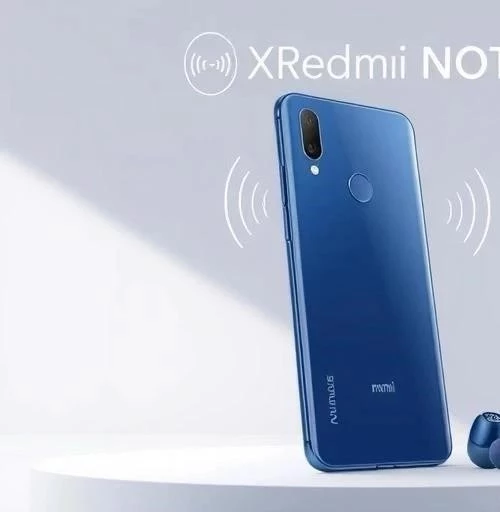
The Redmi Note 7 can play music loudly‚ but its built-in speaker setup has a small catch: it has one main loudspeaker‚ not a pair of independent stereo speakers. That means there is no setting you can switch on to make the phone’s own speaker produce genuine left-and-right sound. The good news is that you can still enjoy real stereo through headphones or an external speaker—or create a wider‚ more immersive effect from the phone’s single speaker.
Think of the Note 7 as a tiny stage with one spotlight. You cannot turn that spotlight into two‚ but you can connect a stereo sound system‚ adjust the mix‚ or make the solo performance sound more spacious. Here are the practical options‚ from easiest to most experimental.
First‚ check what “stereo” means
Stereo uses separate left and right audio channels. In a song‚ for example‚ a guitar might sit on the left while a backing vocal appears on the right. Mono combines those channels into one. The Redmi Note 7’s built-in loudspeaker plays through a single speaker‚ so it cannot physically separate the two channels in the way a pair of speakers can.
Some phones use the earpiece as a second speaker. Do not assume that an audio effect or an online “stereo mod” gives the Redmi Note 7 that hardware. The call earpiece is not automatically a second media speaker‚ and ordinary MIUI settings cannot turn it into one.
Option 1: Use stereo headphones
This is the simplest way to get proper left-and-right separation. Connect wired stereo headphones to the Redmi Note 7’s 3.5 mm headphone jack‚ or pair a Bluetooth headset. Play a track or video known to have stereo audio‚ and check that the left and right sides are not reversed or silent.
- For Bluetooth‚ open Settings > Bluetooth‚ switch Bluetooth on‚ and select your headphones from the available devices.
- For wired headphones‚ plug them in firmly. If you use an adapter‚ make sure it supports audio output and is compatible with your phone.
- Play a left/right stereo test at a moderate volume. If both sides sound identical‚ the recording may be mono; try another test or music track before troubleshooting the phone.
Bluetooth is convenient‚ while a wired connection avoids charging another device. Either way‚ the headphones—not a hidden phone switch—provide the two separate audio channels.
Option 2: Connect a stereo Bluetooth speaker
A portable speaker with two separated drivers can give music more room to breathe. Put the speaker in front of you‚ with its left and right sides facing the correct directions. Pair it through Bluetooth as you would a headset. If the speaker is actually a single-channel model‚ it may still sound fuller than the phone‚ but it will not create genuine left-and-right separation on its own.
Some Bluetooth speakers can be paired with a second matching speaker for a stereo pair. That feature is controlled by the speaker maker’s app or pairing procedure‚ not by a special Redmi Note 7 stereo setting. Follow the speaker’s instructions‚ and check that it supports stereo pairing rather than merely playing the same mono signal on both units.
Option 3: Check balance and mono-audio settings
Accessibility settings can help if one headphone channel is quieter‚ or if you need both channels combined for listening. Depending on your MIUI version‚ look in Settings > Additional settings > Accessibility and then the hearing or audio section. Menu names and locations can differ with MIUI updates and region.
- Audio balance adjusts how much sound goes to the left or right headphone channel. Keep the slider centered for a normal stereo image.
- Mono audio combines left and right channels. Leave it off if you want to preserve stereo separation in headphones. Turn it on only when you need both channels mixed together.
These controls affect audio routing; they cannot add a second physical speaker. If the option is not present in your software version‚ do not worry—your phone may simply arrange accessibility settings differently.
Option 4: Make the built-in speaker sound fuller
Although the phone’s speaker remains mono‚ a few careful adjustments can make playback clearer and more enjoyable. Open the sound settings and look for an equalizer or sound-effects option‚ if your MIUI version and music app provide one. Try a light adjustment rather than pushing every frequency to its maximum: excessive bass can make a small speaker distort‚ while boosted treble can become harsh.
Also try moving the phone away from soft surfaces that cover its speaker grille. Set it on a stable surface‚ keep the grille clear‚ and lower the volume if voices or music begin to crackle. A table may make the sound seem louder by reflecting it‚ but reflections are not true stereo. They are just the room joining the performance.
What about apps‚ “stereo boosters‚” and modifications?
Audio apps can offer equalization‚ reverb‚ or virtual-surround effects. Those may change the tone or create a sense of space‚ but software cannot make one built-in speaker reproduce two physically separated channels. Treat apps that promise “real stereo from the Redmi Note 7 speaker” with skepticism‚ and review permissions‚ advertisements‚ and recent user feedback before installing anything.
Online guides may describe root access‚ custom kernels‚ or unofficial modifications that attempt to route media audio through the earpiece. These are not simple MIUI settings. Results can be distorted‚ too quiet‚ or damaging to the earpiece; a failed modification may also cause audio problems‚ instability‚ or data loss. Rooting can affect security and may complicate support. Unless you understand recovery‚ backups‚ and the exact hardware and software version‚ it is safer to avoid this route.
Quick troubleshooting
- Test with another song‚ video‚ or app. The source itself may be mono.
- Disconnect and reconnect Bluetooth headphones‚ or reseat the wired plug.
- Check the left/right balance and make sure mono audio is off when using stereo headphones.
- Try a second pair of headphones or speaker to identify whether the accessory is the problem.
- Restart the phone and install official system updates if audio behaves unexpectedly.
- If the built-in speaker is suddenly quiet‚ crackling‚ or silent‚ check that its grille is unobstructed. Persistent faults may need professional repair.
The short answer
You cannot enable true stereo from the Redmi Note 7’s built-in speaker alone: it has a single main loudspeaker. For genuine left-and-right sound‚ use stereo headphones or a properly configured stereo Bluetooth speaker. For the phone speaker‚ improve clarity with sensible sound settings and good placement‚ but remember that “wider” effects are not the same as two-channel stereo. Choose the setup that suits your listening‚ keep the volume comfortable‚ and let the music—not a risky modification—do the talking.

7 Comments. Оставить новый
Practical, vivid, and mercifully free of magic-button promises. The article makes one-speaker audio feel less like a limitation and more like a starting point.
The headphone option is refreshingly straightforward, and the left/right channel check is a small detail with big troubleshooting value.
The “tiny stage with one spotlight” image makes the mono-versus-stereo difference instantly clear. A useful explanation without burying the reader in audio jargon.
Clear, grounded advice. The reminder that the call earpiece does not automatically become a second media speaker is especially helpful for anyone tempted by a “stereo mod.”
This guide treats the Redmi Note 7 like a solo performer rather than a broken orchestra—and then offers practical ways to bring in a real stereo band.
A nice blend of expectation-setting and useful next steps. It explains what the phone cannot do, then points toward options that genuinely can.
I appreciate the honest distinction between making sound feel wider and actually having separate left and right speakers. That little reality check can save a lot of time chasing mythical settings.