
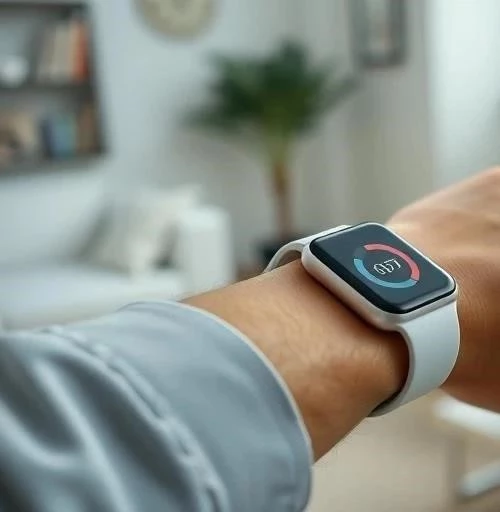
Apple Watch can estimate blood oxygen saturation (SpO₂) using its Blood Oxygen app. The reading is useful for general wellness tracking, but it is not a medical diagnosis and should not replace advice or testing from a healthcare professional. The feature is not available on every watch or in every region.
Check that your watch supports it
The Blood Oxygen app is available on supported Apple Watch models, generally Series 6 or later and Apple Watch Ultra models; Apple Watch SE does not include the required sensor. Availability can depend on your country or region and, in some places, on the specific watch version. Check Apple’s current availability information if the app is missing. Your iPhone and watch may also need compatible, up-to-date software.
Take a reading
- Wear the watch snugly on the top of your wrist. It should be comfortable, with the back of the watch touching your skin.
- Sit down and rest your forearm on a table or your lap. Keep your wrist flat, relaxed, and still.
- Open the Blood Oxygen app on your Apple Watch.
- Tap Start if prompted, then keep your arm still for about 15 seconds while the measurement completes.
- When the result appears, tap Done. The reading is saved in the Health app on your paired iPhone.
For a more reliable spot check, take the measurement while resting in a quiet place. Movement, a loose fit, cold skin, tattoos, or a watch positioned too close to the wrist bone can interfere with the sensor. Try adjusting the band or moving the watch slightly higher on your arm, then measure again.
Find your readings on iPhone
Open the Health app, tap Browse, choose Respiratory, and select Blood Oxygen. You can view individual results and trends over time, including readings taken during sleep if background measurements are enabled. To check settings, open the Watch app on iPhone, tap My Watch, then Blood Oxygen. Available options may vary by model, software, and region.
If the app or reading is unavailable
- Confirm that your watch model and region support the feature, and install available software updates.
- Check that Blood Oxygen is enabled in the Watch app and that the app is installed on the watch.
- Make sure the watch fits properly, your wrist is warm, and you remain still throughout the check.
- If a reading repeatedly fails, restart your watch and iPhone, then try again.
How to interpret a result
Apple Watch uses light-based sensors to estimate the percentage of oxygen carried by your red blood cells. Results can vary with movement, circulation, fit, skin characteristics, and other factors. A single number should not be used to make treatment decisions or to rule out a health problem. The watch is not intended for clinical diagnosis or emergency monitoring.
If you feel short of breath, have chest pain, blue lips, confusion, or another urgent symptom, seek medical help rather than relying on a watch reading. If you are concerned about repeated results, discuss them with a healthcare professional, who can assess your symptoms and recommend an appropriate medical-grade test.
9 Comments. Оставить новый
The step-by-step instructions are straightforward, and the explanation of common sources of inaccurate readings is especially useful.
Helpful overview of compatibility, measurement steps, and where to find saved readings. The troubleshooting tips make it easy to follow.
Useful article for anyone setting up the Blood Oxygen app. I also appreciate that it points readers toward Apple’s current availability information.
A concise and helpful guide that covers both taking a reading and reviewing past results. The limitations are explained responsibly.
A clear, practical guide. I especially appreciate the reminders about fit and staying still, since those details can make a big difference in getting a reading.
I like that the article mentions regional availability and supported models. Those are useful things to check before assuming the app is missing.
The distinction between wellness tracking and medical diagnosis is important. This explains how to use the feature without overstating what the results mean.
This is easy to scan and gives useful advice for taking a spot measurement. The notes about wrist position and movement are a nice touch.
Good, balanced guidance. It encourages readers to use the feature for general tracking while making clear that it is not a substitute for professional care.