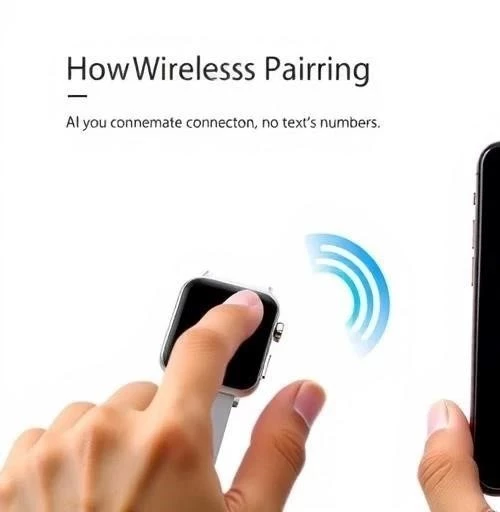
Pairing a Huawei Watch is usually straightforward, but the order matters. The most reliable method is to use the Huawei Health app rather than pairing the watch from your phone’s Bluetooth menu first. The app guides setup, installs available updates, and connects health and notification features. Menu names can differ slightly by watch model, phone, and software version.
Before you begin
- Charge the watch and keep it close to your phone.
- Turn on Bluetooth and connect the phone to the internet.
- Install or update HUAWEI Health from an official source. On some phones, the app may need to be downloaded through Huawei’s official AppGallery or website; availability depends on your region and device.
- Allow the permissions the app requests, especially Bluetooth or nearby-device access. Location permission may also be needed on some Android versions to scan for Bluetooth devices.
Pair the watch step by step
- Open Huawei Health, sign in or create a Huawei ID if prompted, and accept the relevant terms.
- Go to Devices, tap Add (or the plus icon), and choose your watch from the list. You can also scan the QR code displayed on the watch if the app offers that option.
- Check that the name or model shown on the phone matches your watch, then tap Pair or Connect.
- Confirm the pairing request on both screens. If a code appears, make sure the codes match before accepting.
- Follow the setup prompts to select preferences, grant permissions, and install any offered firmware update. Keep both devices nearby and do not close the app during an update.
Once setup is complete, check the Devices screen in Huawei Health to confirm the watch is connected. Give the app notification access if you want calls, messages, or alerts to appear on your wrist; then choose which apps may send notifications. Some features depend on the watch model, phone operating system, region, and app permissions, so a successful Bluetooth connection does not guarantee every feature is available.
If pairing does not work
- Turn Bluetooth off and on, restart both devices, and try again with the watch beside the phone.
- Make sure Huawei Health is up to date and has the required permissions. On Android, allow background activity if the phone’s battery settings are stopping the app.
- If the watch was previously connected to another phone, disconnect or unpair it there first. A used watch may need to be reset through its settings before it can pair with a new phone; a reset erases data stored on the watch.
- If you already paired it in the phone’s Bluetooth settings, remove that pairing and start again from Huawei Health. This helps the app complete setup and manage the connection correctly.
Important: Do not reset the watch as your first troubleshooting step. Restarting and checking permissions are safer because they preserve settings and data. If the watch still cannot be found, consult the instructions for your exact model or contact Huawei support; compatibility and pairing steps can vary across devices.