
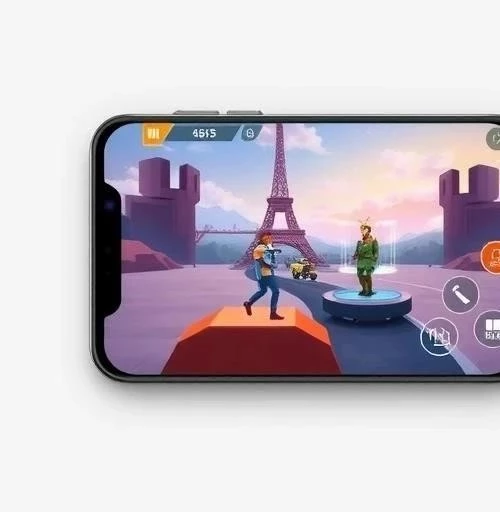
Lag, stuttering, and sudden frame drops can make mobile games frustrating. On Xiaomi phones, performance depends on the model, game, software version, temperature, and available storage. No setting can make every device faster, but the steps below can help you get smoother gameplay without risking your data or phone.
Turn on Game Turbo
Game Turbo is Xiaomi’s built-in gaming utility on many MIUI and HyperOS devices. Open the Security app and look for Game Turbo, or search Settings for “Game Turbo.” Add your game to the list, open it through the gaming panel, and check the available performance options. Depending on your model and software, you may be able to prioritize performance, reduce interruptions, or manage touch response and network activity.
Menu names and options vary. Use the performance setting only when needed: it may increase power use and heat. If Game Turbo causes glitches, disable its extra features and test the game again.
Choose sensible in-game graphics
High graphics settings place more demand on the processor and graphics chip. In the game’s settings, lower resolution, shadows, effects, and anti-aliasing first. If there is a frame-rate option, try a stable medium or high setting rather than maximum graphics and maximum frame rate together. A consistent frame rate usually feels better than brief peaks followed by stutters.
Change one option at a time and play for a few minutes before judging the result. Some games offer presets such as Balanced, Smooth, or Performance; these are a good starting point, especially on entry-level or older phones.
Check the display refresh rate
If your phone supports a high refresh rate, open Settings > Display and select the highest available refresh-rate option for games that benefit from it. The exact path differs between models. A higher refresh rate can make motion look smoother, but it does not guarantee that a game will render at the same frame rate. It can also use more battery, so switch back to the standard setting when you do not need it.
Reduce background activity
Before starting a demanding game, close apps you are not using, especially video, navigation, or large downloads. Pause app updates and file transfers, then restart the phone if it has been running for a long time and feels unusually sluggish. Avoid repeatedly force-closing essential system apps; Android manages memory automatically, and closing everything can sometimes make apps reload more slowly.
Battery Saver may limit performance or background activity. Turn it off while gaming if you need maximum responsiveness, and make sure the game is not restricted by its battery settings. These controls can be found under the app’s information page or the phone’s battery settings.
Keep storage and software in good shape
Leave some internal storage free. Remove unwanted downloads, clear the cache of a particularly troublesome game, or uninstall apps you no longer use. Cache clearing is generally safer than clearing app data: the latter may delete local settings or progress that is not backed up. Confirm that your game account is synced before removing or reinstalling a game.
Install stable system and game updates when available, since updates can fix bugs and improve compatibility. If performance became worse immediately after an update, check for a follow-up patch and the game’s support information. Avoid unofficial “game booster” apps and modified system files; they may show misleading results, create security risks, or cause instability.
Prevent overheating
Heat is a common cause of performance drops. Remove a thick case during a long session, keep the phone out of direct sunlight, and take a break if it becomes hot. Charging while playing can add heat; when practical, charge before a session or pause while charging. Do not cool the phone in a refrigerator or with ice, because condensation and sudden temperature changes can damage it.
Improve your connection
Network lag is different from low frame rate. For online games, use a reliable Wi-Fi connection or a strong mobile signal, move closer to the router, and pause other devices’ heavy downloads if possible; If gameplay looks smooth but actions register late, the connection or game server may be the problem—not the phone’s graphics settings.
A quick troubleshooting routine
- Restart the phone and install available game updates.
- Disable Battery Saver, pause downloads, and open the game through Game Turbo.
- Lower demanding graphics options and test a stable frame-rate setting.
- Let the phone cool down, then check whether the stuttering continues.
If only one game is affected, review that game’s settings and support notes. If several apps are slow even after a restart, check available storage and system updates. Ultimately, a phone’s hardware sets a limit: the most reliable improvement is often a balanced graphics preset, lower heat, and fewer background tasks—not an aggressive “boost” button.

9 Comments. Оставить новый
The explanation of refresh rate is useful: a faster display doesn’t automatically mean a game will run at the same frame rate.
Good, straightforward guidance. Changing one setting at a time makes it much easier to tell what actually improves a game.
Clear and easy to follow, with sensible cautions about battery life and glitches. I’d be interested in seeing more troubleshooting tips too.
I like that the article doesn’t promise a magic fix. Phone model, temperature, and the game itself can all affect performance.
I appreciate the reminder that Game Turbo options vary by phone. That should help readers avoid searching for settings their device doesn’t have.
A helpful overview for Xiaomi users. The practical, low-risk suggestions make this a good starting point for smoother gaming.
The advice to lower graphics settings before chasing maximum frame rates is practical. Consistent gameplay often matters more than impressive-looking settings.
The suggestion to prioritize stable frame rates over maximum graphics is especially helpful for older or less powerful phones.
The warning about extra heat and battery use is important. Performance tweaks are more useful when readers understand the trade-offs.