
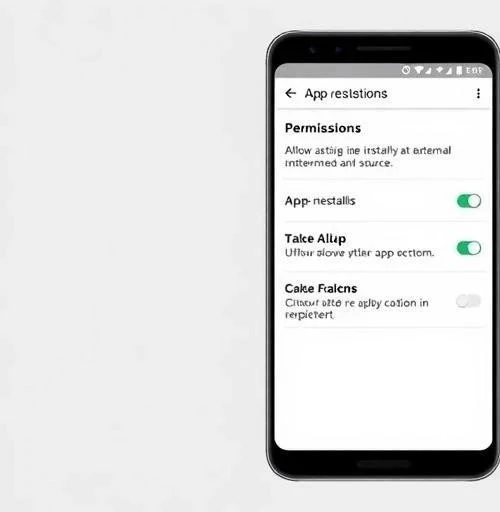
Android normally limits app installations to trusted stores. If you download an APK from a website or receive one through a file-sharing app, your Xiaomi phone may block it until you grant permission. On recent MIUI and HyperOS versions, this is usually a per-app permission: you allow the app opening the APK—such as Chrome or File Manager—to install it. You do not need to switch off every security feature.
Before you begin
Only install an APK when you trust its source and understand why you need it. An app from outside Google Play may not have been checked by the same safeguards, and a modified or fake file could steal information, display unwanted ads, or damage your device. Prefer the developer’s official website or a reputable store. Avoid links in unsolicited messages and never install an app just because a website says it is required to fix a warning.
Allow an installation from the warning
- Download the APK, then open it from the notification, Downloads, or File Manager.
- When Xiaomi or Android blocks the installation, tap Settings in the warning. This opens the permission page for the app you used to open the file.
- Turn on Allow from this source (the wording may be “Allow app installs” or similar).
- Return to the installer and tap Install. Review the requested access before opening the app.
If there is no warning or Settings button, find the permission manually as described below. Menu names vary by phone model, Android version, region, and software update.
Find the setting in MIUI or HyperOS
- Open Settings and tap the search field or magnifying-glass icon.
- Search for Install unknown apps, Unknown sources, or Allow from this source.
- Open the matching result; Depending on your version, it may be under Privacy protection, Special app access, or Additional settings → Privacy.
- Select the app that will open the APK—for example, Chrome, your browser, File Manager, or a messaging app—and enable permission for that app only.
- Go back to the APK and complete installation.
Older MIUI guides may show a single “Unknown sources” switch under Security. If your phone has that layout, use the switch only if it is present; newer Android versions commonly replace it with separate permissions for individual apps. Settings search is often the quickest way to locate the correct page.
Choose the right app
The permission belongs to the app that starts the installation, not necessarily the app that downloaded the file. For example, if Chrome downloads an APK but you tap it in File Manager, File Manager may need permission. If installation is launched from a chat app, that app may need it. Grant access only to the source you actually use, rather than enabling it for every listed app.
If installation still does not work
- Check the selected source. Return to “Install unknown apps” and confirm permission for the app opening the APK.
- Use Settings search. Menu paths can differ between MIUI and HyperOS releases. Search for “unknown apps” or “special app access.”
- Check the file. It may be incomplete, damaged, incompatible with your Android version, or intended for a different device architecture. Download it again from the official source.
- Read the security warning. Xiaomi Security or Google Play Protect may flag an app for a separate reason. Do not dismiss a malware warning simply to continue; verify the publisher and file first.
- Check available storage and updates. Free space if needed, restart the phone, and install system updates from Settings.
Do not disable Play Protect or other security protections as a routine workaround. If a trusted app is blocked, check with its developer or obtain an updated version from an official source.
Turn the permission off afterward
Once the app is installed, return to Settings → Install unknown apps (or find it through Settings search). Choose the browser or file manager and switch off Allow from this source. The installed app will normally remain on your phone; this simply prevents that source app from installing additional APKs without your permission. You can grant access again when genuinely needed.
Frequently asked questions
Will this let every app install anything?
No. On most current Xiaomi phones, permission is granted to a specific app that initiates an installation. Android may still show confirmation screens or block an incompatible or harmful package.
Is it safe to enable?
It is safer to keep the permission off by default and enable it temporarily for a source you trust. Check the app’s developer, requested permissions, and download address before proceeding. When in doubt, cancel the installation.
Why can’t I find “Unknown sources”?
That exact label may belong to an older software version. Search Settings for Install unknown apps and select the relevant browser, file manager, or other installer source.
In short: open the APK, use the warning’s Settings button or search Settings for “Install unknown apps,” allow the specific source, install only a verified file, and revoke the permission afterward.
2 Comments. Оставить новый
The step-by-step directions are easy to follow, and the note that MIUI and HyperOS menus can vary should save readers frustration. I also appreciate the warning against installing apps from unsolicited links.
This is a clear, practical guide that makes an important distinction: grant installation permission only to the app opening the APK, rather than disabling security across the phone. The advice to use trusted sources and review permissions is especially helpful.