
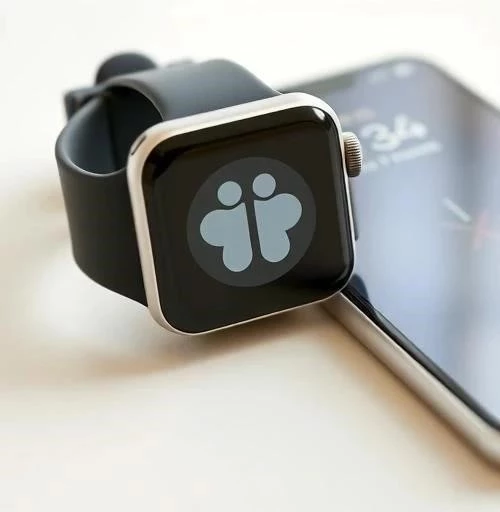
An Apple Watch that has lost its connection can feel like a tiny lighthouse with its signal switched off. The good news: most connection problems are temporary, and you usually won’t need to erase anything. Start with the gentle fixes, then move to pairing again only if necessary.
First, identify the kind of disconnect
Look at the watch face. A red iPhone icon or a red “X” can mean the watch isn’t communicating with its paired iPhone. If you see the pairing animation—the swirling pattern—or a message asking you to bring an iPhone nearby, the devices may have become unpaired. These situations need different steps, so don’t erase the watch until you’ve tried a simple reconnection.
Check the invisible bridge
- Bring your unlocked iPhone close to the watch. Keep them together while checking the connection.
- On the iPhone, make sure Bluetooth and Wi-Fi are on in Settings. Turn Airplane Mode off on both devices.
- Open Control Center on the watch and check that Airplane Mode is off. If you’re in a place with weak coverage, move somewhere with a steadier signal.
- If the watch is low on power, place it on its charger. A device running out of energy is a poor messenger.
Wait a few moments. If the red icon disappears, the connection has returned. You can also open the Watch app on your iPhone and check whether it recognizes the watch.
Restart both devices
A restart gives the connection a clean beginning. Turn off the Apple Watch: press and hold the side button until the power controls appear, tap the power icon, then drag the slider. To turn it back on, hold the side button until the Apple logo appears.
Restart the iPhone too, using its normal power-off controls. Once both devices are back on, unlock the iPhone and bring it near the watch. Avoid forcing a restart unless a device is frozen; a regular shutdown is the calmer first choice.
If they still won’t talk
Check for software updates on the iPhone in Settings > General > Software Update. For watchOS, use Watch app > My Watch > General > Software Update. Keep the watch on its charger and the iPhone nearby while an update installs. If you can’t update because the watch is disconnected, skip this for now and try pairing again.
Make sure Bluetooth hasn’t simply been switched off, and give both devices another restart after changing settings. If the Watch app says the watch is connected but features aren’t syncing, open the app and leave it running briefly with both devices close together;
Pair the watch again
If the watch is unpaired, open the Watch app on your iPhone, tap All Watches, then Add Watch. Choose Set Up for Myself and follow the onscreen prompts. Hold the iPhone over the animation on the watch; if the camera can’t read it, choose the manual pairing option.
If the watch still appears in the app but won’t reconnect, you may need to unpair and set it up again. In Watch app > My Watch > All Watches, tap the information button beside the watch and choose Unpair Apple Watch. Keep the iPhone and watch close, and allow the process to finish. Unpairing erases the watch, but the iPhone usually creates a backup first. During setup, choose to restore from that backup to bring back supported settings and data.
When setup asks for an Apple Account
A watch linked to an Apple Account may require that account’s password because of Activation Lock. This is a security feature, not a pairing error. Use the account previously associated with the watch. If the watch was bought secondhand, the previous owner may need to remove it from their account before you can finish setup.
If you have a cellular model, setup may offer the choice to keep or remove its mobile plan. If you’re pairing the same watch to the same iPhone, follow the prompts carefully; contact your carrier if cellular service doesn’t return afterward.
A small final checklist
- Keep the iPhone and watch close, charged, and out of Airplane Mode.
- Restart both before erasing the watch.
- Use the Watch app to pair, and restore a backup when offered.
- Never share your Apple Account password or verification code with someone offering an unofficial “repair.”
Most watches find their way home after a restart or fresh pairing. If the iPhone cannot discover the watch, pairing repeatedly fails, or either device has physical damage, contact Apple Support or an authorized service provider. Your watch may be quiet for a moment—but it doesn’t have to stay lost.
4 Comments. Оставить новый
Useful, patient, and pleasantly free of tech-support panic. The low-battery reminder is a small but clever detail; sometimes the “mystery” is simply a tired device. This article makes sensible troubleshooting feel almost like reconnecting two old friends.
This guide treats a stubborn connection like a quiet mystery rather than a catastrophe. The “invisible bridge” image makes the troubleshooting steps memorable, while the reminder not to erase the watch too soon is especially reassuring.
The watch-as-lighthouse metaphor gives a technical problem a little atmosphere without getting in the way of the advice. The orderly progression—from checking settings to restarting both devices—makes the fix feel manageable, even for a nervous owner.
A refreshingly calm repair manual: it starts with the small switches before reaching for the dramatic reset button. I especially like how the article distinguishes a lost connection from an unpaired watch—two similar symptoms with very different doors to open.