
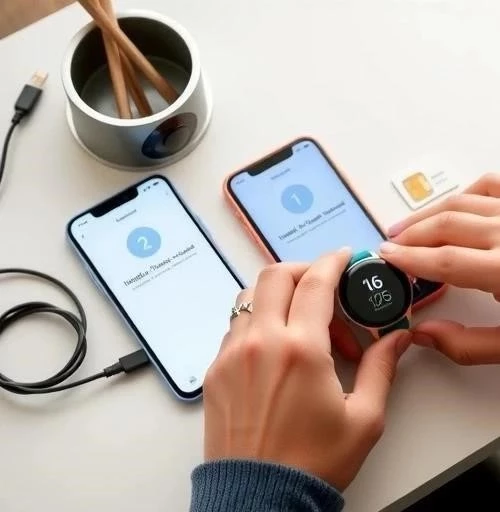
A Q50 can be a child’s first tiny link to home: a call button, a location check, and a way to say “I’m here.” But the watch is not magic straight out of the box. It needs a compatible SIM, a working mobile network, and a little careful setup. Models and firmware differ, so treat this guide as a map—not a promise that every menu or command will look exactly the same.
Gather the essentials
- The Q50 watch and its charging cable.
- A compatible SIM card with calling and mobile data enabled.
- A smartphone for the parent app, commonly SeTracker or SeTracker2, depending on the watch and its instructions.
- The watch’s device ID or registration QR code, usually printed on the case, packaging, or a watch screen.
Before buying or activating a SIM, check the watch’s supported network bands and your carrier’s coverage. Many Q50 versions rely on older 2G GSM networks. In places where 2G has been retired—or where the carrier does not support the watch’s bands—the device may not connect, even if the SIM works perfectly in a modern phone. Ask the carrier about compatibility first.
Prepare the SIM before it goes in
Use the SIM size specified for your particular unit; many Q50 watches take a micro-SIM, but do not force a card into the slot. In a phone, activate the SIM, confirm it can make a call, enable mobile data, and turn off its PIN requirement. Check that the plan has credit or an active subscription.
Power the watch off before inserting the SIM. Follow the printed diagram or manual for the correct direction, then close the cover securely. A card inserted at an angle can cause a frustrating little mystery: the watch turns on, but cannot register on the network.
Power up and pair the watch
- Charge the watch with its supplied cable. If it is new or has been stored for a while, allow time for the battery to wake.
- Turn it on and wait a minute or two. A signal icon or carrier name may appear when it connects.
- Install the app named in your watch’s manual. Choose the correct country or server region if prompted; the wrong region can prevent registration.
- Create a parent account, then scan the device QR code or enter its ID. Give the watch a clear name, such as “Mia’s watch,” and set the child’s profile.
If the app says the device is already bound, it may be registered to another account. Contact the seller or previous owner to release it; avoid sharing account passwords or device codes with strangers.
Set the settings that matter
Time and time zone: Set the correct region and time zone in the app. Some versions synchronize time automatically once the watch has data access; others provide a setting in the app or watch menu.
Contacts and SOS: Add trusted numbers to the phone book and SOS list. Enter each number in international format when the app requests it—for example, with the country code. Teach your child how to press and hold the SOS button, then test the call with another adult present.
Location: Enable location access and choose a reasonable update interval. Frequent updates can drain the battery faster. GPS is usually most useful outdoors with a clear view of the sky. Indoors, the watch may estimate its position using nearby cell towers or Wi-Fi, so the displayed dot can be less precise than a street address.
Quiet times and alerts: Set school mode or class periods to prevent interruptions, while checking how SOS works during those hours. Add alarms only for useful routines; a watch that rings all day soon becomes background noise.
If the watch stays offline
- Restart it after checking that the SIM is active, correctly fitted, and has no PIN lock.
- Check signal and carrier coverage outside. A weak indoor signal can make setup look broken.
- Confirm mobile data is included and that the selected app server or region is correct.
- Ask the carrier whether the SIM’s APN settings are correct for its network.
Some Q50 firmware versions support APN configuration by SMS, but command formats, passwords, and settings vary. Do not copy a command from a random forum: a wrong instruction may do nothing or change a setting unexpectedly. Use the exact commands supplied by the manufacturer or seller for your model, and ask the carrier for the correct APN details.
Make the first test a family rehearsal
Call the watch, call from the watch, trigger an SOS test, and compare its reported location with where you are standing. Explain that location can lag or drift; it is a helpful clue, not a guarantee or a substitute for talking to your child. Review who can see the location, use a strong parent-account password, and share access only with trusted caregivers.
Finally, check charging, the strap, and the SIM cover regularly. Do not assume the watch is waterproof unless its own documentation clearly says so. With a compatible network, sensible privacy settings, and a few calm practice runs, the Q50 becomes less of a gadget puzzle and more of what it should be: a simple, familiar way for a child and caregiver to reach each other.
7 Comments. Оставить новый
That warning about older 2G networks is the quiet hero of the piece. A tiny compatibility check can prevent a whole afternoon of blaming the watch, the phone, and possibly Mercury.
This guide remembers the real goal behind the buttons and network bars: helping a child feel connected. The practical cautions keep that sweet idea grounded in reality.
A lovely touch is treating the setup hiccup as a “little mystery.” It makes troubleshooting feel less like failure and more like detective work with a charging cable.
The opening image of a watch as a “tiny link to home” gives this practical guide a surprising warmth. It makes the setup feel less like wrestling with a gadget and more like preparing a small bridge.
The writing manages to be reassuring without pretending every Q50 is identical. That distinction matters: helpful instructions should be a compass, not a claim that every road has the same signposts.
I like the calm, step-by-step rhythm here. It turns a jumble of SIMs, apps, and signal icons into a checklist that even a sleep-deprived grown-up can follow.
The best kind of tech advice is honest about the gremlins. The reminder to check network compatibility before buying a SIM could save someone from a very expensive paperweight.