
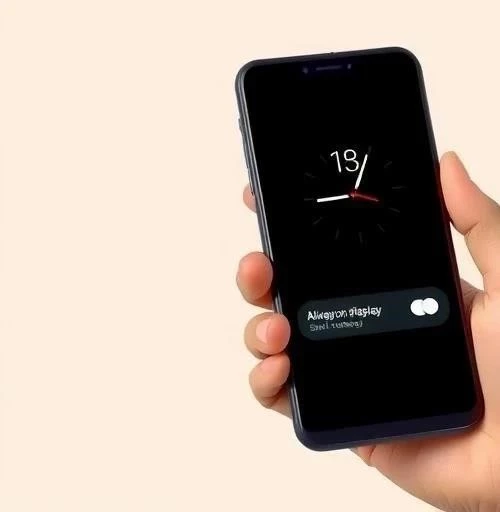
Always-On Display (AOD) keeps a simple clock, date, and notification icons visible while your phone’s screen is otherwise off. It can make quick checks more convenient, but it uses power and is not available on every Xiaomi model. Follow these steps, then check the options your device actually provides.
Enable AOD in Settings
- Open Settings.
- Tap Always-on display & Lock screen. Depending on your software, the section may be called Always-on display, or appear under Display & brightness.
- Switch on Always-on display.
- Choose a clock style or theme, and set when it should appear. Available choices vary by model and MIUI or HyperOS version.
If you cannot find the setting, use the search box at the top of Settings and search for “Always-on display” or “AOD.” Menu names change between software releases, so searching is often quicker than following a path meant for another Xiaomi phone.
Choose a display schedule
Some devices offer Always, Scheduled, or For 10 seconds after tapping. Select Always if you want the information to remain visible; choose a schedule if you prefer to limit power use, for example overnight. If the screen goes dark after a few seconds, check this setting: the phone may be working as configured rather than malfunctioning.
If the option is missing or does not work
- Check screen support. AOD is generally intended for OLED/AMOLED displays, which can illuminate individual pixels. Many LCD models lack the feature or do not offer the same persistent mode. A software update cannot add hardware the phone does not have.
- Update the system. Open Settings > About phone and check for an official MIUI or HyperOS update. Menu availability can depend on the model, region, and software version.
- Review power settings. Battery Saver, an ultra power-saving mode, or scheduled power settings may turn AOD off. Disable the restriction temporarily to test, then decide whether the convenience is worth the extra battery use.
- Restart and recheck. If AOD is enabled but absent, restart the phone and inspect its schedule, proximity-related behavior, and lock-screen settings. Keep the device’s display unobstructed while testing.
Battery and privacy trade-offs
AOD is useful when you often check the time or notifications, but persistent illumination can increase power consumption. A schedule or tap-to-show mode is a reasonable compromise. Notification previews may also reveal private information; select an icon-only style or hide sensitive lock-screen content if others could see your phone.
In short: enable AOD from Settings, choose a display style and schedule, and verify that your model supports it. If the menu is absent, the likely explanation is model or display limitation—not a missing universal switch.

8 Comments. Оставить новый
The steps are straightforward, and the suggestion to test power restrictions temporarily is reasonable. It gives readers a way to identify the cause without assuming the setting is broken.
The distinction between OLED/AMOLED support and software settings is useful. It helps readers understand why an update may not make AOD available on every Xiaomi phone.
I like that the article explains why an LCD phone may not offer the same persistent display feature as an OLED model. That hardware context makes the advice more informative.
The guide is useful overall, though the provided text appears to end abruptly at “restart and reche”. Completing that final troubleshooting point would make the article feel more finished.
This is a helpful, measured guide because it does not imply that AOD is available on every Xiaomi model. Checking the phone’s actual options is sensible.
The troubleshooting section covers several plausible causes, including battery-saving modes and software differences. That should prevent some users from mistaking normal behavior for a fault.
The explanation of display schedules gives readers a clear way to balance convenience and battery use. The examples make the choices easier to understand.
I appreciate the reminder that menu names differ across MIUI and HyperOS versions. Searching Settings for “AOD” is practical advice when the listed path does not match a device.