
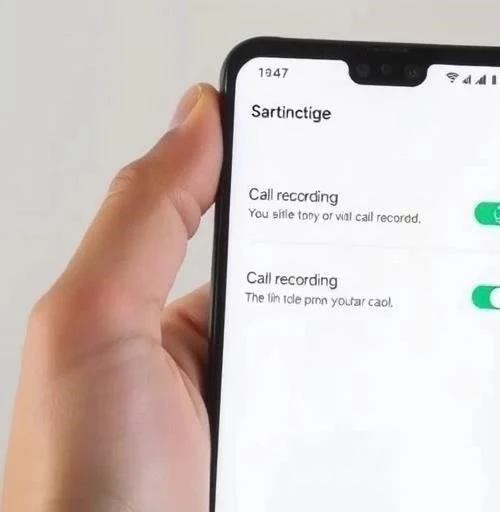
A phone call can be a fleeting conversation—or a tiny archive of directions, promises, and details you meant to remember. The Redmi Note 8 Pro may be able to save that archive, but the exact switch depends less on the hardware than on the dialer app and software version installed on your phone. Xiaomi models can use either Xiaomi’s own Phone app or Google Phone, and their recording controls are different.
First, identify your Phone app
Open the app you use to make calls. If its settings include a section called Call recording, you are probably using Xiaomi’s dialer. If you see Google Phone branding or no recording settings, your device may use Google’s dialer. Menu names can vary with MIUI version, region, and updates, so follow the options actually shown on your screen rather than relying on a single universal path.
Option 1: Xiaomi’s Phone app
- Open Phone, then tap the menu icon—usually three dots—or open the app’s settings.
- Choose Settings and look for Call recording. On some versions, the option may be under a similarly named recording menu;
- Turn on Record calls automatically if you want future calls saved without tapping a control each time;
- If offered, choose whether to record all numbers or only selected numbers. Add trusted contacts to the list if that suits your needs.
- Make a short test call. During a call, check the screen for a Record button; tap it to begin or stop recording when manual controls are available.
Automatic recording is convenient, but it can capture routine calls you never intended to keep. If your version offers a choice, recording only selected contacts is a more selective setting.
Option 2: Google Phone
Google Phone supports call recording only in certain countries, regions, and app versions. On some compatible devices, open Phone > three-dot menu > Settings and look for Call recording. If the setting is available, review its choices and follow the prompts. In some versions, recording is started from the in-call screen by tapping Record, rather than being enabled as an always-on setting.
If no recording option appears, that does not necessarily mean your Redmi is faulty; The feature can be restricted by regional rules, the phone app, or the software build. Update the Phone app and MIUI through the official update tools, restart the device, and check again. An update may change the interface, but it cannot guarantee that a region-restricted feature will become available.
Can’t find the setting?
- Check the right app. Look at the Phone app’s name and icon, then search its own settings—not only the main Settings app.
- Check for updates. Use Google Play for the Phone app and the phone’s built-in system updater for MIUI.
- Try a test call. Some dialers show a recording control only after a call connects, and only where recording is supported.
- Avoid random “unlock” tricks. Installing modified dialers, changing the phone’s region, or downloading unknown recorder APKs can create privacy, security, or compatibility problems. Third-party apps may also fail to record both sides of a call.
Where recordings go
After recording a test call, look in the Phone app’s call history for a playback or recording entry. Depending on the app and software version, files may also be accessible through the built-in File Manager, sometimes inside a folder associated with call recordings. Names and storage locations vary. If you cannot find a file, check the dialer’s help or settings before assuming it was saved.
Keep important recordings backed up securely, and delete ones you no longer need. Recordings can contain names, addresses, financial details, or other private information. Consider who can access the phone and whether cloud backups might copy the files elsewhere.
A note on consent
Recording laws differ by country and sometimes by region. In some places, everyone on the call must agree; in others, different rules apply. Tell the other person when required, and respect workplace or personal privacy expectations. A recording button is a technical feature, not permission to record every conversation.
In brief
On the Redmi Note 8 Pro, start by checking Phone > Settings > Call recording. If Xiaomi’s dialer provides the menu, choose automatic or selective recording, or use the in-call button. If you have Google Phone, recording may be available only in supported regions and may require starting it during a call. If the feature is absent after official updates, it may simply not be enabled for your app or location.
8 Comments. Оставить новый
The line about routine calls you never meant to keep is a small but sharp nudge toward thoughtful recording. Convenience gets a seat at the table, but privacy does too.
The distinction between Xiaomi’s dialer and Google Phone is the key that unlocks the whole guide. It saves readers from hunting for a setting their version may not even have.
I like the advice to make a short test call. A tiny rehearsal can spare you the unpleasant surprise of discovering later that your phone recorded nothing.
The best detail is also the simplest: check what your own app offers. It turns a potentially frustrating search into a quick, sensible first step.
The reminder about regional and software differences is refreshingly honest. Phone settings can feel like moving doors; this article tells readers to trust the ones actually in front of them.
This guide treats a phone setting like a real-world choice, not just a button to switch on. That balance makes the technical advice feel more useful.
A helpful map through two different dialer landscapes. I especially appreciate that it doesn’t promise Google Phone recording will appear on every device or in every region.
Clear, practical, and mercifully free of the myth that every Redmi Note 8 Pro has the same menus. The dialer-first approach makes the instructions much easier to follow.